

The crew portal
Your private page for the field: today's shift, directions, the shift brief, tasks, the time clock and pre-paid orders.
The crew portal is a page made just for you. It has everything you need on shift, sized for a phone and usable with one hand. There is no password: your personal link is your key, so do not share it.
Opening it
- Send
/portalto your team's Telegram bot. It replies with your link. - Or tap the link your manager sent you.
If the page says Link unavailable, send /portal again or ask your manager for a fresh link: a new link always replaces the old one.
The page works in English and Spanish. Tap ES (or EN) at the top to switch; your phone remembers the choice.
Your shift
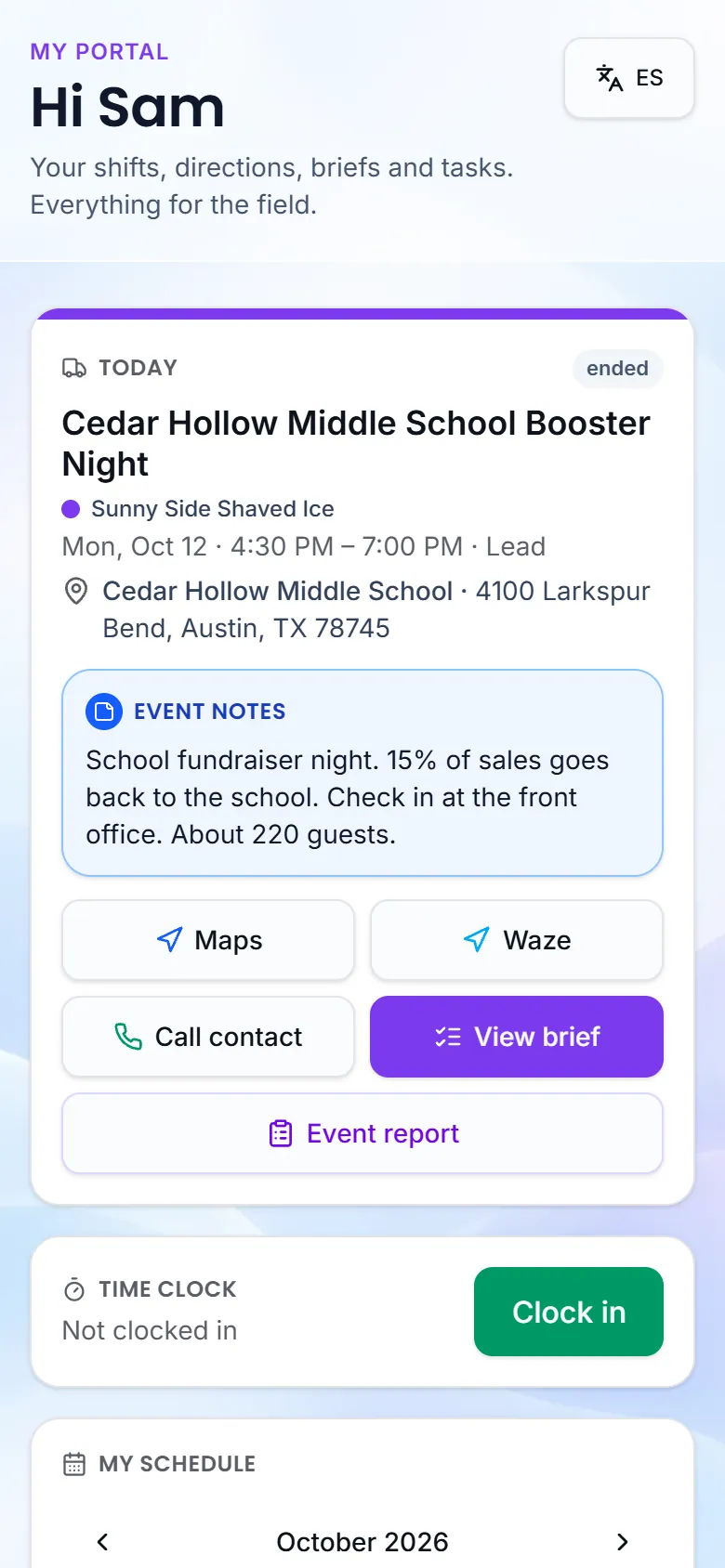
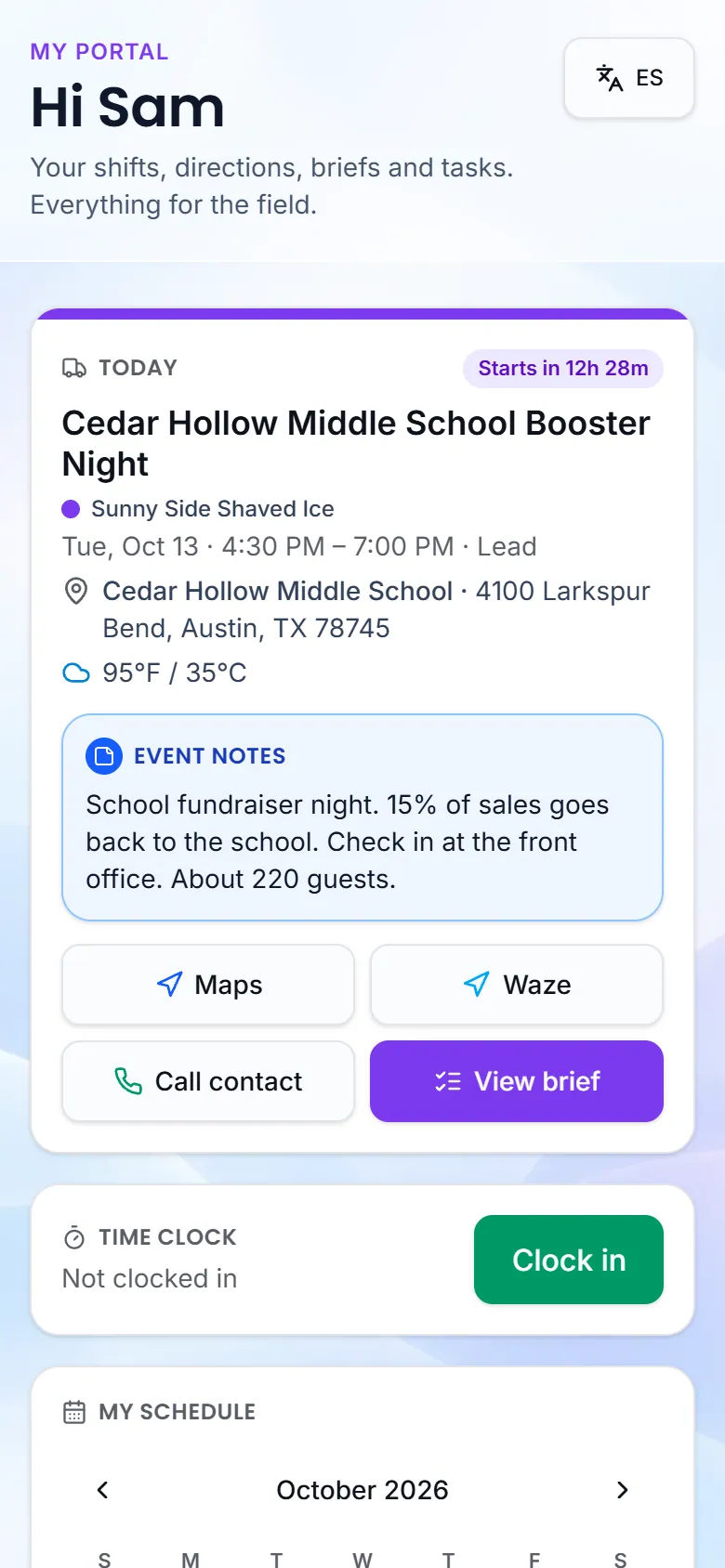
The top card shows your Next shift, or Happening now while you are on it, with:
- Maps and Waze for directions, and Copy address.
- Call contact for the on-site contact.
- View brief for the full Shift brief: the on-site contact (with Call and Text), the Crew on this event, Menu & service, Equipment, Event notes, Maps & documents, Your truck and where to pick it up, and Tasks for this shift.
My schedule lists your upcoming shifts. When a shift is waiting on your answer, press Confirm, or Can't make it if you cannot work it. Your manager is told either way.
Quick actions
- Update availability: tell your manager when you can work next week.
- Request time off: vacation, a sick day or a personal day.
- Add to my calendar: adds your shifts to your phone's calendar app and keeps them updated. Copy calendar URL lets you paste the same feed into Google or Apple Calendar.
See Availability and time off.
Tasks and packing
My tasks lists what you need to do for upcoming shifts. Tap a task to mark it done. Some tasks ask for a number, a note or a photo (Add photo) as proof.
The Packing list shows what goes on the truck. Mark each item Packed, or Short if something is missing, with a note saying what.
Time clock
Under Time clock, press Clock in when you start and Clock out when you finish. If you work for more than one brand, it asks which one first. We're setting up tells the customer you have started getting ready. My hours shows your time for this week and last week.
If you lose signal, clocking in or out (and ticking the packing list) is saved on the phone and sent when you are back online.
Reporting problems
- Event report: fill in the after-event form your manager set up.
- Report an incident: say what happened, add details, pick a severity (Low, Medium or High) and send. Your manager is notified right away.
- Running low on something?: name the item and pick Low, Quarter left or Out. It goes on the restock list.
Pre-paid orders
When guests ordered and paid ahead for an event, the event shows Pre-paid orders. Tap Orders and pickups to work the line:
- Stock the truck and Sold, by item tell you what to load.
- Find an order by the name on the order or who paid. Filter by To pick up, Picked up, Everything or Cancelled.
- Press Picked up as each guest collects their order (Undo if you tapped the wrong one).
- If an order cannot be filled, press Request refund, pick a reason and send. The owner handles the refund; nothing is charged or refunded from your phone.
The Square Source code shown there lets you filter the Square app's order list to just this event.
My info and certifications
My info keeps your phone number and emergency contact up to date. My certifications shows your food handler card and other certificates; when you renew one, use Submit a renewal and your manager reviews it.
Not every section shows for everyone: you see the parts your team uses.
Still stuck? Email support@curbsideops.com or use Report an Issue in the portal. Checked against CurbsideOps 1.105.4.