

Schedule
Every booking in one place, kept in step with your Google Calendar, with filters by brand and truck.
Schedule is where you see and manage every event. It shows your Google Calendar bookings, lets you add and edit them, and adds what Google cannot hold: which truck and crew are going, whether the sales are in, and whether the customer has paid.
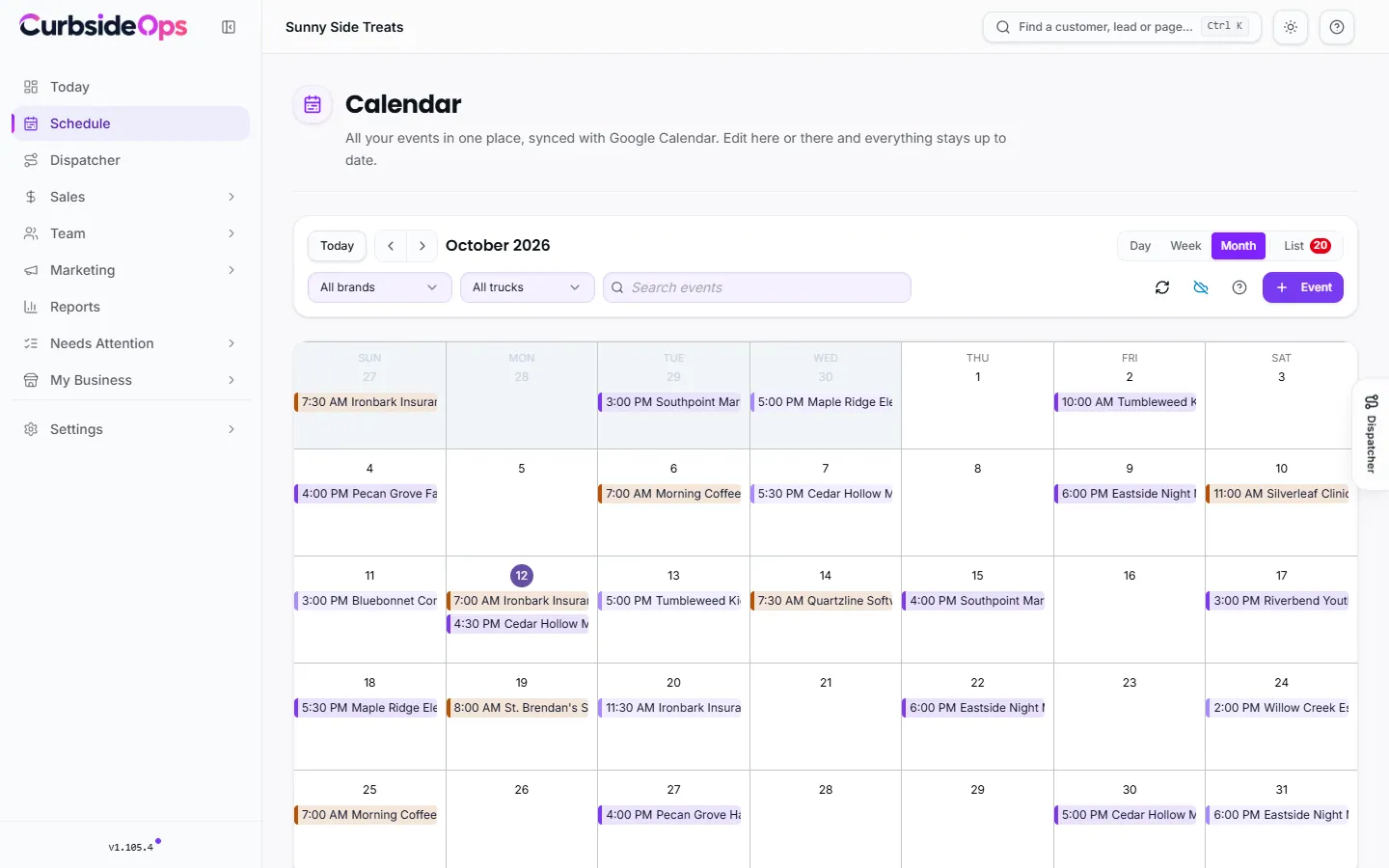
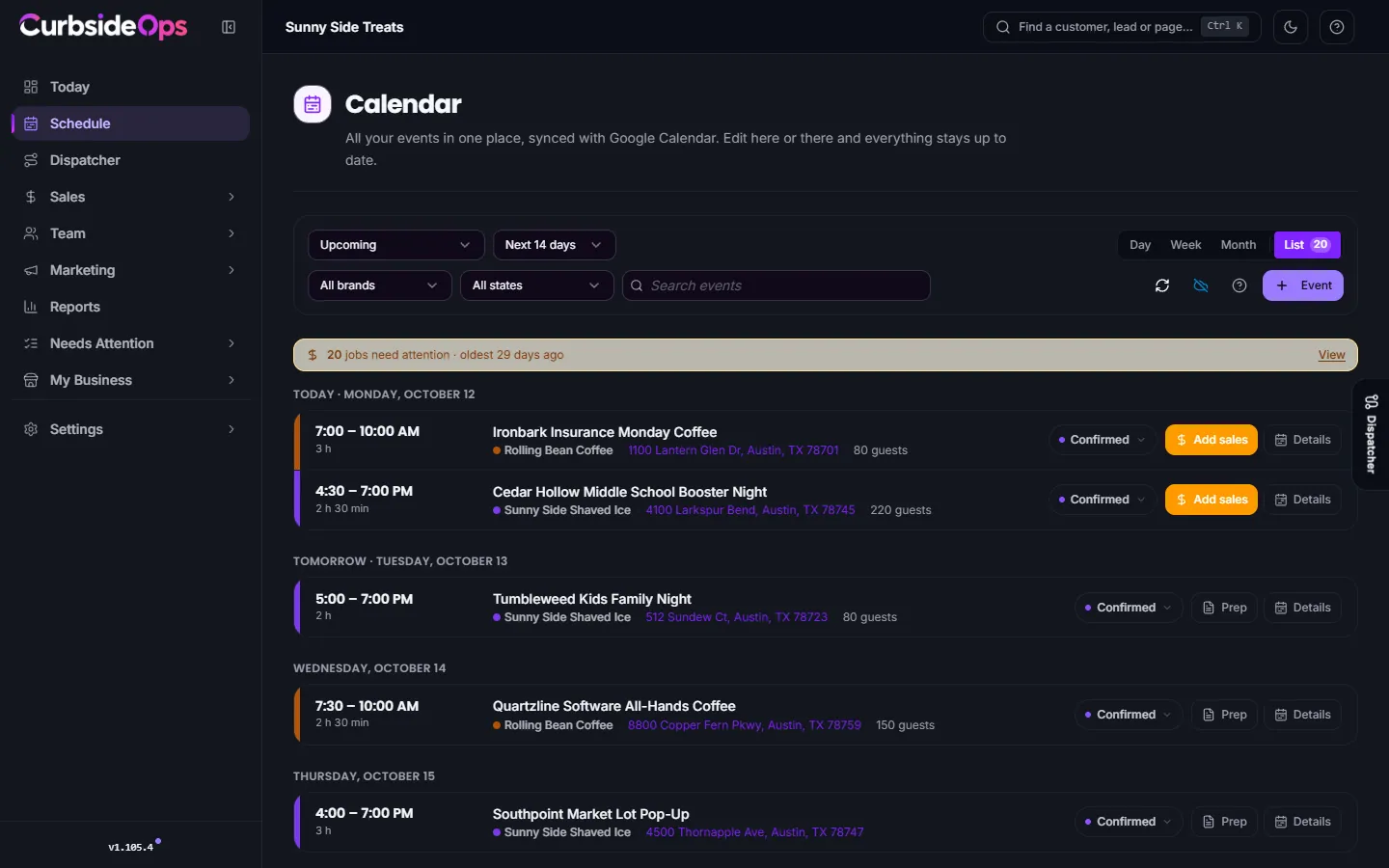
The views
Pick a view with the switcher at the top of the page:
- Day, Week and Month show your events on a calendar grid. Use the arrows and Today to move around, or click the date to jump to a different day, week or month.
- List shows the same events as jobs, one row each, with their state. A filter picks Upcoming, Needs attention, Past, All or Cancelled, and Upcoming lets you look ahead 7, 14, 30 or 90 days. See Jobs and closeout.
The view you pick is remembered the next time you open the page. Press ? to see the keyboard shortcuts.
On a phone, Week is not offered (it needs a wide screen); Month turns into a day-by-day agenda that is easier to read on a small screen.
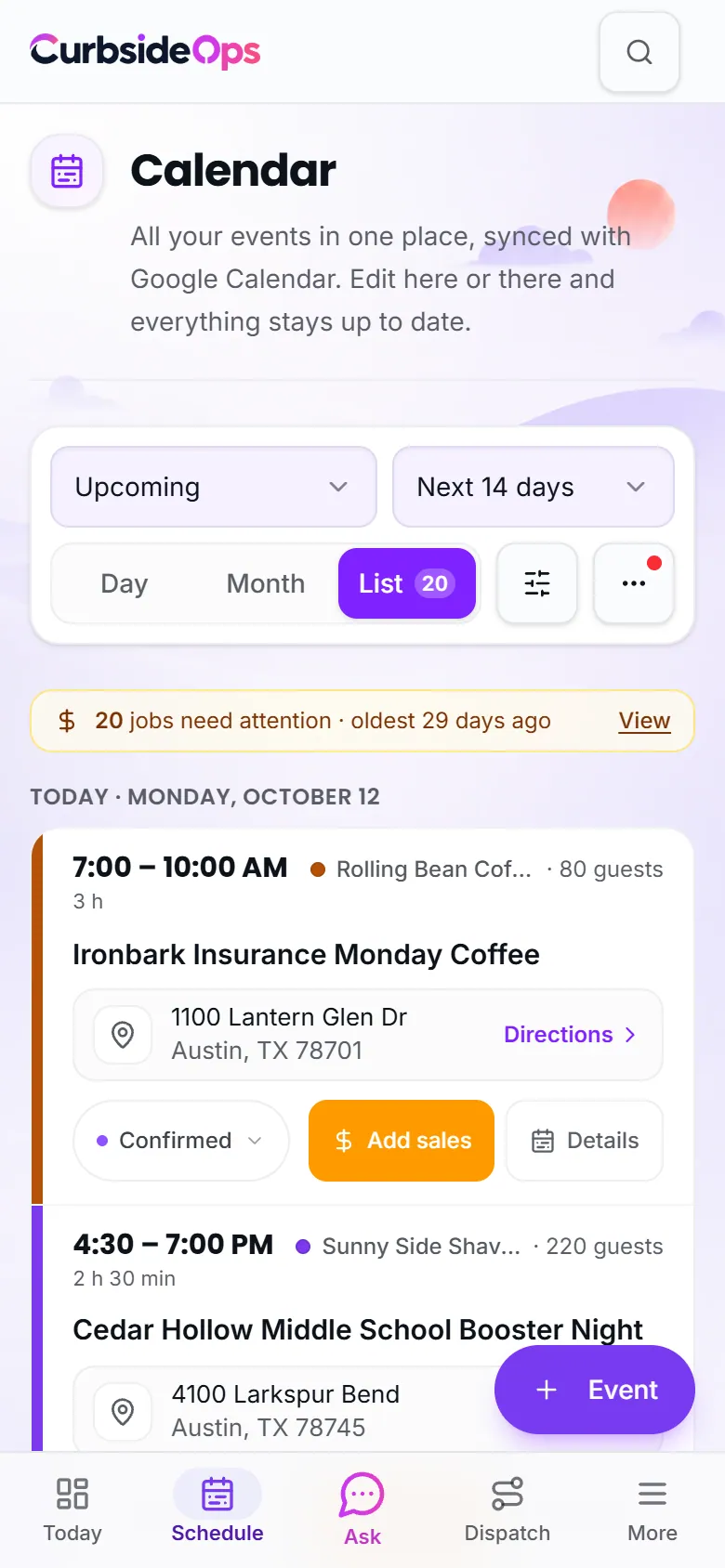
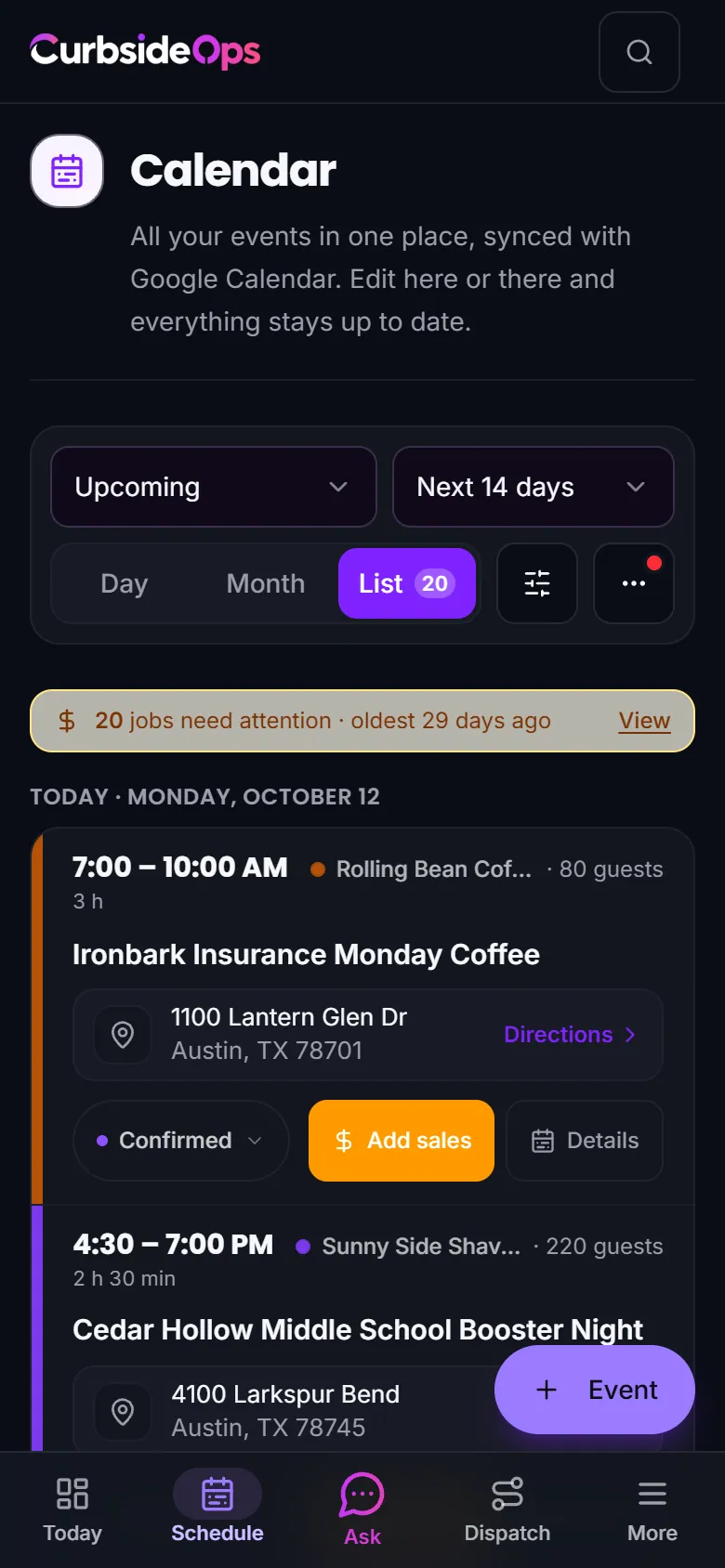
Filter by brand and truck
- All brands narrows the page to one brand. It only appears when you run more than one brand.
- All trucks narrows it to one truck. Pick Unassigned to find events that have no truck yet, which is the quickest way to spot a booking nobody is driving to.
- Search events finds the events that match, plus matching customers and organizations, grouped by date.
In List view, the truck filter becomes a job state filter (All states, Confirmed, Completed and so on).
Your calendar copy of Google
CurbsideOps keeps its own copy of every event on the Google calendars you connected. Changes you make in the portal save to that copy first, so the page updates instantly, then go to Google in the background. Changes made in Google come back every few minutes.
Your Google Calendar
Where your bookings live. Anything you add in Google shows up in CurbsideOps.
CurbsideOps copy
A working copy of every event. Edits save here first, so the portal updates instantly.
Portal, bot and crew
Schedule, Today, Dispatcher, morning briefings and the assistant all read the same copy.
Calendars you can only view (for example a franchisor's feed) are read, never written.
Because the copy lives in CurbsideOps, your schedule stays available even if the Google connection drops. You can keep viewing and editing, and your edits are delivered once you reconnect.
Calendars you can only view (for example a shared calendar someone else owns) are read, never written. You can still add notes, crew and sales to those events in CurbsideOps.
The sync icon
The cloud icon in the toolbar tells you how the copy stands. Click it for details and a Sync now button.
| Icon | Means |
|---|---|
| Plain cloud | Synced with Google Calendar. |
| Amber, with a count | Some changes are waiting to sync. They are saved and on their way. |
| Red, with a count | Some changes could not sync to Google Calendar. See what didn't save opens Flags, which lists each one and what to do. |
| Blue, crossed out | Google Calendar is disconnected. You are looking at your local copy. Reconnect takes you to Integrations. |
Reading an event
On the grid, each event card takes the color of its truck (set on the truck's page). An event with no truck, or a truck with no color yet, shows as a plain white card, so unassigned bookings stand out. When an event has several trucks, the card uses the first one listed.
Click an event to open it. The event window shows:
- the title, time, place and brand, plus the customer and their contact details;
- Trucks and the crew assigned, with buttons to change them;
- the sales state: Sales draft, Awaiting sales or Sales finalized;
- the invoice badge, when the event has an invoice.
The invoice badge
The badge says whether the event is paid off. It reads the same everywhere in CurbsideOps (Schedule, Today, the customer's history) and in the assistant's answers.
| Badge | Means |
|---|---|
| Paid | Every invoice is paid. |
| Unpaid | An invoice is out and nothing is paid yet. The amount due and its due date follow. |
| Partially paid | Some of it is paid. |
| Overdue | An open invoice is past its due date. |
| Scheduled | An invoice is set to go out later. |
| Draft invoice | An invoice exists but has not been sent. |
| Refunded, Canceled, Payment failed | What happened to the money. |
No badge means the event has no invoice. That is not an error; many events are paid at the truck.
Who does what
Owners and managers both use Schedule. A manager without finance access still sees bookings and crew, but not margins. See Managers and permissions.
Create and edit events
Brand, address, pricing, trucks and crew in one dialog.
Recurring events
Repeat a booking and edit one date or the whole series.
Events with several trucks
Send more than one truck to the same booking.
Cancel an event
Cancel the booking and settle invoices and refunds in one step.
Customer status page
A live link your customer uses to follow the truck.
Jobs and closeout
Readiness, prep, arrival times and what each event earned.
Still stuck? Email support@curbsideops.com or use Report an Issue in the portal. Checked against CurbsideOps 1.105.4.