

Today
Your home page: what is on today, what is coming up, where the trucks are, and the short list of things waiting on you.
Today is the page the portal opens on. It answers three questions in one place: what is happening today, what is coming up, and what needs you. On a computer the page is titled Overview; on a phone it greets you by name.
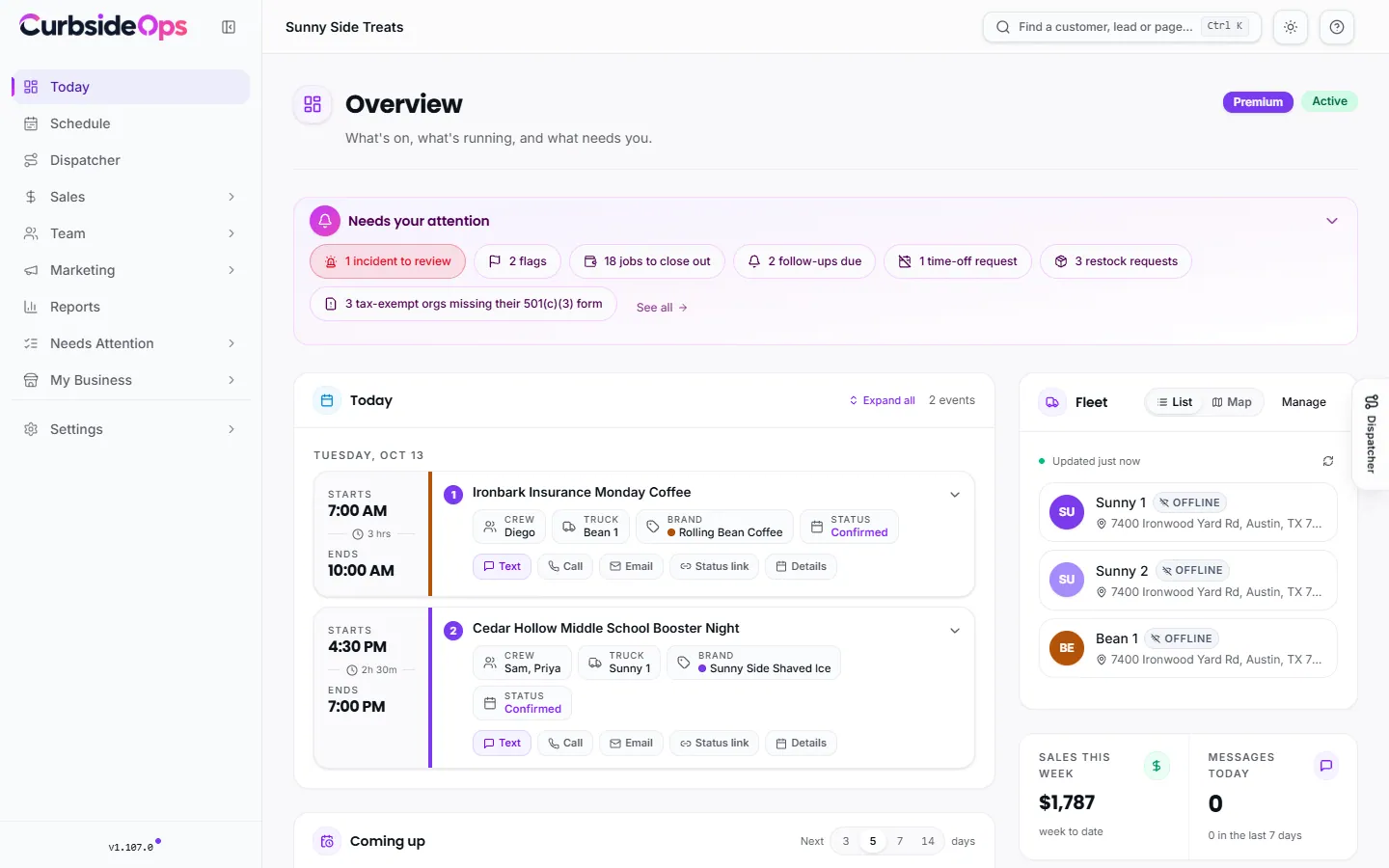
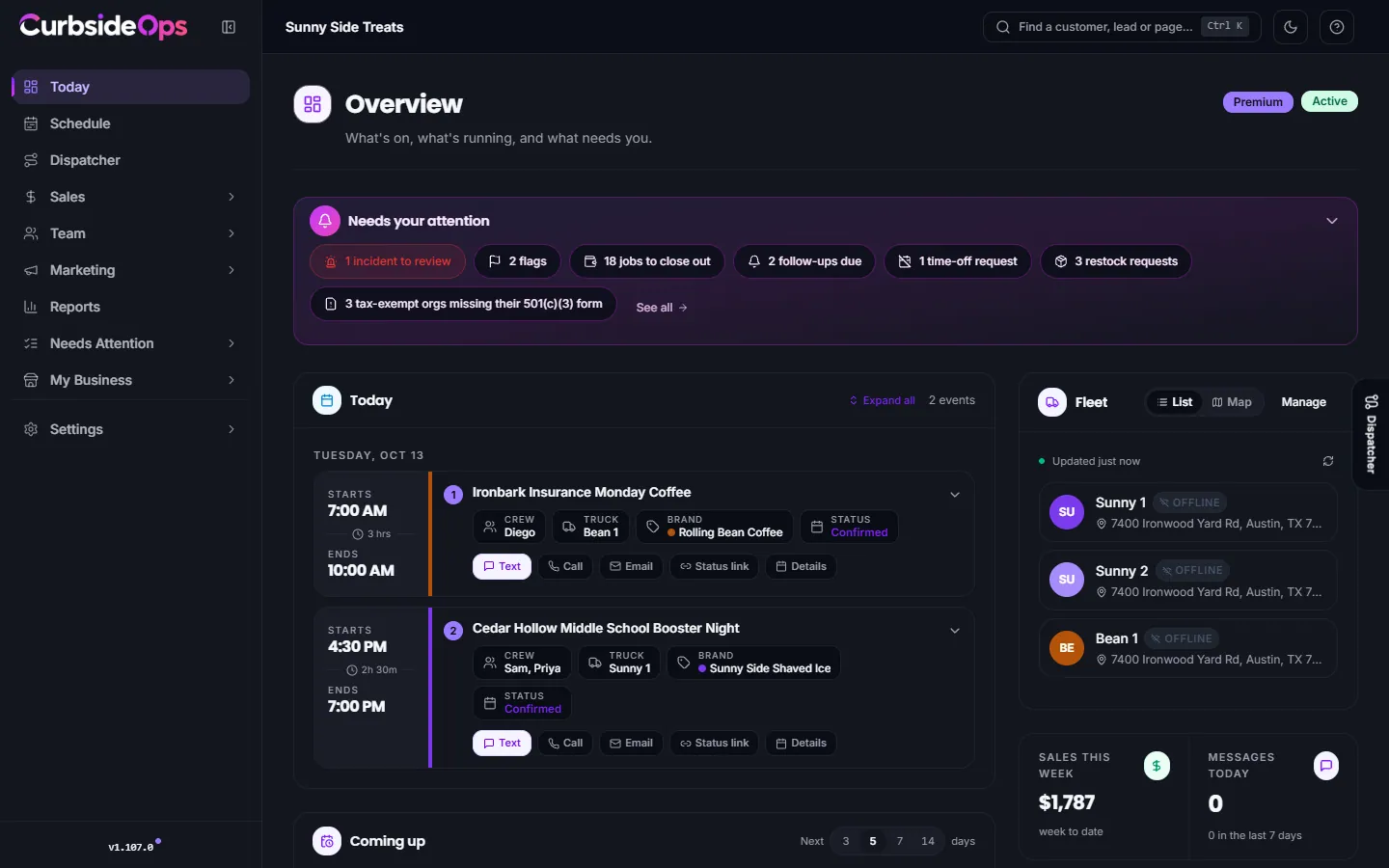
What you see on a computer
- Your plan and status next to the title. Click the plan badge to open Plan & Billing. During a trial it also shows how many days are left.
- A connection warning, only when a connection has expired and needs you to sign in again, with a button to fix it.
- Needs your attention (see below).
- Today: every event happening today, with its live state (scheduled, running late, in progress, wrapped), the truck's arrival estimate when it has a tracker, the contact to call or email, and directions. Expand all opens every row. Click an event to open it.
- Coming up: a short prep list of the next few days. Change how many days it covers with the picker in its header. Open the calendar goes to the full schedule.
- Fleet: your trucks and, with a Bouncie tracker, where each one is. Manage opens Trucks.
- At a glance: sales this week and messages today.
- AI Credits: how much of this period's allowance is left.
From an event row you can also tell a customer the truck is running late (Notify customer of late arrival), copy the customer's live status link, or start an event poster when you have AI Marketing.
On your phone
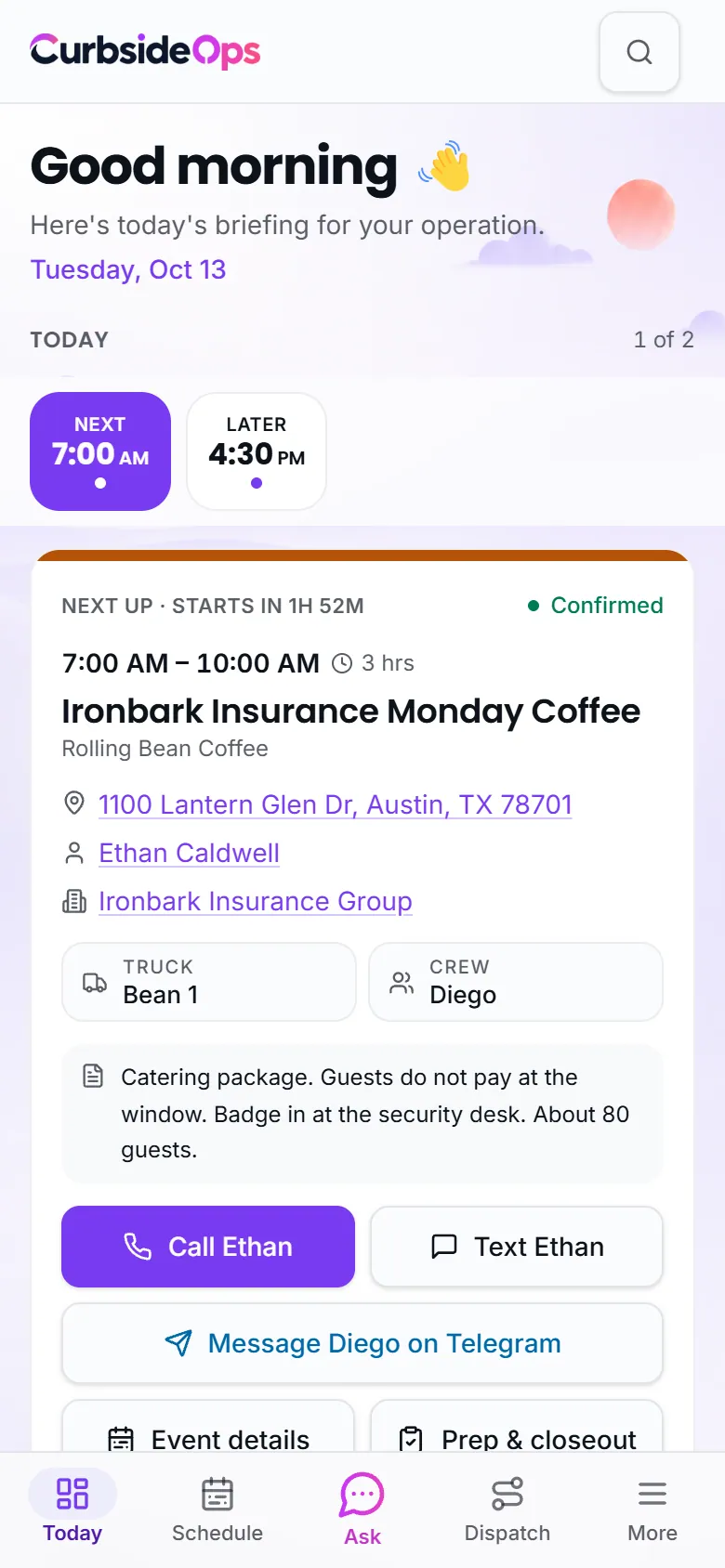
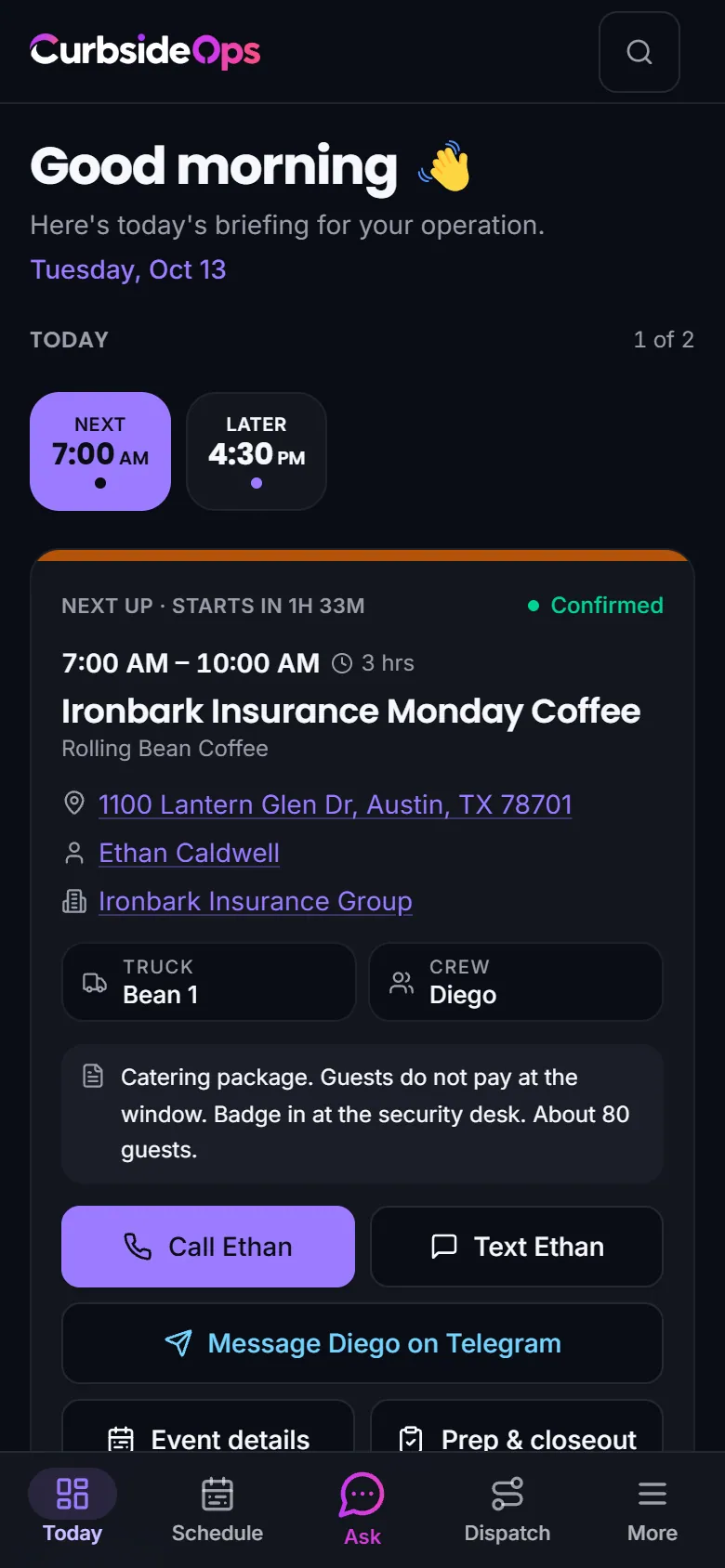
The phone version is built for the road. Today's events are full cards you swipe left and right, one per screen, live and next ones first. The chips above them show each event's start time and whether it is Live, Next, Late or Later. Events that already finished collect under Earlier today.
Each card has the address with directions, the contact, the crew and the truck. Message the crew opens each crew member's Telegram chat on your phone.
Needs your attention
At the top of the page, Needs your attention lists what is waiting on you, each as a chip with its count. Click a chip to go straight to that list:
| Chip | Where it goes |
|---|---|
| Events today with no truck or crew | The schedule |
| Incidents to review | Incidents |
| Flags | Flags: a booking, deposit or calendar change that needs a decision |
| Jobs to close out | Events that happened but are not wrapped up |
| Follow-ups due | Leads you promised to get back to today |
| Time-off requests | Requests waiting on your approval |
| Restock requests | Supplies your crew flagged as low |
| Tax-exempt orgs missing their form | Organizations to upload a 501(c)(3) form for |
The panel only appears when something is waiting. You can fold it down with the arrow; folded, it keeps a one-line summary. Each chip disappears as soon as its list is cleared.
The Needs Attention page
See all at the end of the panel opens Needs Attention (also in the sidebar, under Needs Attention, then All Items). It shows the same queues as cards, each with a sentence on why it matters and an Open button. When nothing is waiting it says All clear.
Flags are decisions
Flags are not a change log. A flag appears only when CurbsideOps stopped instead of guessing, usually because money or finished work is involved. See Flags.
Related
- Schedule: the full calendar.
- Jobs and closeout: wrapping up an event.
- Finding your way around: the sidebar and the phone tab bar.
Still stuck? Email support@curbsideops.com or use Report an Issue in the portal. Checked against CurbsideOps 1.105.4.