

Finding your way around
The sidebar, pinned pages, search, page-aware help, dark mode, What's new and the phone tab bar.
The portal is laid out so the pages you open many times a day are one click away, and everything else sits in a few task groups. This page is a quick tour.
The sidebar
The top of the sidebar holds the pages you use most, as single rows: Today, Schedule and Dispatcher. Below them are task groups:
| Group | What is in it |
|---|---|
| Sales | Customers, Leads, Proposals, Inbox, Messages, Calls, Pre-Pay Orders, Agreements, Givebacks |
| Team | Roster, Time Off, Timecards, Schedule Drafts, Certifications, Event Reports |
| Marketing | Post Drafts, Campaigns, Photo Library, Styles, Ideas, Loyalty |
| Reports | One row that opens the Reports hub |
| Needs Attention | All Items, Incidents, Restock, Flags |
| My Business | Brands, Trucks, Menus, Permits, Permit Documents, Prep Checklists, Checks |
| Settings | Business Settings, Automations, Integrations, Plan & Billing, Setup Guide |
Clicking a group's name opens or closes it; it never takes you to a page. A row with a Professional, Premium or Add-on label is not on your plan yet. Clicking it opens Plan & Billing so you can see what unlocks it.
Collapse sidebar (at the top) shrinks the sidebar to icons, and the same spot expands it again.
Pin the pages you use
Hover a row and click the pin to put it in Pinned at the top of the sidebar. Drag pinned rows to reorder them (or use Alt with the up and down arrows). Click the pin again to unpin. Your pins follow you to any device you sign in on.
Search: Find a customer, lead or page
The search box in the header says Find a customer, lead or page. Click it or press Ctrl K (Cmd K on a Mac). Type a few letters of a customer, an organization, a lead or a page name and press Enter. Typing "help" shows the help links.
Help with this page
The question-mark button in the header opens Help:
- Help with this page opens the help article for the page you are on, in a new tab, so you keep your place.
- Browse the help center opens the help home.
- What's new shows recent releases.
- Email support writes to support@curbsideops.com.
On a phone, the same Help with this page link is in the More sheet.
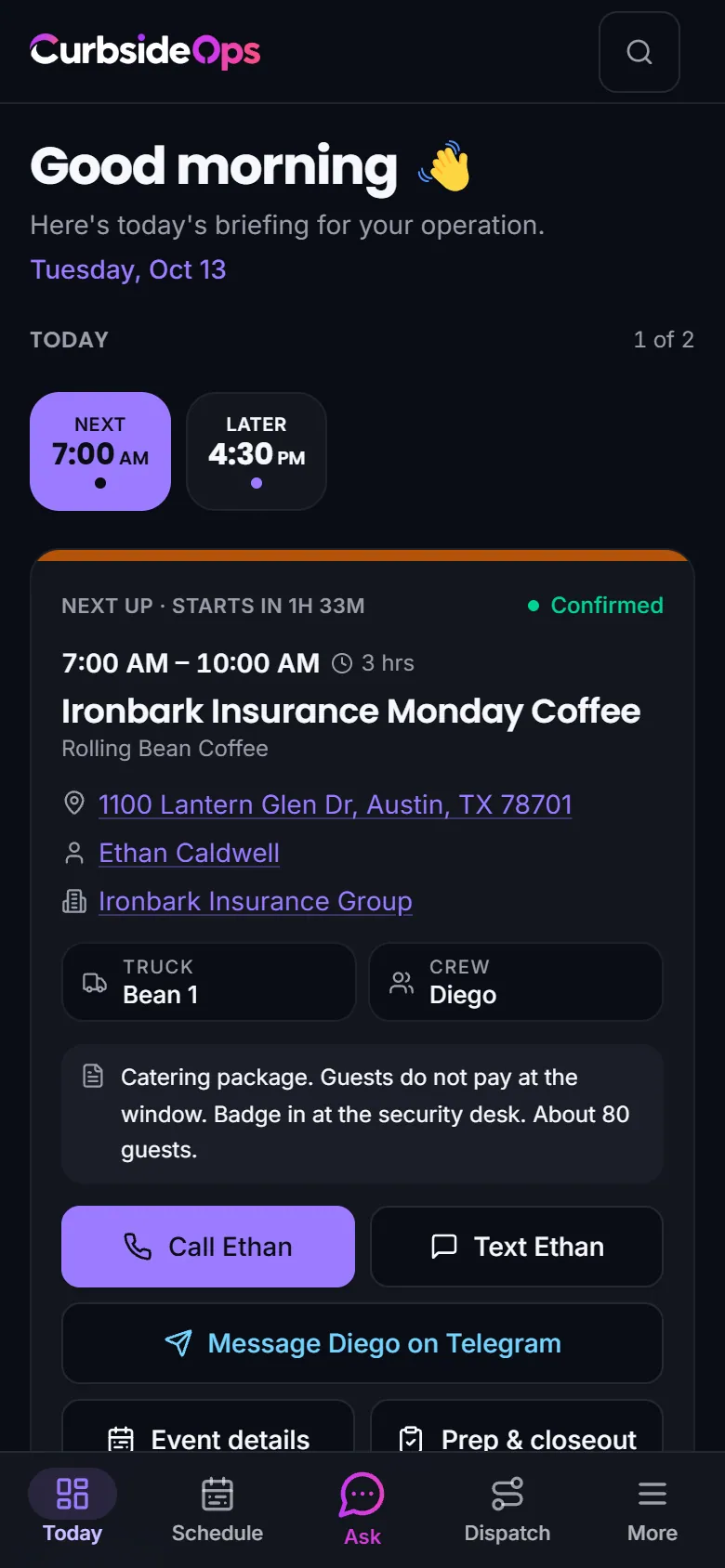
Light or dark
The Appearance button in the header switches between Light, Dark and Match device. The portal starts in Light. Your choice is remembered on each device separately, so your phone can be dark while the office computer stays light.
What's new
The version number at the bottom of the sidebar opens What's new: each release's changes, with the plan they belong to and a button to open the feature. A dot on the version number means something shipped since your last visit. There are no release pop-ups or emails.
On your phone
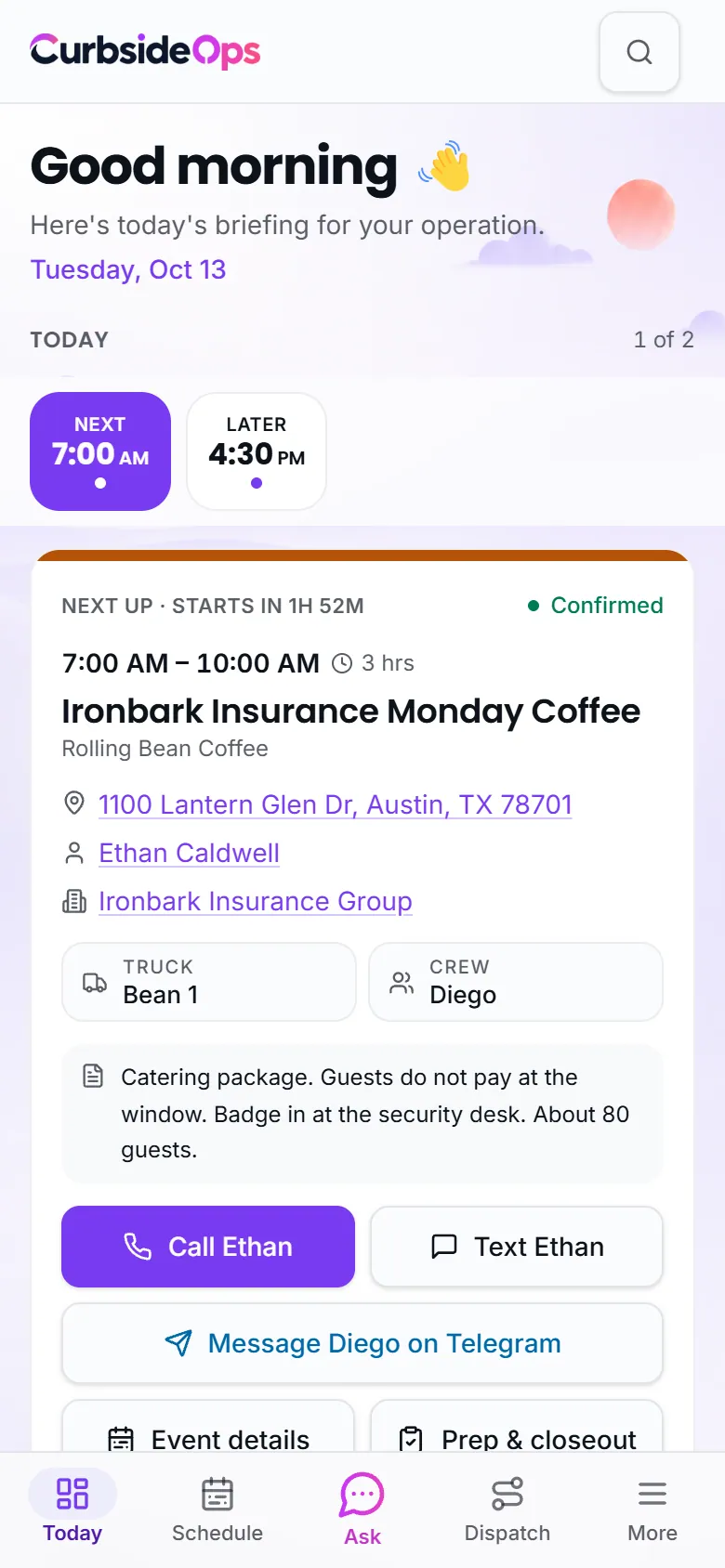
The portal works on a phone with a tab bar along the bottom:
- Today, your day at a glance.
- Schedule.
- Ask, in the middle, opens the assistant. See Your AI assistant.
- Inbox for conversations with customers. Without the AI catering inbox this tab is Leads, and with the Intelligent Dispatcher it is Dispatch.
- More opens a sheet with every other page, your pins, Help and Appearance. Use Filter navigation at the top of the sheet to find a page by name.
Related
- Today: your home page.
- Plans and add-ons: what the plan labels mean.
Still stuck? Email support@curbsideops.com or use Report an Issue in the portal. Checked against CurbsideOps 1.107.1.