

Jobs and closeout
The job behind every booking, from readiness and prep to arrival times and what the event really earned.
Every booked event has a job behind it. The event is the calendar entry; the job is the work: is the truck ready, did the crew get there on time, and did the event make money. CurbsideOps creates the job for you when an event is booked, and moves it along on the day (in progress at the start, completed at the end).
To see your jobs, open Schedule and pick the List view. Filter by Upcoming, Needs attention, Past, All or Cancelled, and by job state.
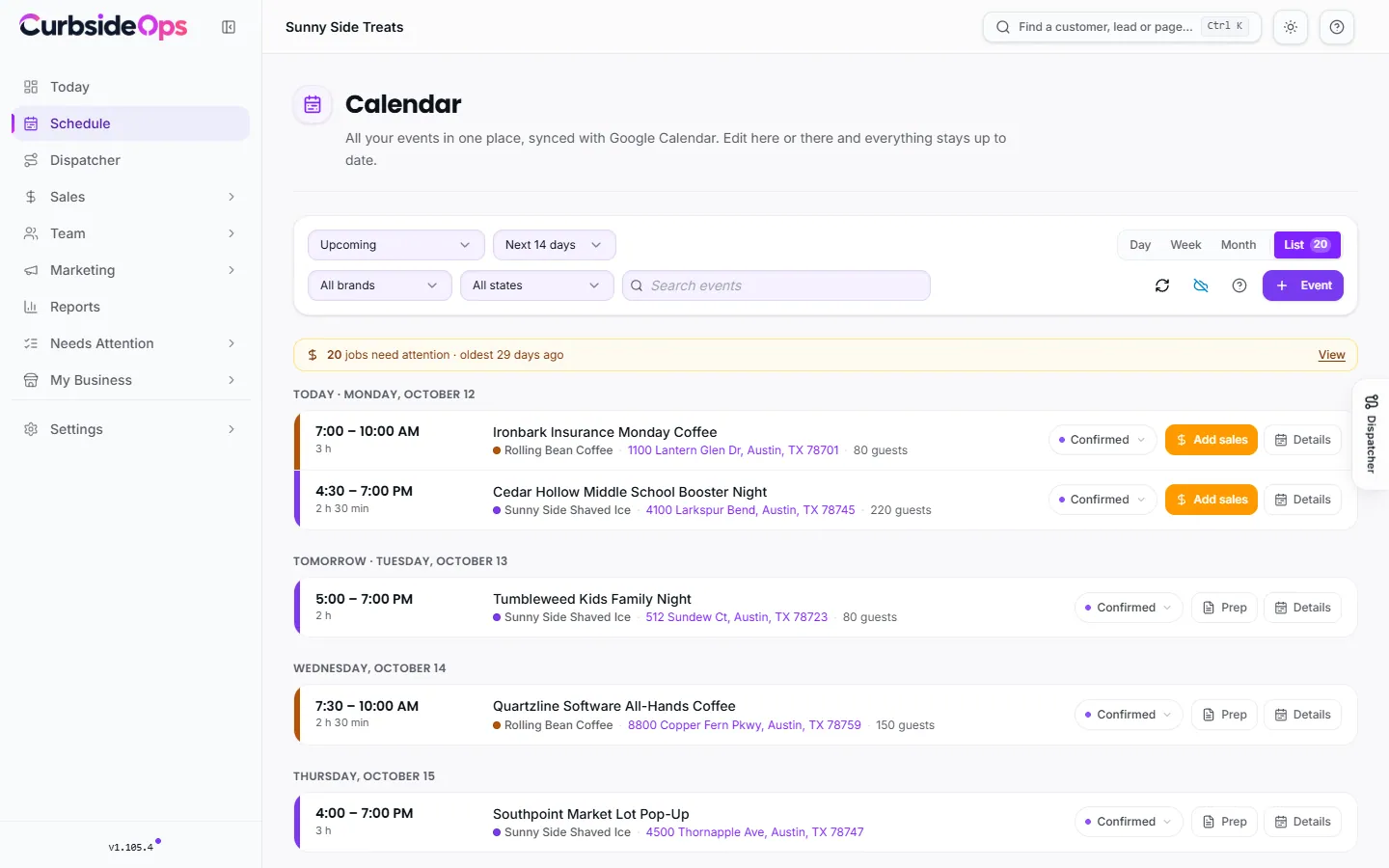
Click a job to open its window. It has three steps, each with a one-line status so you can read it at a glance: Prep, On site and Wrap-up.
Prep: is it ready to roll?
Readiness
Readiness answers "can this job roll?" It shows Ready to roll, or a list of blockers:
- No truck assigned (when you run two or more trucks and none is matched);
- No staff assigned;
- Deposit not paid, when a deposit was requested;
- Signature outstanding, when a required agreement has not been signed;
- Packing shortage, when an item on the packing list is marked short.
If a blocker does not apply this time, click Waive and say why. The waiver is recorded with your reason. The Job Readiness Check automation sends you a daily Telegram list of upcoming jobs that are not ready.
Crew briefing
The Crew briefing is the job packet your crew works from: the event details, menu and notes. Sections marked Crew sees this go to staff; prices, costs and other money stay Owner only. Click Regenerate after the booking changes.
Tasks and packing list
Tasks come from your prep checklists: each booking gets its own task list, and the Task Reminders automation nudges the assigned crew member on Telegram when a task comes due, and tells you when a required one is running late.
The Packing list comes from your brand's packing templates. Crew mark items packed or short; a short item becomes the Packing shortage blocker.
The Prep step also holds the customer status link and any pre-pay orders for the event.
On site: when did the truck really get there?
The Execution timeline puts the real times next to the scheduled ones: Arrived on site, Service started, Service ended, Departed and Back at base. Record arrival and departure by hand, or let your GPS do it.
With Bouncie connected and the Arrival & Departure Tracking automation on, CurbsideOps reads each truck's trips. A clear arrival (the truck drove onto the site around the event time) is recorded on its own; departures and anything less clear-cut arrive as suggestions you Confirm. These times feed the On-time arrivals report and your customer's status page.
Incidents logged against the job also show here. See Incidents.
Wrap-up: what did it earn?
Sales first
The wrap-up step starts with the event's Sales. Click Add sales (or Finish sales) to record what was collected; costs are measured against it. See Event sales and invoices.
The closeout
Costs builds the closeout from recorded data, each line marked as recorded or estimated:
- Revenue from the event's sales.
- Square fees and any giveback owed for the event.
- Labor: each person's timecards, counted only inside the event window plus 30 minutes on each side, at their hourly cost. Assigned crew's shifts are pulled in automatically, and a person clocked in twice (in Telegram and in Square) is never counted twice. Use Add shift or remove a timecard if one is wrong.
- Mileage: miles you enter, else the truck's Bouncie trips, else an estimate from the round trip from the truck's base, times your Mileage rate.
- Overhead: a flat amount per job.
Click Save draft as you go, then Lock closeout. Locking needs revenue and labor to be settled; if one cannot be, Lock with reason records why. A locked closeout is frozen. Later corrections go in as Adjustments, or Reopen it to make a new version.
The Closeout Reminders automation sends a daily list of completed jobs that are not closed out yet.
Plans
The job list is on every plan. Readiness, the crew briefing, tasks, packing lists, incidents and closeouts are Professional and up. The customer status link and proposal profit estimates are Premium.
Profit estimate
On Premium, a proposal shows a profit estimate from your locked closeouts of similar events (same brand, a similar headcount). Until you have a few, it shows a wide range at low confidence. When you lock the event's closeout, the estimate is compared with what really happened. The month-by-month view is the Profit and loss report.
When a job's event disappears
If an event is deleted from your calendar and its job carried no money or work, the job is simply cancelled. If it did, the job shows Removed from the calendar with a Didn't happen button, and a card appears in Flags. See Cancel an event.
Still stuck? Email support@curbsideops.com or use Report an Issue in the portal. Checked against CurbsideOps 1.105.4.
Customer status page
Give your customer one live link to follow their booking, from getting ready to on site, so they never have to call to ask where the truck is.
Intelligent Dispatcher
Answer "can we take this booking?" with real drive times and your actual schedule, and see which truck fits and why.