

Flags
The decisions CurbsideOps will not make for you, like a deleted booking that still has money on it, each with the button that fixes it.
Most changes take care of themselves: a reschedule moves the job, a deleted event with nothing attached simply goes away. Flags holds the few cases where guessing could cost you money or lose finished work, so CurbsideOps stops and asks you instead.
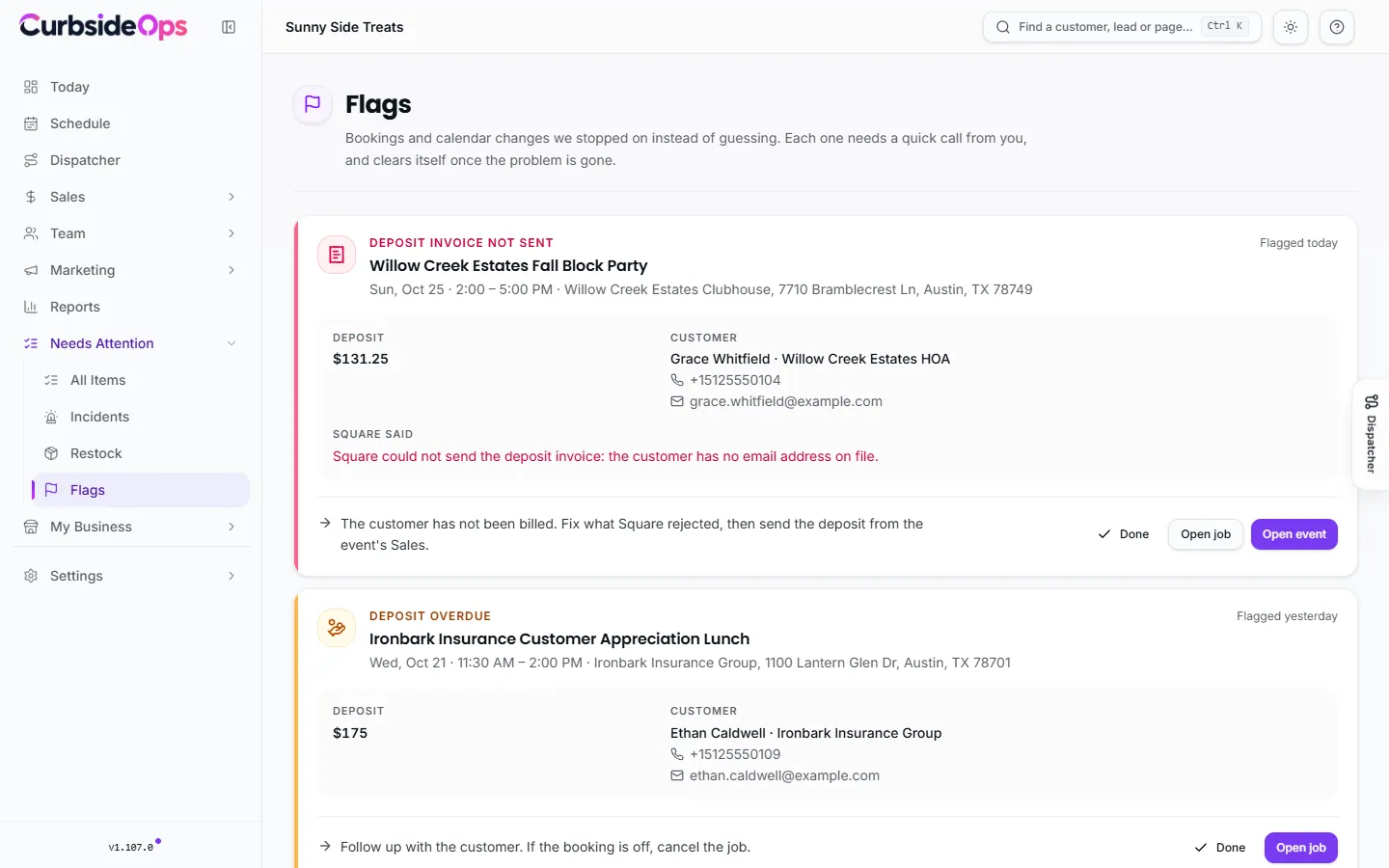
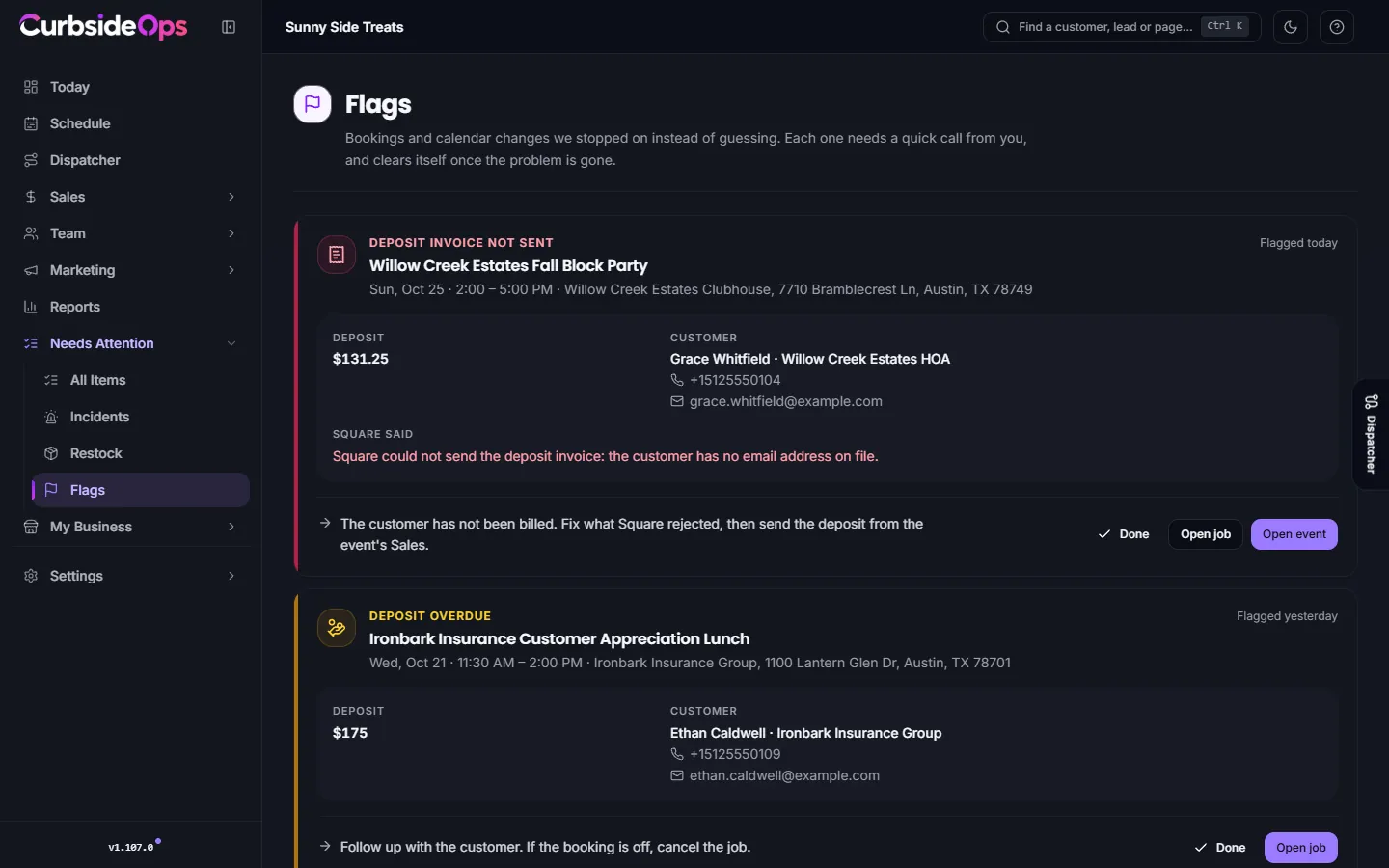
Each flag is a card with what happened, to which event, who the customer is (with their phone and email), what is at stake, one sentence on what to do, and the button that does it. Flags clear themselves once the problem is gone, so the list stays short.
Open it from Needs Attention in the sidebar, or from the sync icon on Schedule when a change did not save.
Bookings and money
| Flag | What it means | What to do |
|---|---|---|
| Booking removed from the calendar | The event is gone from your calendar, but the booking still has money or a signed proposal on it. | If it is still on, add it back to the calendar. If it is off, cancel the job and settle the deposit (Open job). If it should never have been booked, use Didn't happen. |
| Removed from the calendar after its date | The event was deleted after it took place, so it dropped off your closeout list. | If it happened, Finish closeout: record the sales and lock it. If it never happened, use Didn't happen. |
| Deposit overdue | The customer has not paid the deposit you requested. | Follow up with the customer (Invoice opens it in Square). If the booking is off, cancel the job. |
| Deposit invoice not sent | Square rejected the deposit invoice, so the customer has not been billed. | Fix what Square said (shown on the card), then send the deposit again from the event's Sales. |
Didn't happen removes a booking that was added by mistake, too early or twice. It refuses when real money or work is attached; see Cancel an event.
Calendar
| Flag | What it means | What to do |
|---|---|---|
| Change not saved to Google | Google refused one of your changes. The card shows what did not save and what Google said. | Click Try again. If it fails the same way, check the connection in Integrations. If the connected account can only view that calendar, make the change in Google with an account that can edit it, or ask the calendar's owner for access. |
| Your edit was replaced | Someone changed the event in Google after your edit, and Google's version won. The card compares Your edit with what is In Google now. | Open event and re-apply anything that still matters. |
| Deleted, and a similar event added | An event with your work on it (a job, sales or crew) was deleted, and a similar one appeared in its place, for example when a shared calendar recreates its events. | Same booking, move it over moves the job, sales and crew to the new event. Different bookings leaves both alone. |
| Google account can't see your calendar | The Google account you connected cannot see some calendars your events live on, so they will stop syncing. | Share those calendars with that account, or reconnect with the account that owns them (Open Integrations). |
Done and Undo
When you have handled a flag another way, click Done to clear it. A message with Undo stays up for a few seconds in case you cleared the wrong card. There is no history to tidy: cleared flags are simply gone.
Flags that clear themselves
You rarely need Done. CurbsideOps checks every flag each time the calendar syncs and each time you open the page, and closes it when:
- the deposit is paid, or the job is cancelled or closed;
- a change that failed is delivered to Google, or the event is over;
- a replaced edit's event is over or gone;
- a deleted booking's job is cancelled, closed out, or the event comes back.
A cleared flag does not come back for the same reason, so a problem you dealt with stays dealt with.
Why so few?
A plain reschedule, a deleted birthday or a deleted event with nothing of yours on it never becomes a flag. Flags are only raised when money or finished work is at stake and someone has to choose.
Related: Schedule, Jobs and closeout, Integrations.
Still stuck? Email support@curbsideops.com or use Report an Issue in the portal. Checked against CurbsideOps 1.105.4.