

Integrations
Connect Telegram, Google Calendar, Gmail, Square and your other accounts, and keep each connection healthy.
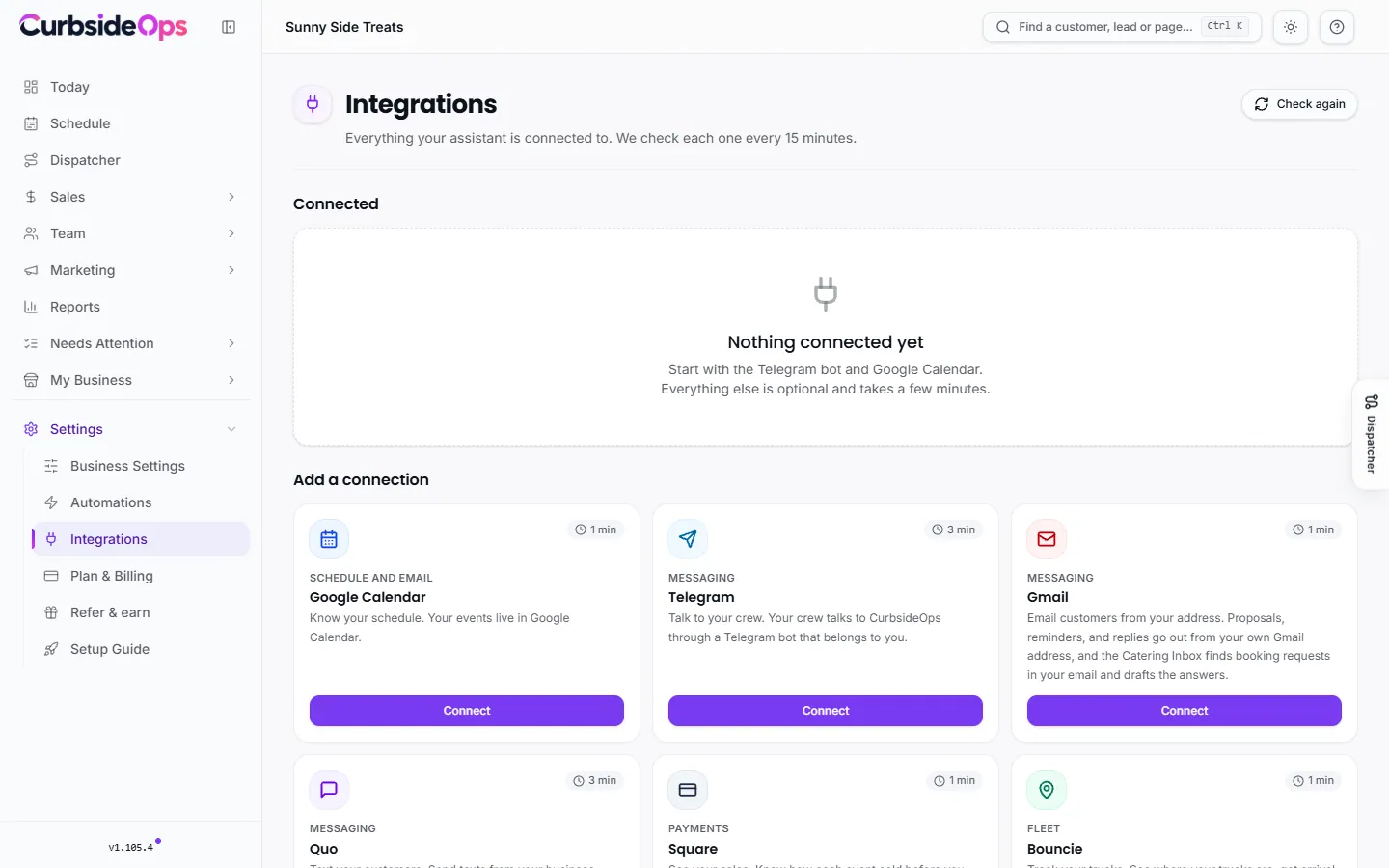
Integrations are the accounts CurbsideOps works through: your Telegram bot to talk to your crew, Google Calendar for your schedule, Gmail and Quo to reach customers, Square for sales. Start with Telegram and Google Calendar. Everything else is optional and takes a few minutes.
Connect an account
Add a connection
Open Integrations and press Add a connection, then pick the account.
Choose the brand
For Google Calendar, Gmail and Square, pick which brand the account is for. Google Calendar and Gmail also offer All brands, for one account that serves every brand.
Sign in or paste a key
Most accounts are one sign-in. Telegram, Quo and Zernio need a code or key you copy from that service; the steps are below and in the connect window.
Finish any follow-up step
Some connections need one more step, such as pressing Start in Telegram or picking your Square location. Until then the card shows Needs a step and a Finish setup button.
What each one does
| Integration | What it powers | How you connect |
|---|---|---|
| Telegram | Your own bot your crew talks to: answers, the morning briefing, Event Reports. | Paste the bot code from BotFather. |
| Google Calendar | Your events, so the assistant knows where every truck should be. | Sign in with Google. Per brand or All brands. |
| Gmail | Proposals, reminders and replies from your own address, and the Catering Inbox. | Sign in with Google. Per brand or All brands. |
| Square | Sales, tips and payments for reports and invoices, and card payments for Pre-Pay Orders. | Sign in with Square, then pick your location. Per brand. |
| Quo | Texts from your business number; replies land in Messages. | Paste an API key. |
| HubSpot | Keeps customers and companies in step with HubSpot. Optional; the free HubSpot tier works. | Sign in with HubSpot. |
| Zernio | Publishes marketing images to your social accounts. Premium, or the AI Marketing add-on. | Paste an API key, then pick where each brand posts. |
| Bouncie | Truck locations, arrival estimates and late warnings, from your own Bouncie device. | Sign in with Bouncie. |
Telegram
- Open Telegram and search for BotFather.
- Send /newbot and pick a name, like Sunny Side Tacos.
- Copy the long code BotFather replies with and paste it into CurbsideOps.
Then press Start in your new bot so it knows you are the owner, and choose what your crew calls it.
Quo
- Sign in to Quo on the web and open Settings.
- Choose API, then Create key, and give it a name like CurbsideOps.
- Copy the key and paste it into CurbsideOps.
The follow-up step, Let replies come in, is one paste in Quo so you see customer replies and STOP requests.
Zernio
- Sign in to Zernio and open Settings.
- Choose API Keys and create a key.
- Copy the key and paste it into CurbsideOps. You pick which brand posts where next.
One account or one per brand
Google Calendar, Gmail and Square connect per brand, so each brand's email and sales stay separate. If one Google account holds every brand's calendar or mail, connect it once as All brands; a brand with its own connection uses that one instead. One Google account can only be connected once per product.
Health and reconnecting
CurbsideOps checks each connection every 15 minutes. Each one shows a badge:
- Working: all good.
- Needs a step: connected, but a follow-up step is not finished.
- Sign in again: the account's sign-in expired or was revoked. Press Reconnect.
- Can't reach it right now: the service did not answer. It usually clears on the next check; press Reconnect if it does not.
Open a connection with Manage to see the account, the last check, Check now, Reconnect and Disconnect.
Disconnecting Gmail removes copied email
Disconnecting Gmail deletes the email content copied into your Catering Inbox. Your leads, customers and proposals stay. Disconnecting Google also removes CurbsideOps' access in your Google Account when no other connection uses it.
Connections made before your brands existed appear under Connections without a brand; pick the brand each belongs to.
Still stuck? Email support@curbsideops.com or use Report an Issue in the portal. Checked against CurbsideOps 1.105.4.