

Your setup checklist
The three required setup steps, the optional ones that unlock more, and turning your assistant on.
Setup is short on purpose. Only three things are required before your assistant can say anything useful: your business, your Telegram bot and your Google Calendar. Everything else is optional and can wait until after you are live.
You can come back to setup any time from Settings, then Setup Guide.
The required steps
CurbsideOps checks each step for you. A step reads done as soon as the thing it asks for exists (a brand, a connected bot, a connected calendar), so you never have to tick it off yourself.
| Step | What you do | About |
|---|---|---|
| Your business | Name, address and your local time, confirmed with Save and continue | 2 min |
| Your brand | What you sell and your brand color (done during sign-up) | 1 min |
| Your assistant | Create your Telegram bot and paste its token | 3 min |
| Say hello to your bot | One tap links your Telegram account | 1 min |
| Your calendar | Connect the Google Calendar your events live in | 1 min |
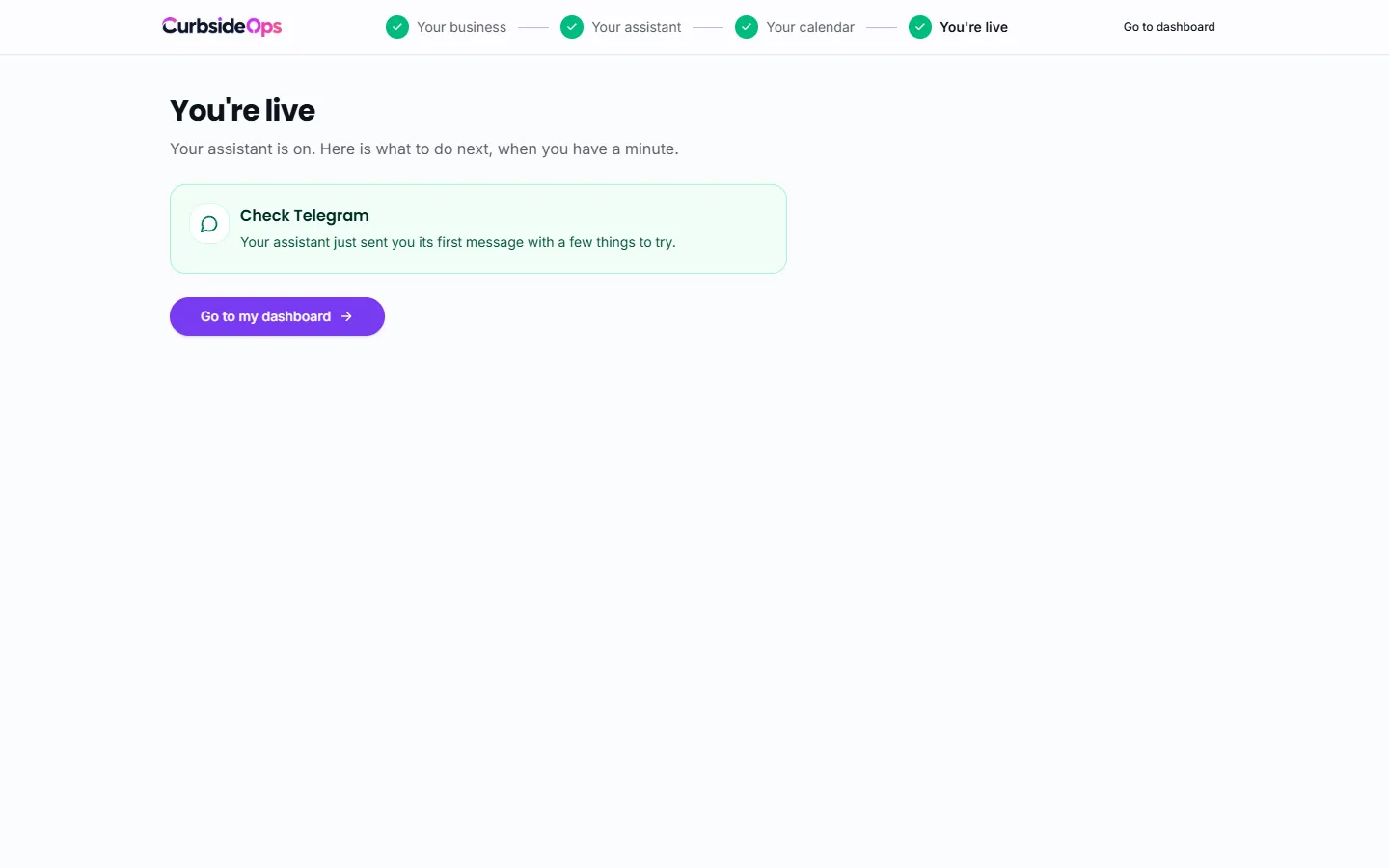
The progress rail groups these into four screens: Your business, Your assistant, Your calendar and You're live. Continue on each screen lights up once its steps are done. Required steps cannot be skipped.
For the details of each, see Create your business, Connect Telegram and Connect Google Calendar and Gmail.
No Google Calendar?
CurbsideOps runs on Google Calendar: your events, crew assignments and the morning briefing all read from it. If your bookings live somewhere else, I don't use Google Calendar explains the quickest path: a free Google account with a calendar just for the trucks.
Going live
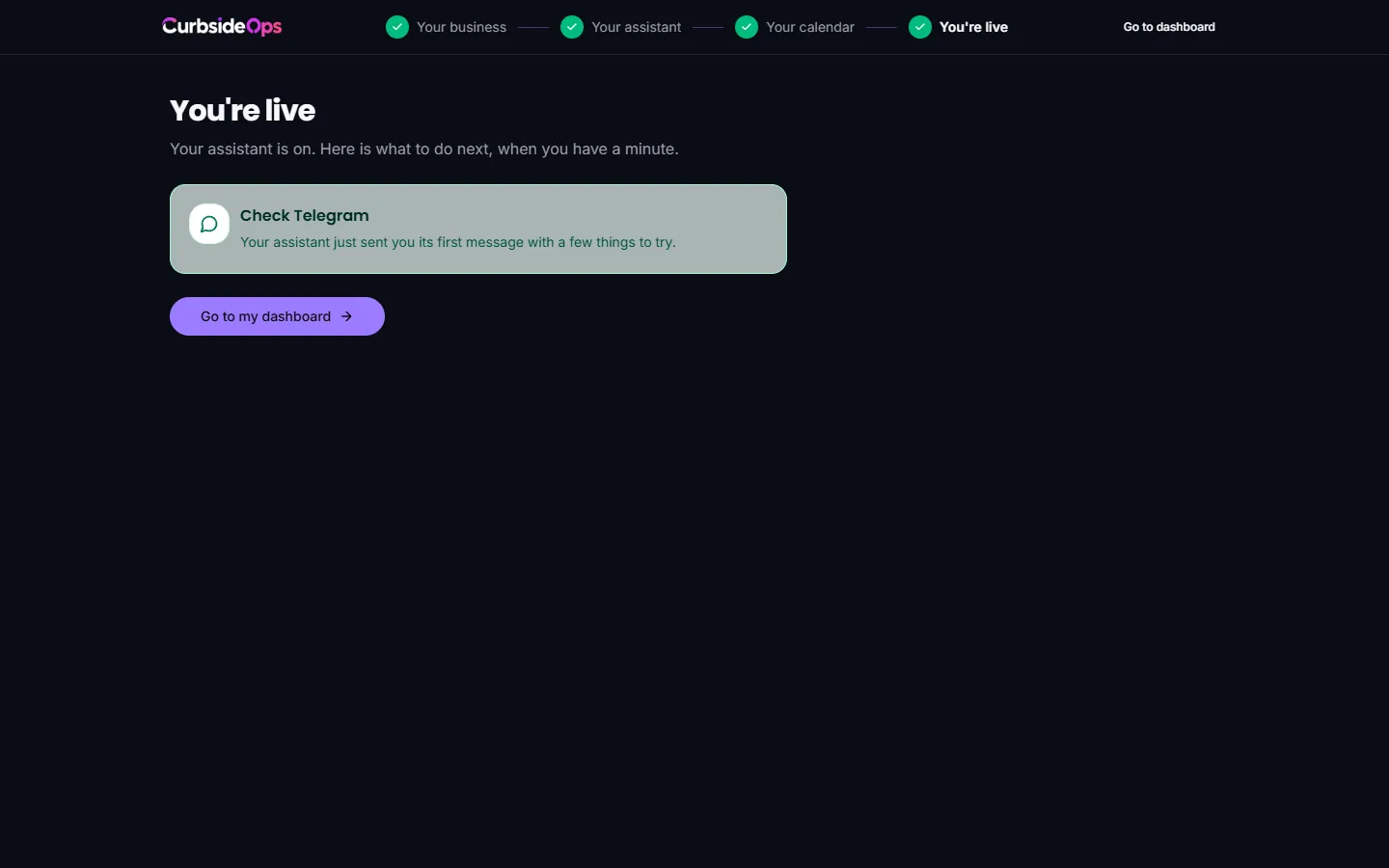
The You're live screen shows a summary of the three required parts. Press Turn on my assistant. Your bot sends you its first message in Telegram, with a short list of things you can ask and three suggestion buttons. Tap one and you get a real answer from your own data.
The welcome message is sent once. Pressing the button again never sends a second one.
Make it yours (optional)
After you go live, the Make it yours tiles suggest what to add next. Each tile has Set up, which opens the right page, and Skip. A skipped item stays listed under Skipped with an undo.
| Tile | What it unlocks |
|---|---|
| Lock in your plan | Subscribe now. No charge until your trial ends. Owners only. |
| See your sales | Connect Square for daily totals, event sales and invoices. |
| Add your crew | Text your staff a link to join the bot. See Invite your crew. |
| Add your trucks | Truck names and where they park. |
| Text your customers | Connect Quo to text from your business number. |
| Post to social | Connect Zernio to publish marketing images. Needs AI Marketing. |
| Track your trucks | Connect your Bouncie device to see where every truck is. |
| Sync your contacts | Keep HubSpot in step with your customers. |
If a skipped item gets connected later from the Integrations page, it reads done automatically.
The same list appears on your home page (Today in the sidebar) as Make it yours until everything is done. Hide this removes it from the home page. You can still connect anything later from Integrations.
Still stuck? Email support@curbsideops.com or use Report an Issue in the portal. Checked against CurbsideOps 1.105.4.