

Campaigns
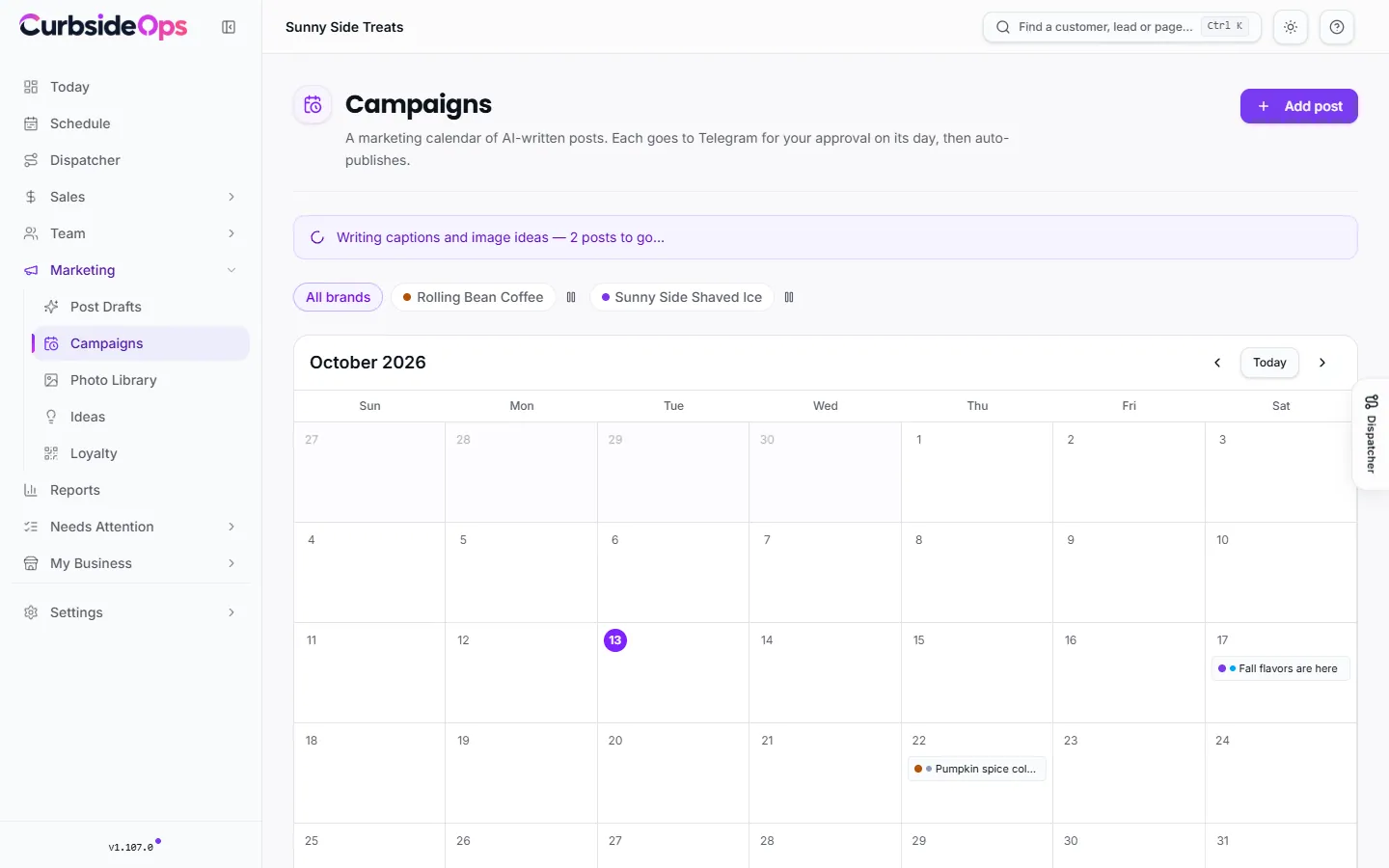
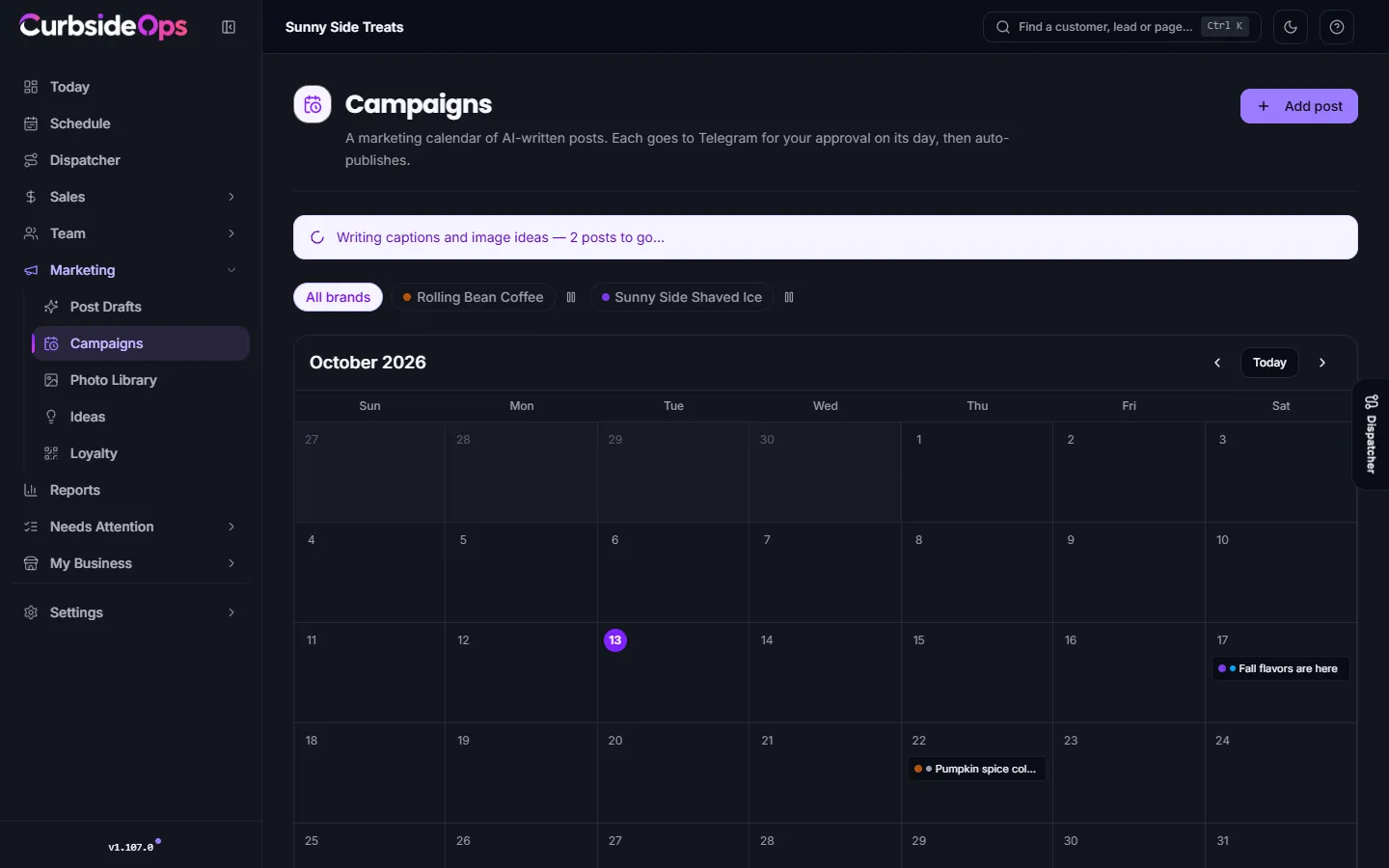
A calendar of holiday, food-day and seasonal posts with captions written ahead, images made on the day, and publishing held to the time you set.
Campaigns is your social calendar for the moments that are not events: holidays, food days, the first day of summer. Each post gets a caption and an image idea written ahead of time, so you can edit them whenever you like. On the day, the image is made and sent to you on Telegram for approval, and the post goes out at the time you set.
Getting started
The first time you open Campaigns, it asks Fill your calendar?
- Auto-fill holidays adds the next year of popular holidays, food days and seasonal moments for every brand, each with an AI-written caption and image idea. The page shows progress while the captions are written.
- Start blank leaves the calendar empty for you to add posts yourself.
With Auto-fill holidays on, the Auto-fill Holidays automation keeps the calendar about a year ahead each month and covers any brand you add later. A holiday you remove stays removed: it is not added back on the next refresh.
Adding or editing a post
Click Add post, or click a post on the calendar. The dialog holds:
- Brand, Occasion / title and Publish date & time.
- Format: Image or Reel (see Reels).
- Image description: what the image should show. Edit it to steer the picture.
- Text on the image and Tagline (optional): the headline and second line designed into the image. Short and plain spells best.
- The caption and Hashtags.
Regenerate text writes a new caption and image idea. Remove takes the post off the calendar.
Making the image ahead of time
You do not have to wait for the day. Click Generate image to make one now and preview it. Generate as many as you like and pick the one that publishes under What publishes. If you never generate one, the image is made on the day.
How campaign images look
A holiday post has a different job than an event poster: no address or time to announce, just a reason to smile, comment or share. Campaign images rotate between three looks so your feed does not repeat itself:
- Poster: your product, or your truck, as the star of a seasonal poster with your headline.
- Still life: your real product styled with seasonal props, magazine-style, with little text.
- Story: people enjoying your product in the moment, with the text like a sticker or handwritten note.
Each holiday gets its own colors, props and type, so a Halloween post and a Valentine's post feel different. Every image starts from your logo and a real product photo from your photo library, so the cup in the picture is your cup. Each time you generate again, the next look is used.
The text on the image is your Text on the image and tagline. If a holiday post has no headline, it reads "Happy" plus the holiday's name rather than the bare holiday name. Dates, places and prices never appear on a campaign image.
Brands set to a library creative policy use one of their approved library photos instead, with the headline and tagline added.
On the day
The Campaign Posts (day-of) automation runs each morning. For each post scheduled that day, it makes the image (or sends the one you already picked) and sends it to you on Telegram with Publish to social, Regenerate and Tweak. If a post's day passes with no draft, it is marked as missed so the calendar does not pretend it is still coming.
To stop image making for one brand for a while, use the pause button next to its name at the top of the calendar. Paused brands are skipped and use no credits.
Approval holds the post to its time
When you approve a campaign draft before its scheduled time, it waits and publishes at that time. You see when it goes out, and in Post Drafts the card says so too. Pressing publish again does not send it early. To change the time, move the post on the calendar.
After it publishes, the calendar shows the result from your social accounts, the same as Post Drafts.
Event posts you scheduled show here too
When you schedule an event draft to publish later from Post drafts, it appears on the calendar as a scheduled event post. Removing it from the calendar cancels the scheduled publish, and the draft stays in Post Drafts.
Still stuck? Email support@curbsideops.com or use Report an Issue in the portal. Checked against CurbsideOps 1.105.4.
Creative policy
Choose per brand whether drafts may use AI-composed scenes, start from your approved library photos with AI text, or use your photos untouched.
Reels
Short vertical videos of your truck and products, with music and sound effects, your text and logo added cleanly on top, approved by you before they post.