

Photo library
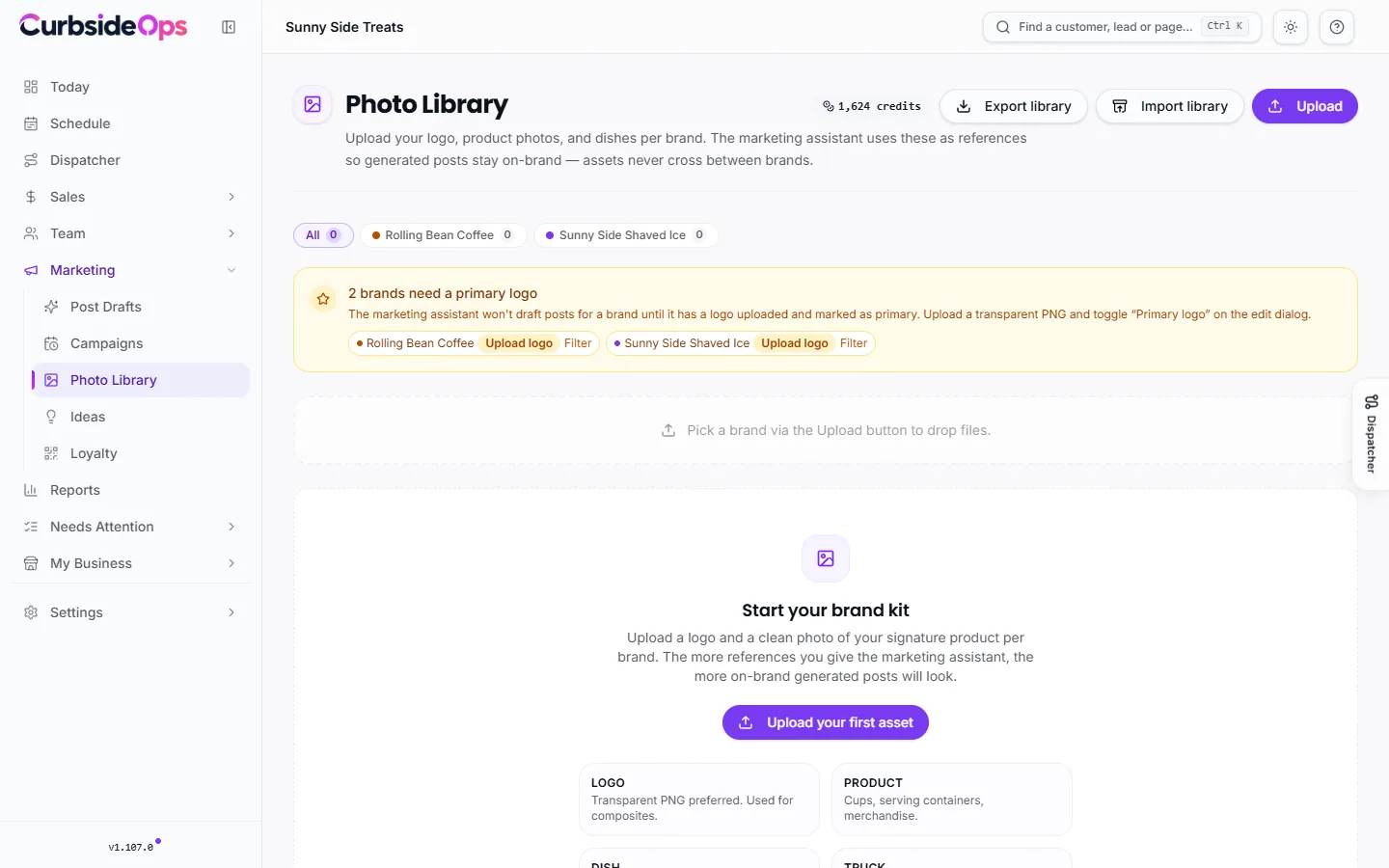
Upload each brand's logo, truck and product photos. Every AI draft is built from them, so your posts show your real truck and your real cup.
The Photo Library holds the pictures your marketing is built from: your logo, your truck, your cups and dishes, and photos from past events. When CurbsideOps drafts a post, it uses these as references, so the truck in the image is your truck and the cup is your cup. A brand's photos are only ever used for that brand.
Uploading photos
Start
Open Photo Library under Marketing and click Upload. You can also drag files onto the page.
Pick the brand
With more than one brand, answer Which brand are these for? Every photo belongs to one brand. If you have no brand yet, create one first.
Let CurbsideOps describe them
Each photo is looked at by AI, which suggests its kind, a short caption and tags. This uses a small amount of AI Credits once per photo. If you are out of credits, the upload still works without the suggestions.
Photos can be PNG, JPEG, WebP or GIF, up to 10 MB each.
Kinds, tags and captions
Click Edit (the pencil) on a photo to open Edit media. You can change the Brand, the Kind, the Tags and the Caption. Re-analyze with AI asks for fresh suggestions and replaces the kind, caption and tags.
The kinds:
- Logo: a transparent PNG works best. Turn on Primary logo for this brand for the one to use. Each brand has one primary logo, and choosing a new one replaces the old.
- Product: cups, containers and anything you serve in.
- Dish: finished food or menu items as sold.
- Truck: your actual truck or trailer, ideally from the side or at an angle showing the wrap. This is how drafts get your truck right.
- Scene: event photos, crowds, setups.
- Other: everything else.
Your choices always win. If you set a kind or the primary logo yourself, the AI's suggestion does not change it.
How photos are picked for a draft
For each draft, CurbsideOps scores your photos against the event:
- Tags and captions that match the event's words count most. A photo tagged "swim" fits a swim meet.
- Your truck and product photos are safe choices for any event.
- A photo from a clearly different kind of event, such as a football game photo for a swim meet, is avoided when nothing better matches.
- If you name a photo when you ask ("use the kiosk photo"), that wins.
Good tags are the easiest way to get better drafts. Tag photos with the events, places and seasons they show.
Menu photos
Photos you add to a menu item stay with the menu. They do not show in the library and are not used in drafts, so your library stays clean. To use one for marketing, open the menu item and click Copy to Photo Library on the photo.
Deleting a library photo that a menu item also uses keeps it on the menu.
Export and import
Export library downloads a ZIP of every photo and every draft. Import library adds the photos from such a ZIP to this account, matching brands by name. Create matching brands first: photos for a brand that does not exist here are skipped and listed when the import finishes.
Library-only brands depend on this page
If a brand uses a library creative policy, every draft starts from one of its library photos. Keep a good mix of approved truck, product and scene photos so posts do not repeat.
Still stuck? Email support@curbsideops.com or use Report an Issue in the portal. Checked against CurbsideOps 1.105.4.