

Incidents
Track equipment failures, safety issues and complaints your crew reports, from the first message to the fix.
A freezer that will not hold temperature, a generator that quits mid-event, a customer complaint at the window: problems in the field are easy to hear about once and forget. Incidents keeps each one on a list, with photos, notes and follow-up tasks, until it is resolved.
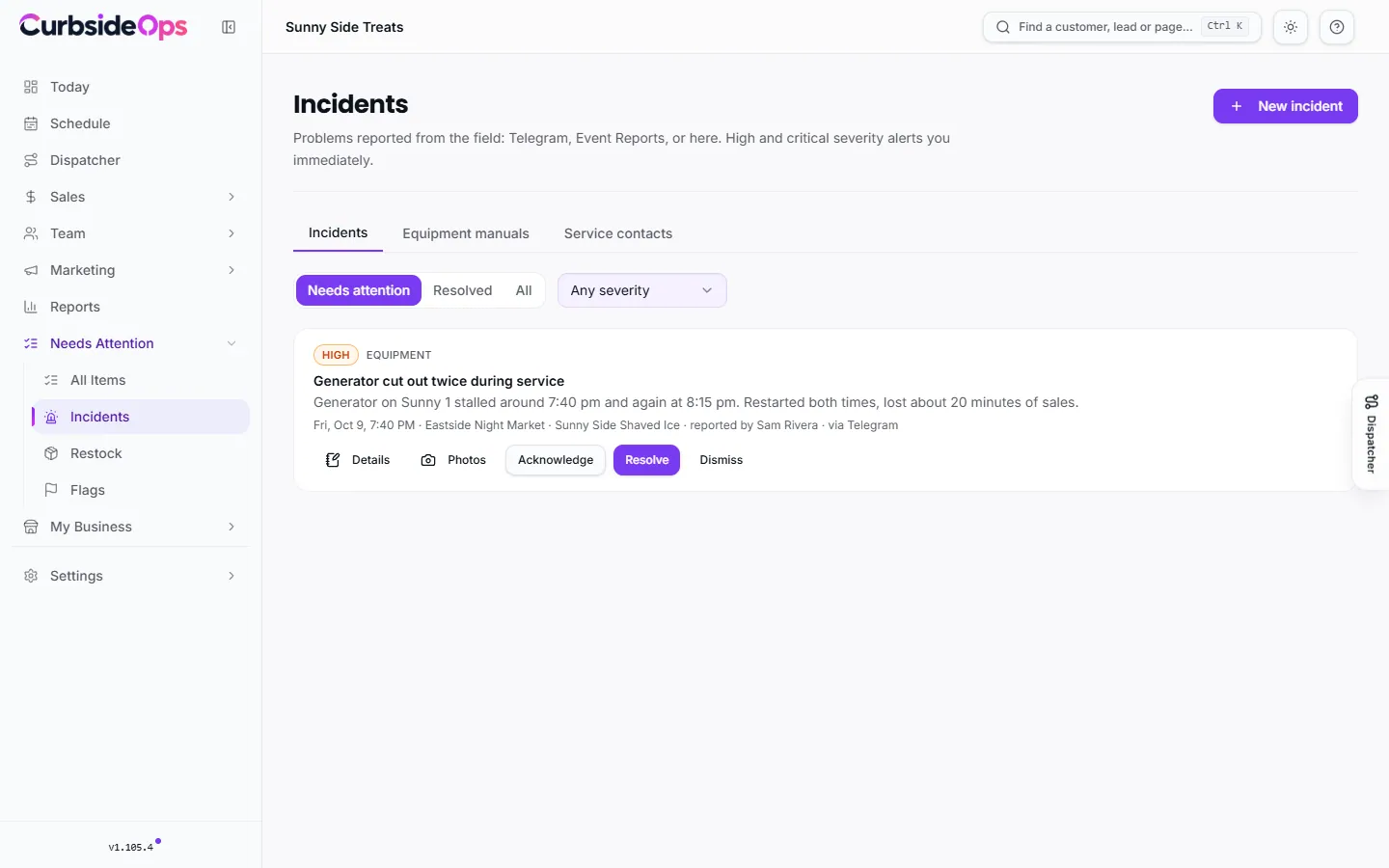
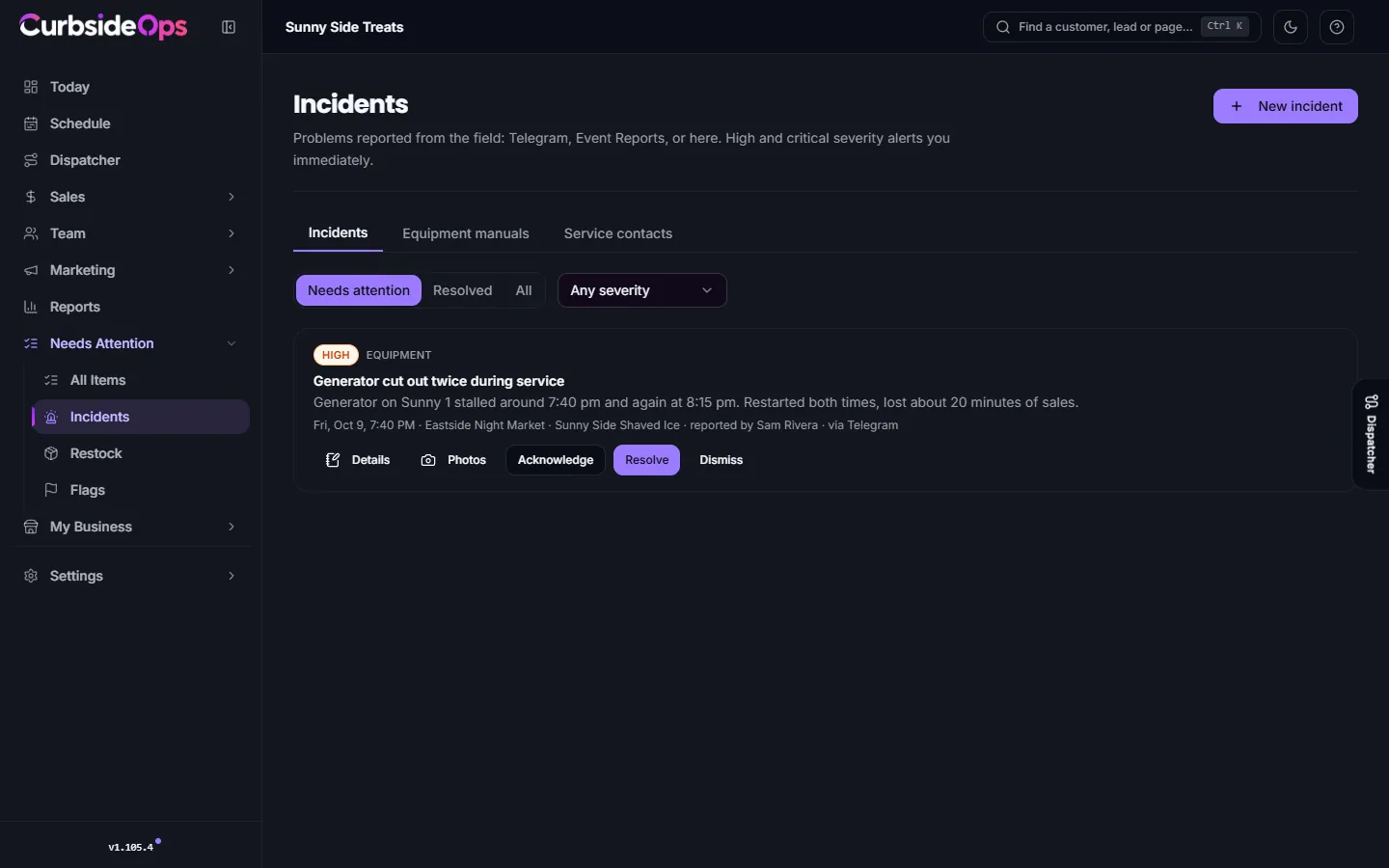
How incidents come in
- From Telegram. Your crew tells the assistant what happened ("the shaver motor is smoking on Truck 2") and it logs the incident. Crew can attach a photo.
- From the crew portal, using the incident form on their shift page. See The crew portal.
- From an Event Report submitted after an event, when the crew flags a problem. See Event Reports.
- From the portal. Click New incident on the Incidents page.
Each incident records where it came from (Telegram, Event Report or Portal), the truck, and the job when there is one. Incidents on a job also show in that job's On site step.
Type and severity
The Type is one of Safety, Equipment, Shortage, Complaint, Payment, Vehicle, Staffing or Other.
The Severity is Low, Medium, High or Critical. High and critical incidents alert you on Telegram straight away, so a safety issue never waits for you to open the portal.
Work an incident
The list opens on Needs attention. Switch to Resolved or All, and narrow it with Any severity and All trucks.
Acknowledge it
Click Acknowledge so your team knows someone has it.
Add follow-up tasks
Open the incident and click Add follow-up task: describe it, Assign to a crew member and set a Due date. The person you assign gets a Telegram message with the task. The incident's Timeline keeps the notes and updates in order.
Resolve or dismiss
Click Resolve and answer How was it resolved?, with the repair cost if there was one. If it was not a real problem, click Dismiss and say why. Either can be undone with Reopen.
Costs stay with the truck
The cost you record is kept on the incident for your records. It is not charged to the event's closeout, because a repair belongs to the truck, not to one booking.
Follow-up nudges
The Incident Follow-up automation sends you a daily Telegram list of high and critical incidents still unresolved more than a day after they happened, so serious problems do not slip through the cracks. Turn it on in Automations.
Equipment manuals and service contacts
Two more tabs help your crew fix things without calling you:
- Equipment manuals: upload a PDF or text manual for a truck or brand with Upload manual. Crew can ask the assistant something like "the ice shaver won't spin" and get steps quoted from your manuals.
- Service contacts: who to call when something breaks (a tow company, a repair shop). Mark one as the emergency contact to list it first. The assistant answers "who do I call for a flat?" from this list.
Related: Restock, Flags, Jobs and closeout.
Still stuck? Email support@curbsideops.com or use Report an Issue in the portal. Checked against CurbsideOps 1.105.4.