

Email campaigns
Send newsletters and offers to the customers, schools and organizers you already work with, under each brand's name, with unsubscribe and consent handled for you.
Email campaigns let you write one email to a group of your own customers: a season opening, a fundraiser night, a rebooking note to last year's schools, a thank-you after a big event. Each campaign goes out under one of your brands, in that brand's colors and logo, and nothing is sent until you press Send.
Open Marketing, then Email. The area has four parts: Overview, Campaigns, Templates and Settings.
Before your first send
Each brand needs its email settings finished once. Open Settings, pick the brand at the top, and fill in:
- Name inboxes show: the sender name on your campaigns, followed by "via CurbsideOps". Leave it empty to use the brand name. Booking, reminder and reply emails use the sender in the brand's own settings.
- Where replies go: the address a customer's reply goes to. Empty uses the brand's email settings, then your own address.
- Postal address: required to send. US law (CAN-SPAM) asks every marketing email to show where the sender can be reached by mail. A PO box or a registered mailbox is fine.
- Opens and clicks: CurbsideOps measures them on these campaigns and shows them in each campaign's report. Tick the box to send.
Click Save. The Ready to send box on the right says what is still missing.
Writing a campaign
Start it
The quickest way is Create with AI, on the Email overview and at the top of New campaign. Type your idea in a sentence or two, such as "Our summer menu is back, invite past customers to book a school visit before June fills up". The AI writes the subject, the preview text and the words in the brand's voice, lays them out as a designed email in the brand's colors, and adds a picture: one of the photos you pick, or one it makes for you. A brand that uses its own photos only gets its best-matching library photo instead. The email opens in the editor in about a minute, ready for you to change anything, and nothing is sent until you press Send.
To build it another way, click New campaign and look under Or start another way: Blank, one of the designs (ready-made emails for food trucks, each with a different look and with no dates or prices in them), one of your own templates, Write it with AI (the AI writes only the words, in a plain letter) or Design with AI (the AI builds only the layout). If you have more than one brand, pick it at the top. Then pick the kind (it sorts your list and tells the AI what kind of email this is) and give it a name; customers never see the name.
A design's notes to you are in square brackets, such as [Name the special here]. The editor draws them with a dashed outline, and the campaign cannot be sent until you replace every one with your own words. Designs below lists them and says what is filled in for you.
Pick who gets it
At the top of the campaign, the To line says who gets it and how many. Click Change to pick from plain choices, each with its count: Everyone you can email, Past customers, Haven't booked in a year (good for a rebooking email), A type of organization, or People you pick. More filters combines organization types, booking dates, open requests and people you pick.
The line at the bottom counts, live, how many people can receive it, names a few of them, and lists who was left out and why.
Write it
Fill in the Subject and the Preview text (the grey line inboxes show after the subject); the box beside them shows how it looks in an inbox. Build the email in the editor: add blocks from the library on the left, or type / on an empty line. Everything in a design can be changed. Select a heading and pick Poster headline under Text style for one big line. Select two columns and pick Wide left or Wide right under Widths to make one side wider. Section backgrounds and the look of the whole email are under Your logo, colors and backgrounds. Variables such as the customer's first name are filled in for each person, and each one carries a fallback for people with no name on file.
On a phone you can change the words in place and tap a block, then Block settings, to change it. Adding and moving blocks needs a computer. Ask the AI for changes works on a phone too.
Test it
The strip under the page title always names the next thing to do, such as Next: Write a subject, with a button that takes you there. The Send tab beside the editor lists everything left, each with its own button.
Click Preview to see it on a desktop or a phone, then Send me a test. A test goes only to you; tick Also send a copy to first to copy the brand's reply-to address.
Send or schedule
When the strip says it is ready, click Send or schedule. The dialog shows how many people get it, the From line, where replies go, the footer and the checklist. Pick Send now or Schedule and a time. A scheduled time is your business's time, whatever time zone you are in when you set it. To change a scheduled campaign, open it and click Cancel the send.
The checklist must be clear before a campaign can go: a subject and preview text, no [bracketed] notes left from a design, no empty photo spot, a link on every button, a description on every image, a test since the last edit, the brand's settings finished, and someone in the audience. Advice, such as an email that is mostly pictures, shows with a triangle and never blocks.
Some items can be cleared in one click, right on the list: Use my photos fills empty photo spots from your Photo Library, Remove empty spots takes them out, Link to my booking form links a booking button to your inquiry form, and Remove what I did not fill in removes every leftover note except a headline. Each one shows an Undo right after.
Designs
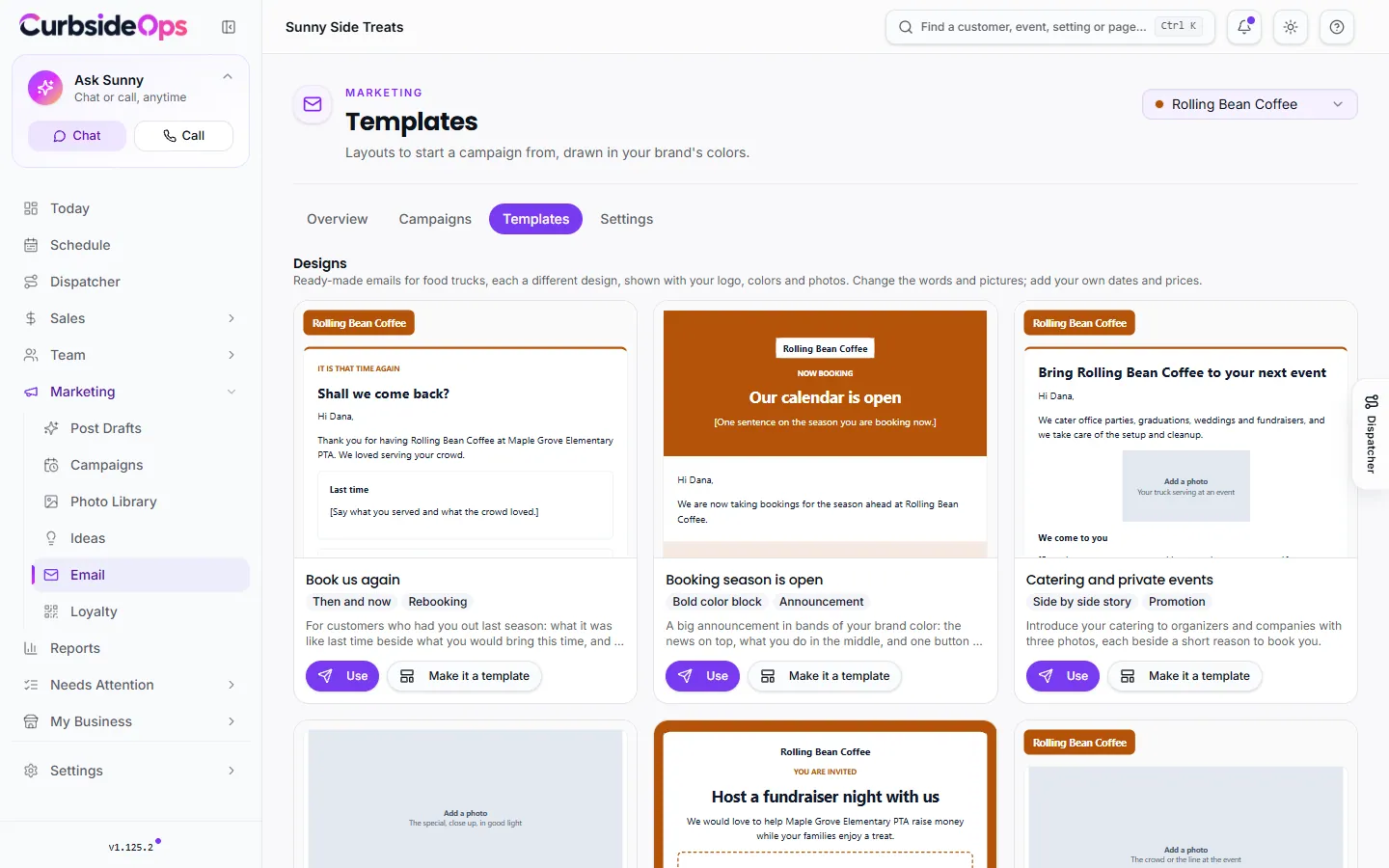
A design is a ready-made email for a food truck. Each one is a different kind of email, not the same layout with other words, and everything in it can be changed.
| Design | Use it to |
|---|---|
| Book us again | Ask last season's customers to book again, with what it was like last time beside what you would bring this time. |
| Booking season is open | Announce that your calendar is open, in bold bands of your brand color. |
| Catering and private events | Introduce your catering with three photos, each beside a short reason to book you. |
| Seasonal special | Show one item with one big photo, one line and one button. |
| Fundraiser night | Invite a school, PTA or club to host a night, as an invitation card on a page in your brand color. |
| Event recap | Thank the people who came, with a wide photo and four more in a grid. |
| New truck or new area | Share big news over a full-width photo. |
| Plain letter | Write a personal note with no card and no banner. |
| Menu board | Show four items in a grid, each with its photo and a few words. |
| How booking works | Walk a first-time organizer through three numbered steps. |
| Customer spotlight | Put a happy customer's words in large type, then what you did for them. |
| Thank you offer | Send a coupon to loyal customers or to win someone back. |
| Where are we this week? | List the stops of your week, each with its day, place and hours. |
| One quick question | Ask one question that people answer with a tap in the email. |
| Newsletter | Send a main story with its photo and two short ones beside small photos. |
| Thank you note | Thank an organizer after an event and ask for a review. |
| Order ahead | Tell families they can order and pay before the event. |
What is filled in for you
When you use a design, CurbsideOps puts in what it already knows about the brand:
- photos from your Photo Library in the photo spots;
- your inquiry form on a booking button, and your open order-ahead page on an order button;
- your packages and menu items where the design lists them;
- this week's stops in Where are we this week?.
Prices are never filled in. Add the ones you want to show.
Where are we this week?
This design arrives with this week's events from your calendar, each with its day, time and place, together with the days your trucks' saved spots are open. You do not retype anything.
Some bookings are private, such as a birthday at someone's home. A line above the stops reminds you to look them over: select any stop that is private and delete it, then delete the reminder line. The campaign cannot be sent while that line is still there.
Photo spots
A grey box that says Add a photo is a spot there was no photo for. Select it and pick a picture in the panel on the right, or remove the block. A campaign cannot be sent while a photo spot is empty.
Change design
To try another look without losing your work, open the Send tab and click Change design. Pick a design or one of your own templates. What you wrote, your pictures and the link on your button move into the new design, and the old design's own filler stays behind. An Undo button shows for a few seconds after the switch.
Who approves
Only the owner approves a campaign. When you wrote every change yourself, your Send is the approval; there is no separate step. When the AI wrote part of it, or a manager changed it, the strip asks you to read it through and click Approve first. A manager can write and test a campaign, then tell you it is ready; once you approve it, they can send it.
Who receives it
A customer gets a brand's campaigns when they opted in, or when your business has a booking, a proposal, an invoice or a sale on file for them or their organization. CurbsideOps always leaves out:
- customers marked do not email, and customers who opted out;
- anyone who unsubscribed from that brand;
- addresses that bounced, and people who marked an email as spam;
- your own staff;
- a second customer with the same address.
Each customer page has an Email marketing field: Opted in, Opted out, Business relationship (worked out from what is on file) or No consent. Click the pencil to record that someone asked to get your emails, or asked not to.
Booking emails are not affected
Unsubscribing stops a brand's campaigns only. Booking confirmations, reminders and invoices still reach the customer.
After it goes out
Campaigns lists every campaign by where it is in its life: Open, Scheduled, Sent, All and Archived, with a brand filter. A sent campaign opens on its Sent report: delivered, opened, clicked and unsubscribed; then After the email, how many customers who got it booked or sent a booking request within 30 days; then each person and where their copy got to. Opens are an estimate, because some email apps load images for the reader and others block them; clicks are exact. After the email counts what happened next, not that the email made it happen.
Tick campaigns to archive or delete them together. A campaign that reached anyone is kept as a record and can only be archived.
If a send fails, the campaign says why. Send it again from the campaign (the owner approves it again when someone else changed it); a retry goes only to people who did not get it yet.
Templates
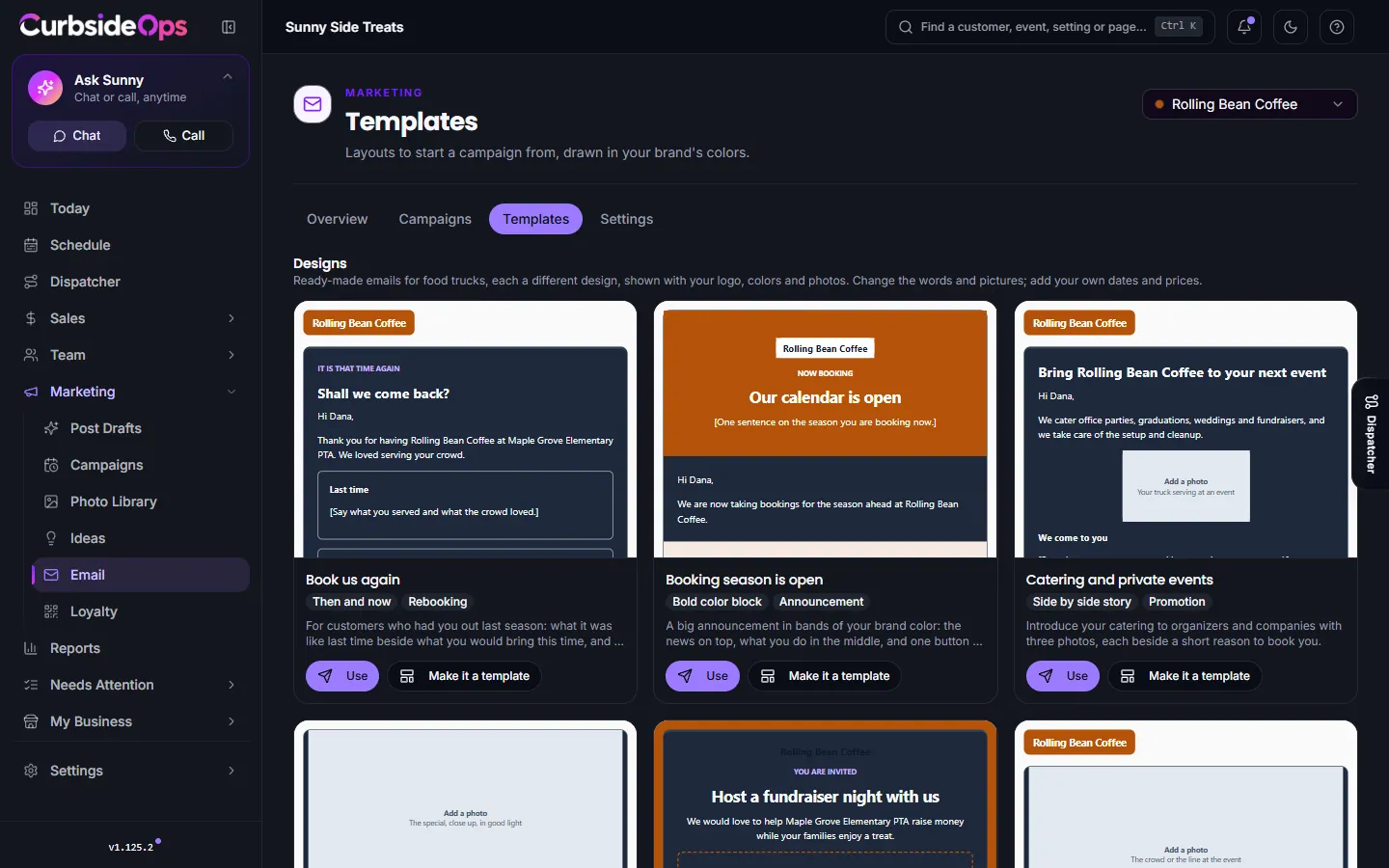
Templates shows the designs and your own templates (the designs come first until you have templates of your own), drawn with your logo, your colors and your photos. Use starts a campaign from one; Make it a template copies a design into a template you can change. To keep an email you built, open the campaign and click Save as a template on its Send tab: your next email can start from it. Your own templates can be edited, duplicated, archived or deleted, and a campaign made from one keeps its own copy.
Locked sections
In a template, select a Section and turn on Lock this section in the Block panel. Every campaign made from that template keeps the section exactly as the template has it: good for the sign-off, a legal line or the footer. In the campaign the section shows Locked by the template; you can move it, or remove it from that email, but not change its words.
Synced sections
A synced section is a part you write once and use in many emails, such as your sign-off, a standing offer or a footer. Change it once, and every campaign that uses it and is not sent yet changes with it. Sent campaigns keep the words they went out with.
- Make one: on Templates, under Synced sections, click New synced section. Or, in the editor, open a section's block menu and click Make this section synced, then give it a name.
- Use one: add the Synced section block from the library and pick it. A synced section can belong to one brand or be shared by all your brands.
- Change it: click Edit everywhere. The editor says how many unsent campaigns use it, and Save everywhere updates them all.
- Make a one-off change: click Detach in the block menu. The email keeps a copy of the words and stops syncing, so later changes to the synced section no longer reach it.
Showing a block to some readers only
Add the Conditional block and put blocks inside it. Then choose Only for or Not for and who: for example customers with a booking, a customer stage, or an organization category. Readers who match see those blocks; everyone else gets the email without them. Remove the condition keeps the blocks and shows them to everyone.
To check each version, open Preview and use Preview as: Every block shows them all at once, or describe a reader and the preview draws what that reader gets. When the email has a conditional block, the test panel has its own Preview as, so Send me a test sends the version you picked.
Polls
Add the Poll block to ask one question with two to five answers; turn on Ask for a comment to let people add a few words. Each reader answers with one click from the email. The answers show on the campaign's Sent report under Poll: how many people answered, each answer's share, and who chose what. Click Download CSV for every answer in a spreadsheet.
Once a campaign has its recipient list, each person holds their own answer links, so its polls cannot be added, removed, reordered or given other answers. The question's wording can still change.
Pictures
Upload pictures from your computer, make them with AI, or paste the address of a picture already online.
Pictures follow the brand's AI creatives setting on the brand, the same one your social posts use:
- AI scenes: Generate with AI makes a new picture from your description, using your truck and product photos from the Photo Library so the truck in it is your truck. It adds no words or logos.
- Library photo + AI text: the button reads Find in your photos. Describe what you need and the best matching photos from your Photo Library come back, cut to size. Type Words on the photo and the AI writes them onto the photo; nothing else changes. Photos without words cost no AI credits.
- Library photo only (no AI): the same, but no AI is used at all. Words are drawn in a band along the bottom of the photo.
Tag and caption your photos in the Photo Library so the right one is found. However big the original is, CurbsideOps keeps copies in the sizes an email needs and sends each reader the smallest one that still looks sharp, so a large phone photo never slows the email down or fills the reader's inbox. A pasted address is copied: CurbsideOps keeps its own copy, so the email never loads the picture from someone else's site, which could change it, take it down, or see who opened your email. An email that still points to a picture on another site cannot be saved until you upload it or paste its address again.
Your logo, colors and backgrounds
The Logo block, in the block library, puts the brand's logo anywhere in the email. Drag the size slider or type a size in pixels, or pick Small, Medium or Large. Place it on the left, in the center or on the right; on the left or right you can add a line of words beside it, such as "Summer menu" or "Book us for your school". It always shows the brand's current logo, so a new logo reaches every email you have not sent yet.
Select a section to give it a background: a color from the brand, Dark, any Color you choose, or a Picture. On a picture, Darken makes white words easy to read; the words switch between light and dark on their own, or you can choose. Outline puts a line or a dashed line around the section, like a ticket or a coupon, and Full width makes it reach both edges of the email, like a banner.
The editor shows your logo above the email and the footer under it, the way your customers see them. Click the logo or the footer to choose where the logo goes in this email: Top, Bottom (above the footer) or Hidden (when a Logo block or a picture with your logo already opens the email). The change applies to this email only. The footer's words can't be changed in the editor: every marketing email needs the unsubscribe link and your postal address. Use Change the postal address to edit the address in Email settings.
At the bottom of the block settings, open Whole email for the same logo choice. Page around the email sets the color behind the email: Standard, White, Light brand, Brand or Dark, or a color of your own. Line around the email turns off the card for a plain letter. You can also set the email's own background, or put the brand's colors back.
Limits that protect your brand
Every brand's campaigns go out from the same CurbsideOps sending address, so one list that draws complaints can push everyone's email toward the spam folder. These limits keep that from happening.
- Each brand can email a set number of people a day, shown in Settings. A bigger list can be scheduled across days.
- A new sender starts slower: for the first two weeks after a brand's first campaign, the brand can email up to 100 people a day in the first week and 250 a day in the second, then its full daily limit. Settings shows the current limit and when it goes up. Mail services trust a sender that grows its volume gradually.
- If people mark a brand's campaigns as spam, or too many of its emails bounce because the addresses no longer exist, sending pauses for that brand and you get a message. Open Settings to see why. CurbsideOps reviews the list with you and turns sending back on, and you get an email when it does. Scheduled campaigns wait while the brand is paused.
- While you wait, mark customers who never asked for email as Opted out on their customer page. People who complained, unsubscribed or bounced are already left out for good.
- Rarely, CurbsideOps may pause campaigns for every business for a short while to protect the shared sending address. Scheduled campaigns wait and go out once sending is back on. Your booking, reminder and invoice emails are never affected.
Still stuck? Email support@curbsideops.com or use Report an Issue in the portal. Checked against CurbsideOps 1.126.0.
Reels
Short vertical videos that tell a little story about your truck and products, with music and sound, approved by you before they post.
Marketing ideas
The Marketing Director suggests what to post each week from your own calendar, sales, reviews and local events, and finds nearby organizations that could book you.