

Managers and permissions
Give a trusted crew member their own portal login, choose what they can see and change, and keep billing with you.
A manager is someone from your roster who gets their own CurbsideOps portal login, so they can run the day while you are on the truck or away. They see the schedule, sales, leads and customers, work the inbox and assign crew. You decide whether they can also see costs, edit your setup or handle a few sensitive areas. Billing and adding managers always stay with you.
Promoting someone to Manager
Open their profile
On Roster, click the person. They need an email address on file, because the invite goes by email. Add one to their profile first if it is missing.
Promote
In the Manager portal access card, click Promote to Manager, read the summary and click Send invite.
Wait for them to accept
The card shows Invite sent until they accept. Use Resend invite if the email went astray, or Revoke to cancel it.
They sign in
Once they accept, the card shows Active and they sign in to the portal with their own login.
A manager stays on your roster. They keep their Telegram access exactly as before and can still be assigned to events.
What a manager can do by default
| Area | Owner | Manager (default) |
|---|---|---|
| Schedule, events, jobs, customers, leads | Yes | Yes |
| Crew, time off, timecards | Yes | Yes |
| Confidential permit documents | Yes | No, unless you grant it |
| Brand, truck and menu setup | Yes | View only, unless you allow edits |
| Costs, margins and payouts | Yes | Hidden, unless you grant finance access |
| Plan, billing and inviting managers | Yes | Never (owner only) |
Out of the box, a manager has day-to-day access: schedule, sales, leads, customers, reports and operations. Brands, trucks, menus, automations, integrations and business settings are view only. Money beyond plain sales is hidden.
Changing one manager's permissions
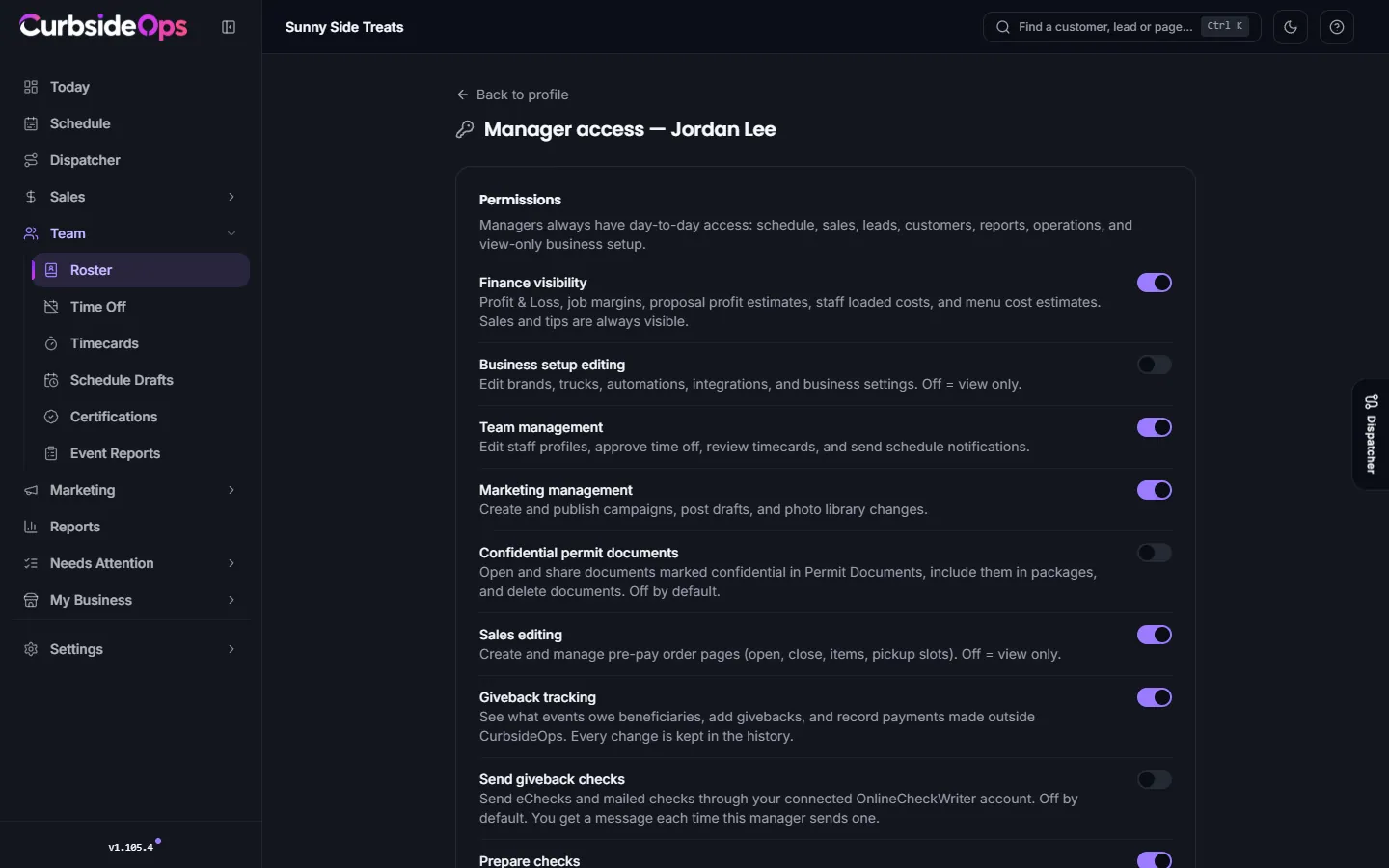
On the Manager portal access card, click Edit access. The Manager access page has a switch for each permission you can change:
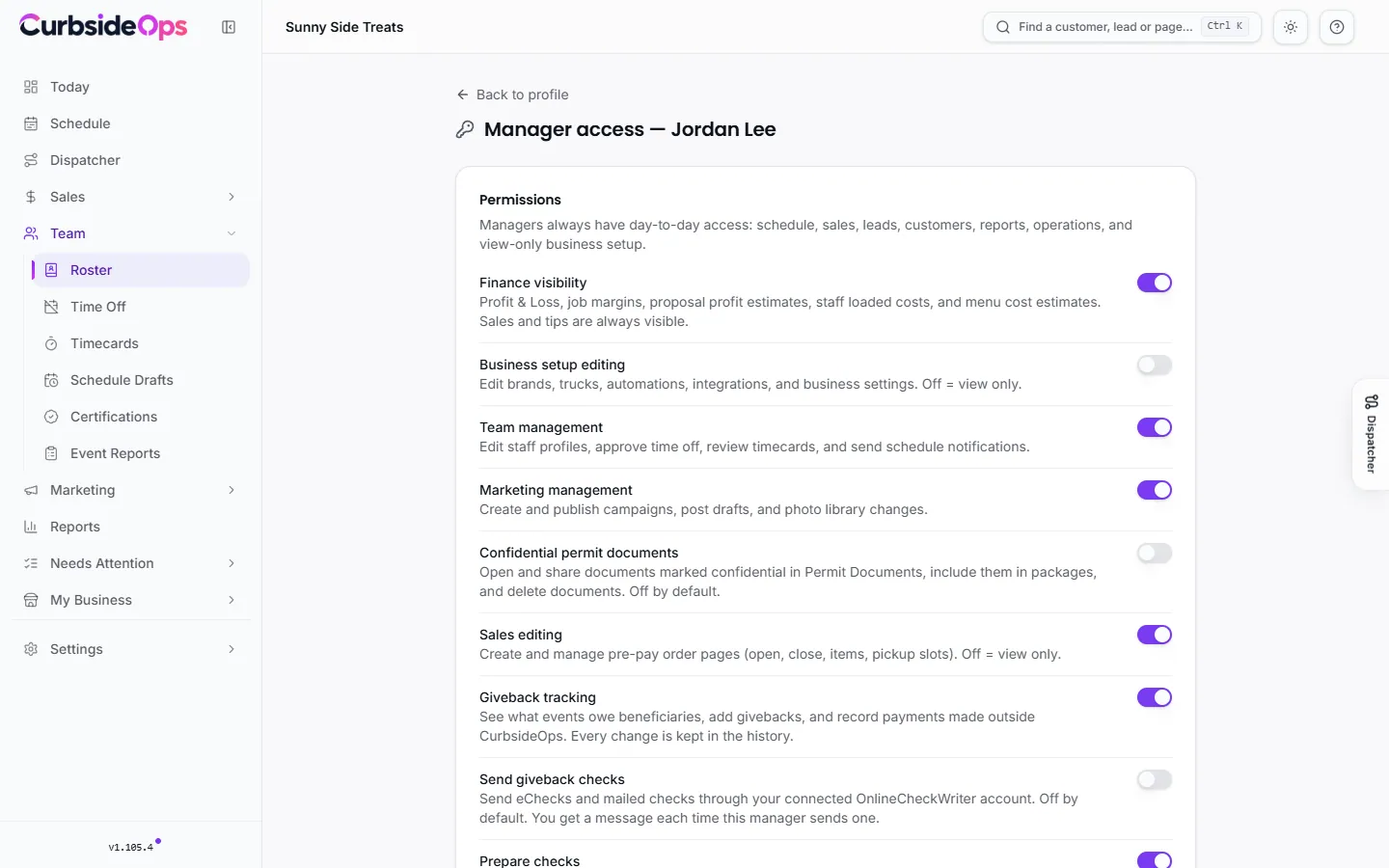
| Permission | Default | What it covers |
|---|---|---|
| Finance visibility | Off | Profit and loss, job margins, proposal profit estimates, staff loaded costs and menu cost estimates. Sales and tips are always visible. |
| Business setup editing | Off | Editing brands, trucks, automations, integrations and business settings. Off means view only. |
| Team management | On | Editing staff profiles, approving time off, reviewing timecards and sending schedule notifications. |
| Marketing management | On | Creating and publishing campaigns, post drafts and photo library changes. |
| Confidential permit documents | Off | Downloading confidential permit documents, putting them in a package, sharing them outside the business, and deleting any permit document. |
| Sales editing | On | Creating and running pre-pay order pages. Off means view only. |
| Giveback tracking | On | Seeing what events owe beneficiaries, adding givebacks and recording payments made elsewhere. |
| Send giveback checks | Off | Sending giveback checks through your connected check account. You get a message each time. |
| Prepare checks | On | Seeing the check register and preparing checks for you to sign. |
Two rows are marked Owner only and cannot be switched on for anyone: Member management (promoting managers and editing their permissions) and Plan & billing (subscription, payment methods and AI credits). Signing, issuing and voiding checks are yours alone as well.
Click Save access when you are done. Each manager has their own settings, and a change to one manager never affects another.
When finance is off
With Finance visibility off, cost and margin figures are not just hidden behind a locked page: they are left out of every screen the manager opens, including job closeouts and staff costs. The assistant in the portal also answers without them.
Default filters
The Default filters card pre-filters Schedule and Reports for this manager by Brands, Trucks and Territory ZIP codes. It is a convenience, not a restriction: the manager can clear or widen the filter at any time and still reach everything their permissions allow.
As a staff member
The As a staff member card has two switches:
- Receives availability links: include them in the weekly availability request.
- Appears in assignable staff lists: include them in staff suggestions and schedule drafts. You can always assign them by hand either way.
Taking access away
Click Remove manager access on the profile. Their portal login stops working immediately. They stay on the roster with their Telegram access, and you can promote them again later.
If you leave Premium
Managers need Premium. If your plan changes, managers can no longer sign in, but nothing is deleted. Their settings come back as they were when you return to Premium.
A manager can add crew but cannot make anyone an owner, change someone's role, or edit your own roster entry.
Still stuck? Email support@curbsideops.com or use Report an Issue in the portal. Checked against CurbsideOps 1.105.4.