

Timecards
Your crew clocks in and out from Telegram, you review the hours, Square shifts are matched, and job closeouts count labor from the punches.
Timecards replace the paper sheet. Your crew clocks in and out by messaging your Telegram bot, the hours land on the Timecards page credited to the right brand, and each event's closeout uses them to work out what the event cost in labor.
Clocking in and out
Crew members tell the bot "I'm here" to clock in and "heading home" to clock out. The time is recorded when the message arrives, so nobody types a time. A second clock-in while already on the clock is ignored.
Each punch is credited to a brand automatically: the brand of the event the person is assigned to today, else their default brand, else your only brand. If CurbsideOps still cannot tell, the bot asks.
The Clock-In Reminders automation nudges assigned crew to clock in when an event starts and to clock out after it ends.
Reviewing hours
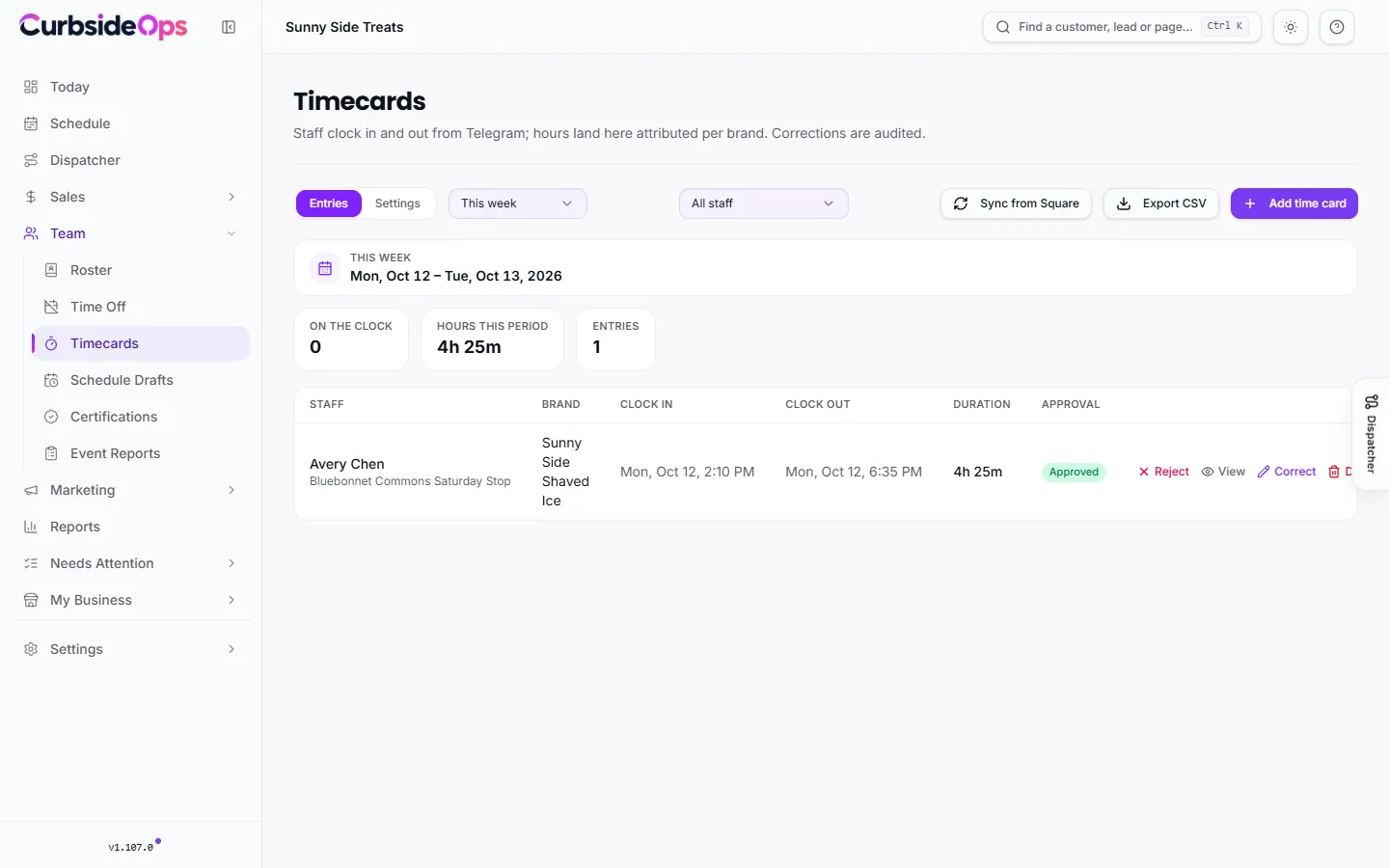
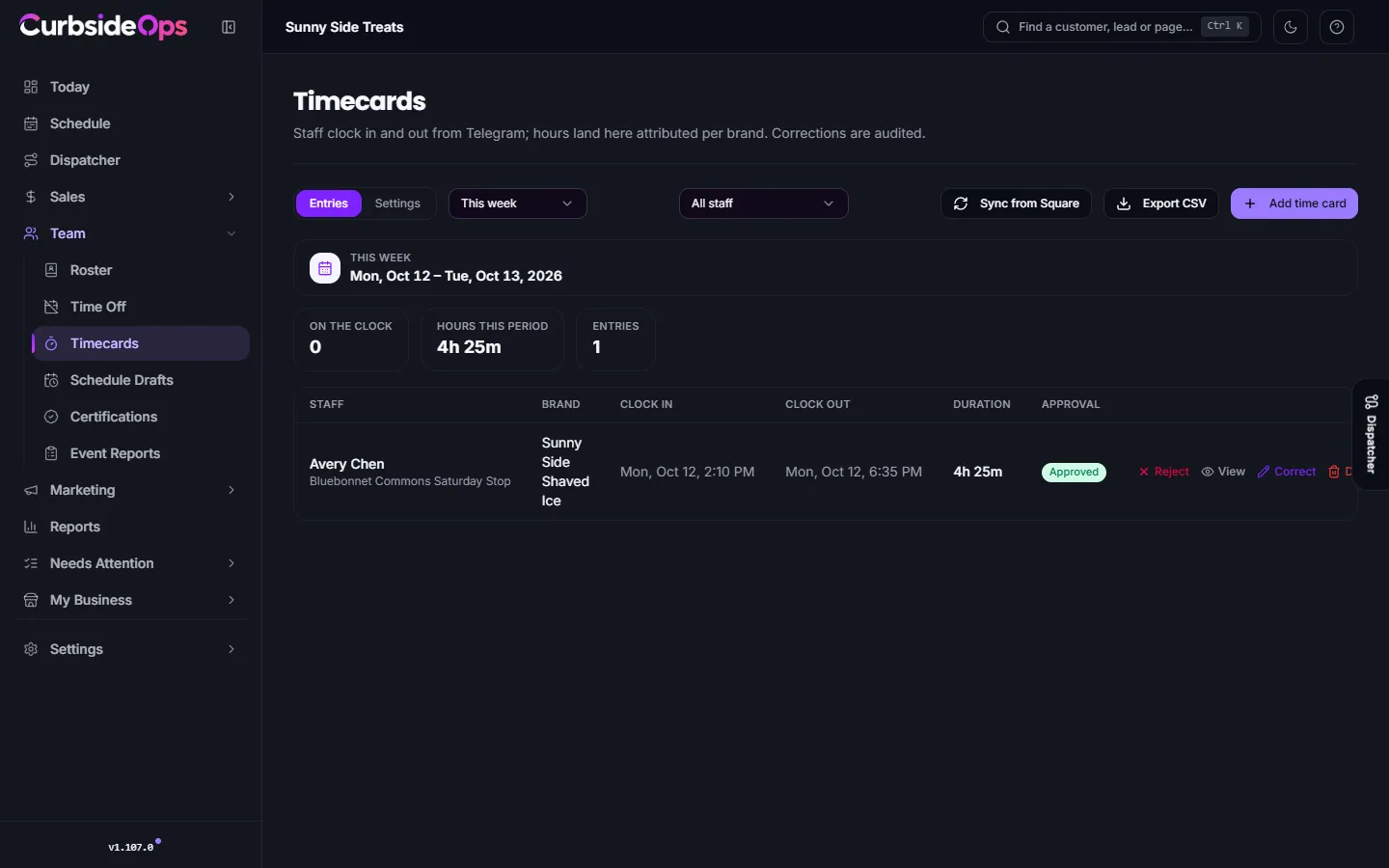
The Entries tab shows who is On the clock, the Hours this period and every entry for the period you pick (Today, This week, Last week or Last 14 days), for all staff or one person.
New entries show Needs review. For each one:
Approve
Click Approve when the hours look right.
Or correct
Click Correct to change the clock-in, clock-out or brand. A Reason is required, and every correction is kept in the history.
Or reject
Click Reject and add a short reason. A rejected timecard no longer counts toward any event's labor cost.
Add time card enters a shift someone forgot to punch. Export CSV downloads the entries for payroll.
Square shifts
If your crew also clocks in on the Square Team app, CurbsideOps reads those shifts too. They are pulled in regularly, and Sync from Square pulls them now. A Square shift that starts within a few minutes of the same person's Telegram clock-in is linked to it instead of creating a second entry.
On the Settings tab, the Per-staff settings table connects each person to their Square team member. Once mapped, entries closed in CurbsideOps are sent to Square as timecards, which Square Payroll picks up. Shifts from Square team members you have not mapped still appear in job closeouts as unattributed labor, estimated at your default rate.
The same table sets each person's Default brand (for clock-ins away from an event, such as warehouse duty) and, if you can see finance, their Loaded cost/hr.
Location evidence
Location evidence on the Settings tab decides whether a clock-in or clock-out records where the person was: Off, Optional (when available) or Required. It also applies to punches away from events.
How closeout counts labor
When you close out a job, each person who worked it is one labor line. Their hours are the time they were clocked in during the event, from 30 minutes before it starts to 30 minutes after it ends. Assigned crew are counted from their timecards without any extra linking.
Some details that keep the number honest:
- Someone clocked in on both Telegram and Square for the same shift is counted once.
- A punch that is still open is listed but costs nothing until it closes.
- Rejected timecards are left out.
- Time between events that falls outside every event window is not charged to any event.
The hourly cost is the person's loaded cost, or the Labor $/hr under Closeout cost defaults when they have none. That card also holds the overhead per event and the mileage rate. See Jobs and closeout.
Who sees costs
Loaded costs and closeout cost defaults are finance figures. Managers only see them with Finance visibility turned on. See Managers and permissions.
Still stuck? Email support@curbsideops.com or use Report an Issue in the portal. Checked against CurbsideOps 1.105.4.