

Schedule drafts
Let CurbsideOps propose crew for every open event in a week or a day, review the picks, apply them in one click, then notify.
Filling a busy week by hand means checking who is free, who prefers mornings, who is close to their hours and who drove which truck. A schedule draft does that pass for you. It proposes a person for every open spot, shows its reasons, and changes nothing until you apply it.
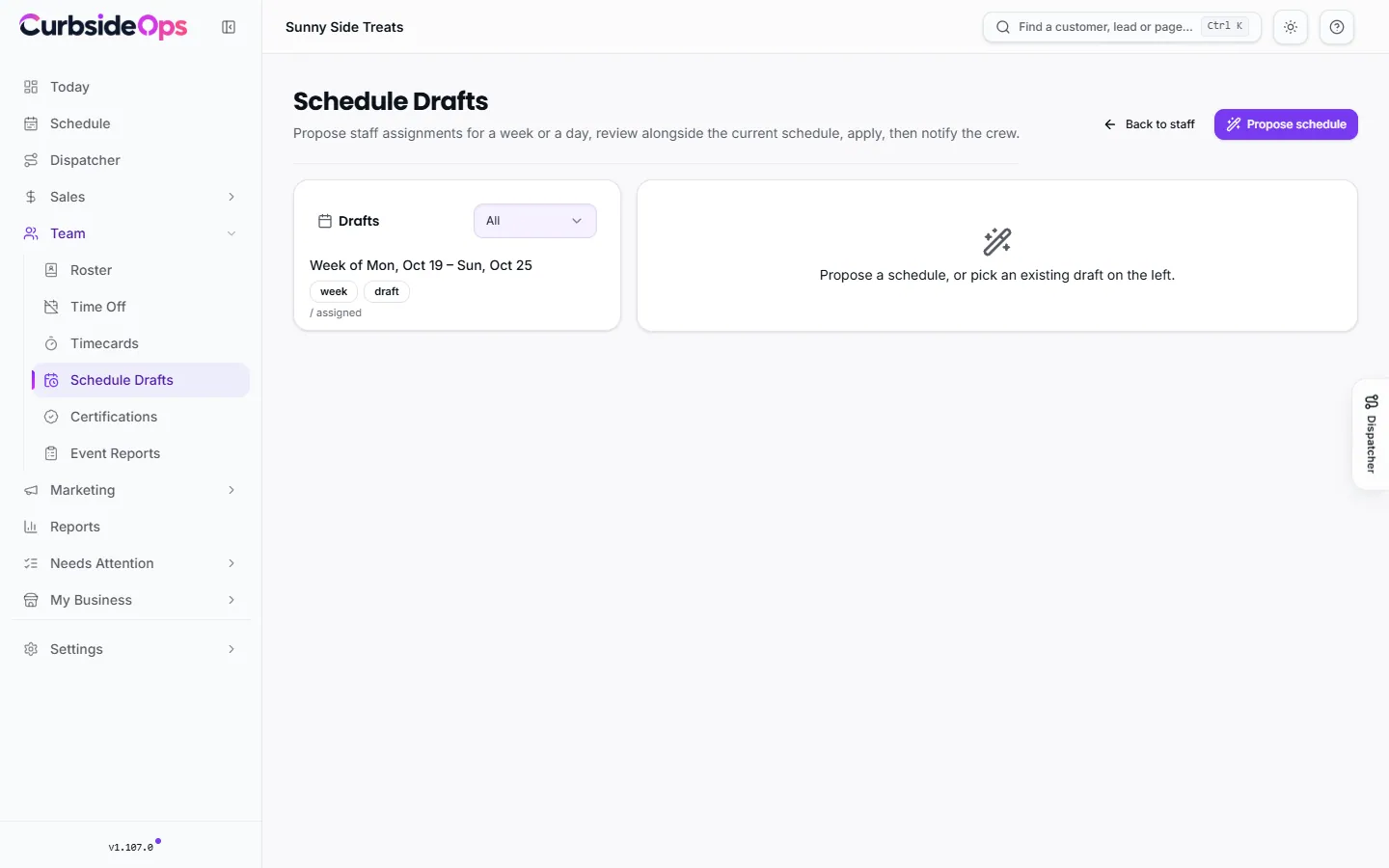
Making a draft
Start
Open Schedule Drafts under Team and click Propose schedule.
Pick the period
Choose a Scope: a Week (pick any day in it) or a single Day. The dialog shows how many people are available, off or unknown on each day, so you can see whether you have enough crew before you start.
Narrow it if you like
Limit the draft by Role (All staff, Drivers only or Servers only) and, with more than one brand, by Brand.
Generate
Click Propose schedule. The draft opens on the right.
How people are picked
For each open spot, CurbsideOps ranks your crew on:
- Availability: the strongest signal is someone who submitted availability that covers the event. People who are off or on approved time off are not picked.
- Shift preference: a morning person for a morning event.
- Workload: people under their weekly hours are favored, and anyone close to their Max hours / week is held back.
- Preferred truck: a small bonus when the event runs on the truck set as their preferred truck.
- Keeping a truck's day together: the same person carries a truck's events through the day when they can. When no single person can cover a whole route, the picks split it and the draft says so.
- Spreading the day: someone already working an event that day is ranked a little lower, so the work is shared.
Hover over a pick to see why it won. Runners-up are listed as Alternates: click one to swap it in.
People already assigned to an event appear in the draft as they are. Change the person on one of those rows to change the real assignment when you apply.
Applying it
Click Apply draft. The confirmation tells you how many new assignments will be written and how many current ones will change. Rows with nobody picked, and current assignments you did not touch, are skipped.
Applying does not message anyone. When you are ready, click Send notifications. As everywhere else, only people whose own assignment changed get a message, and they can answer Got it or flag a conflict (see Your crew).
Keeping the list tidy
The left column lists your drafts, filtered by Drafts, Applied or Discarded. Discard sets a draft aside without applying it. A discarded draft can then be deleted for good. You can propose a fresh draft any time, for example after someone's time off is approved.
Better drafts start with availability
Drafts are only as good as what CurbsideOps knows about your crew. Turn on the Weekly Availability Request automation so everyone is asked for next week's availability on Telegram, and fill in shift preferences and hour limits on each profile.
Still stuck? Email support@curbsideops.com or use Report an Issue in the portal. Checked against CurbsideOps 1.105.4.
Timecards
Your crew clocks in and out from Telegram, you review the hours, Square shifts are matched, and job closeouts count labor from the punches.
Certifications
Track food handler cards, manager certificates, licenses and other credentials for each crew member, with a reminder before each one lapses.