

Your crew
Add staff to your roster, link their Telegram, assign them to events and tell them about their shifts.
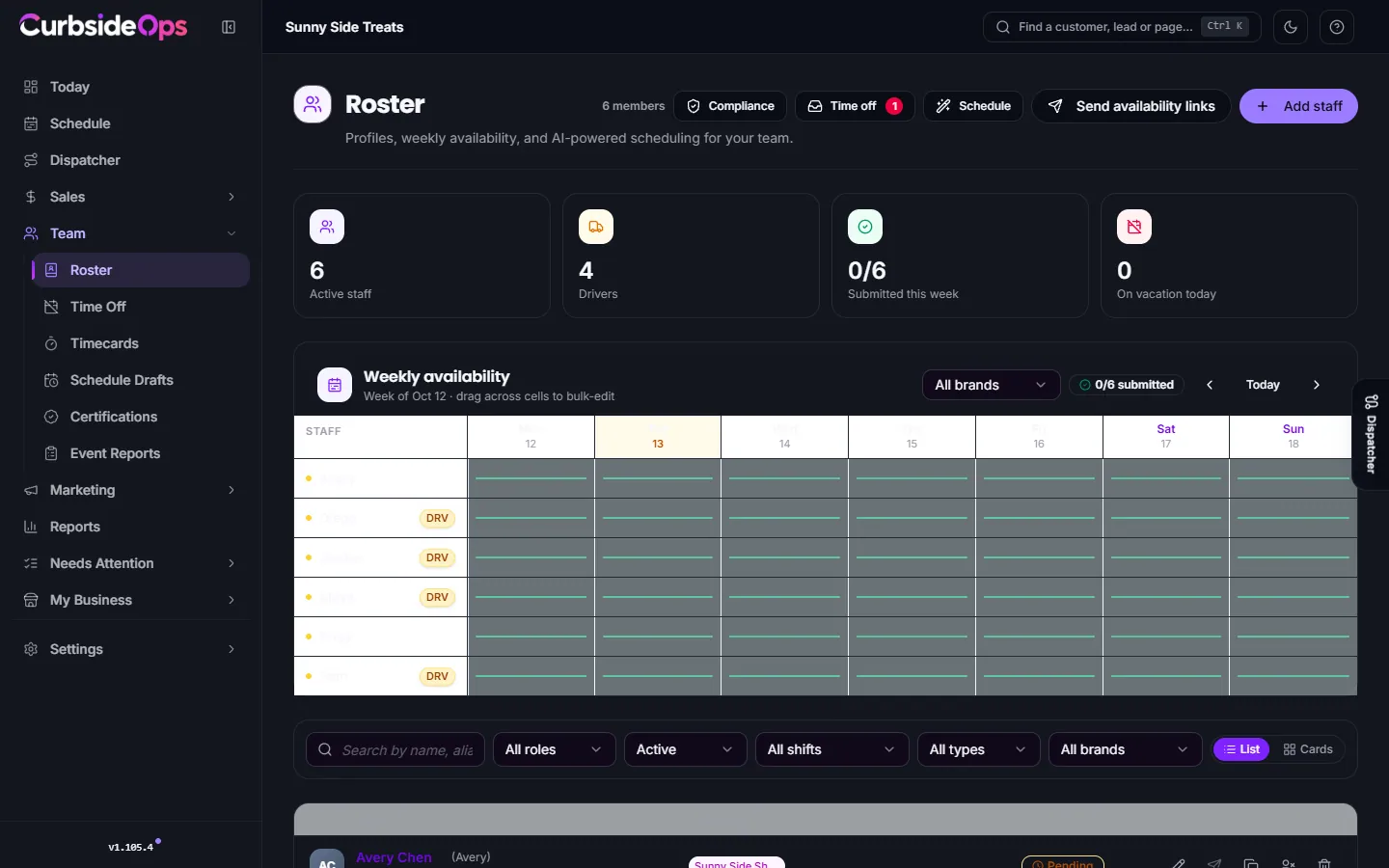
The Roster page lists everyone who works for you. Each person you add can talk to your Telegram bot, gets their morning briefing and shift notices, and can be put on events. Your crew never needs a portal login.
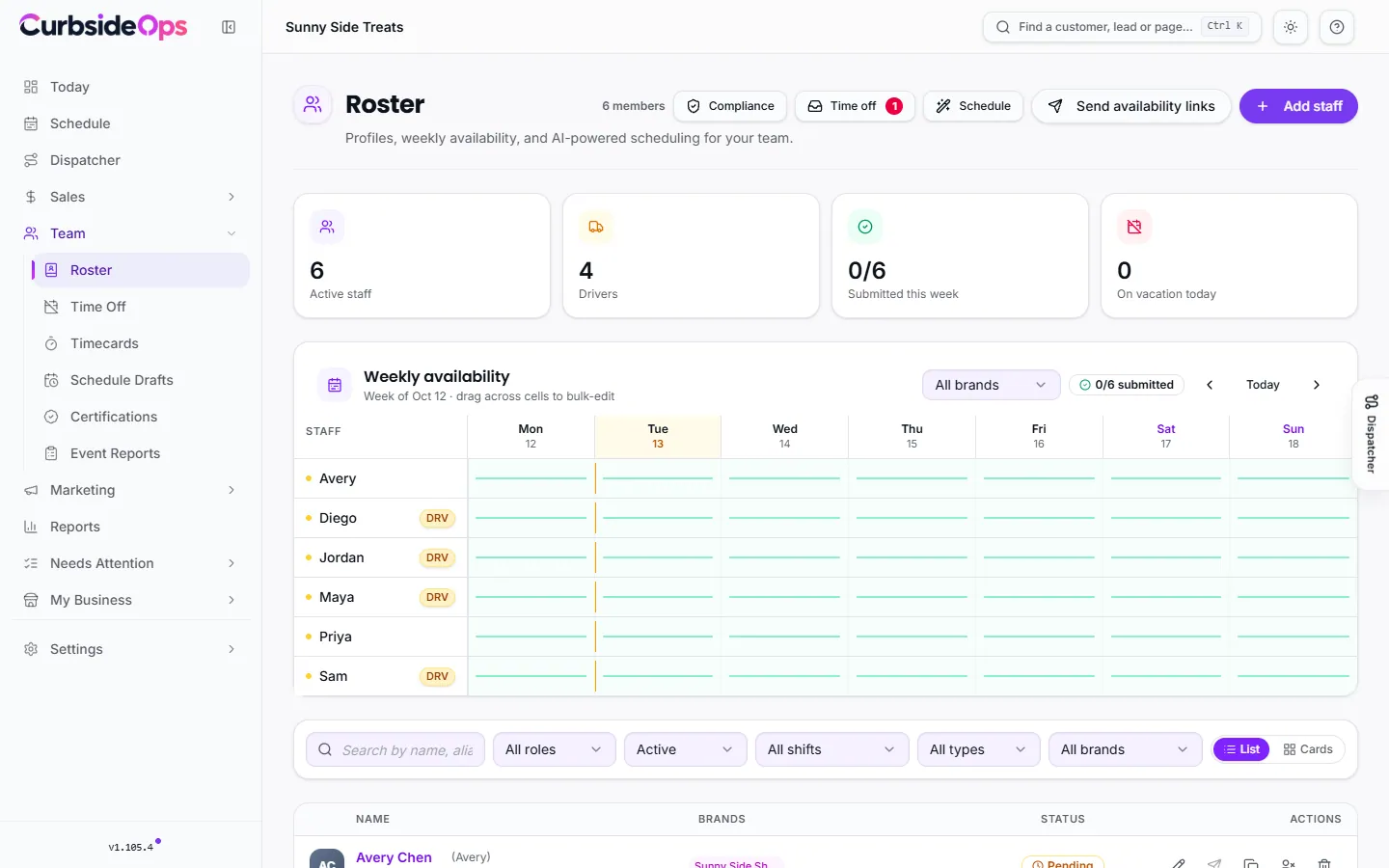
Adding someone
Open the form
On Roster, click Add staff.
Fill in the basics
On the Basics tab, enter their Name, Email and Phone. Under Aliases, list the nicknames people use for them ("Kev, K-Rod"), separated by commas. The assistant uses these to match the person to the names written on your calendar events.
Pick a role and pay type
Leave Role on Staff for crew. Owner gives that person the owner's full assistant in Telegram, including sales and fleet, so keep it for owners. Pay type is Paid (counts toward labor cost) or Unpaid helper for family and volunteers.
Save
Click Add staff member.
On Starter your roster holds up to 3 staff members. Professional and Premium have no limit.
Profile details (Professional)
The Profile, Logistics, Emergency and Notes tabs hold the rest: preferred name, pronouns, birthday and hire date (with an opt-in for birthday and anniversary reminders), languages and dietary notes, an emergency contact and private Owner notes.
On Logistics:
- Staff type: Driver (moves a truck) or Server (rides along). Only you see this.
- Brands: the brands this person works. Leave it empty and they can be scheduled for every brand.
- Shift preference, Max hours / week and Has own vehicle feed the staff suggestions and schedule drafts.
Linking Telegram
Your crew talks to CurbsideOps through your Telegram bot, so each person needs their Telegram account linked. Two ways:
- Telegram user ID: ask them to message your bot. It replies with their user ID, which you paste into the Telegram user ID field.
- Text onboarding link: when texting is connected, this button under Phone texts them a link that opens a chat with your bot.
Once linked, the person shows a Telegram badge on their profile. Deactivate blocks them from the bot right away and Reactivate lets them back in. Delete removes them for good.
The profile page and the crew portal link
Click a person to open their profile.
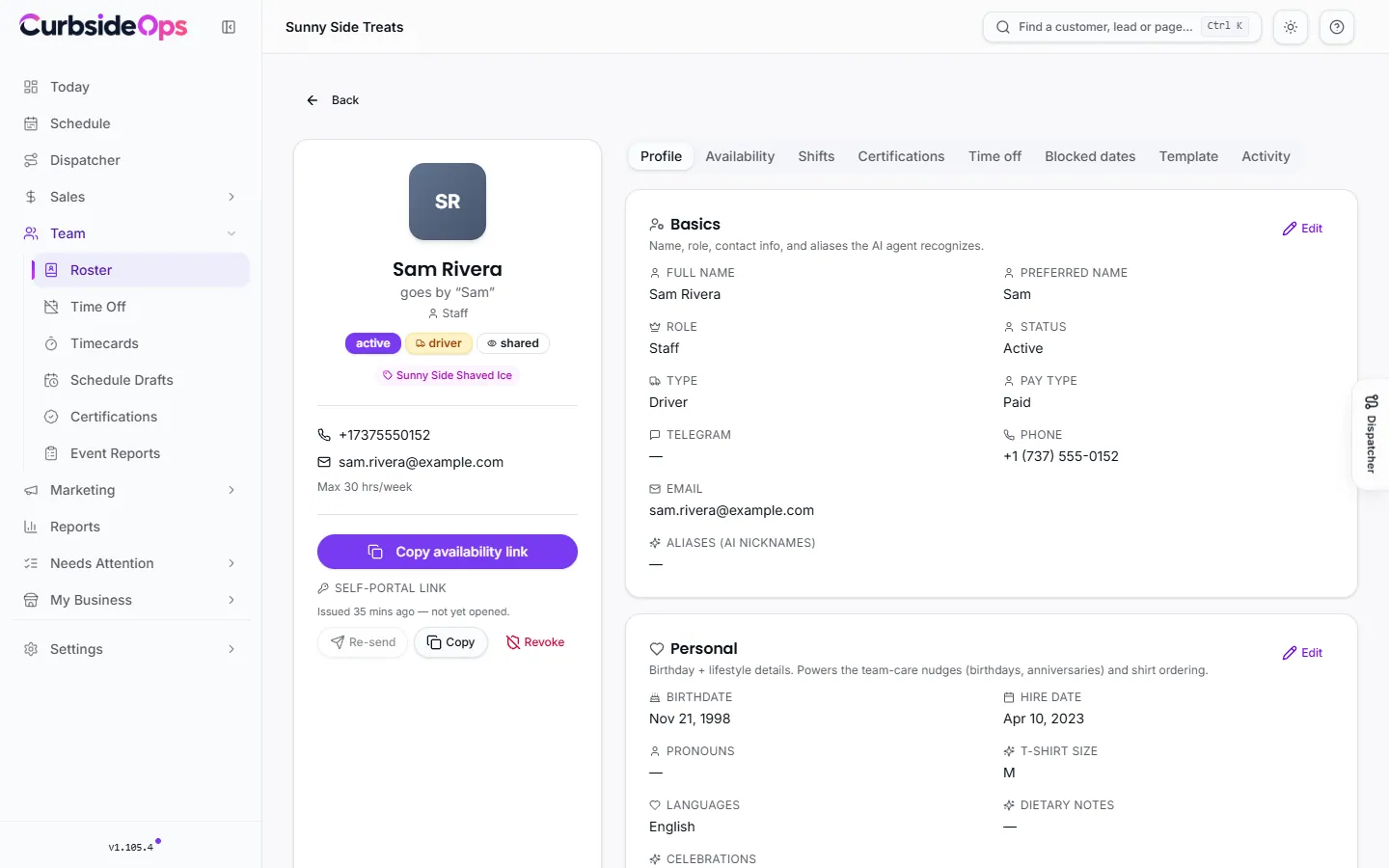
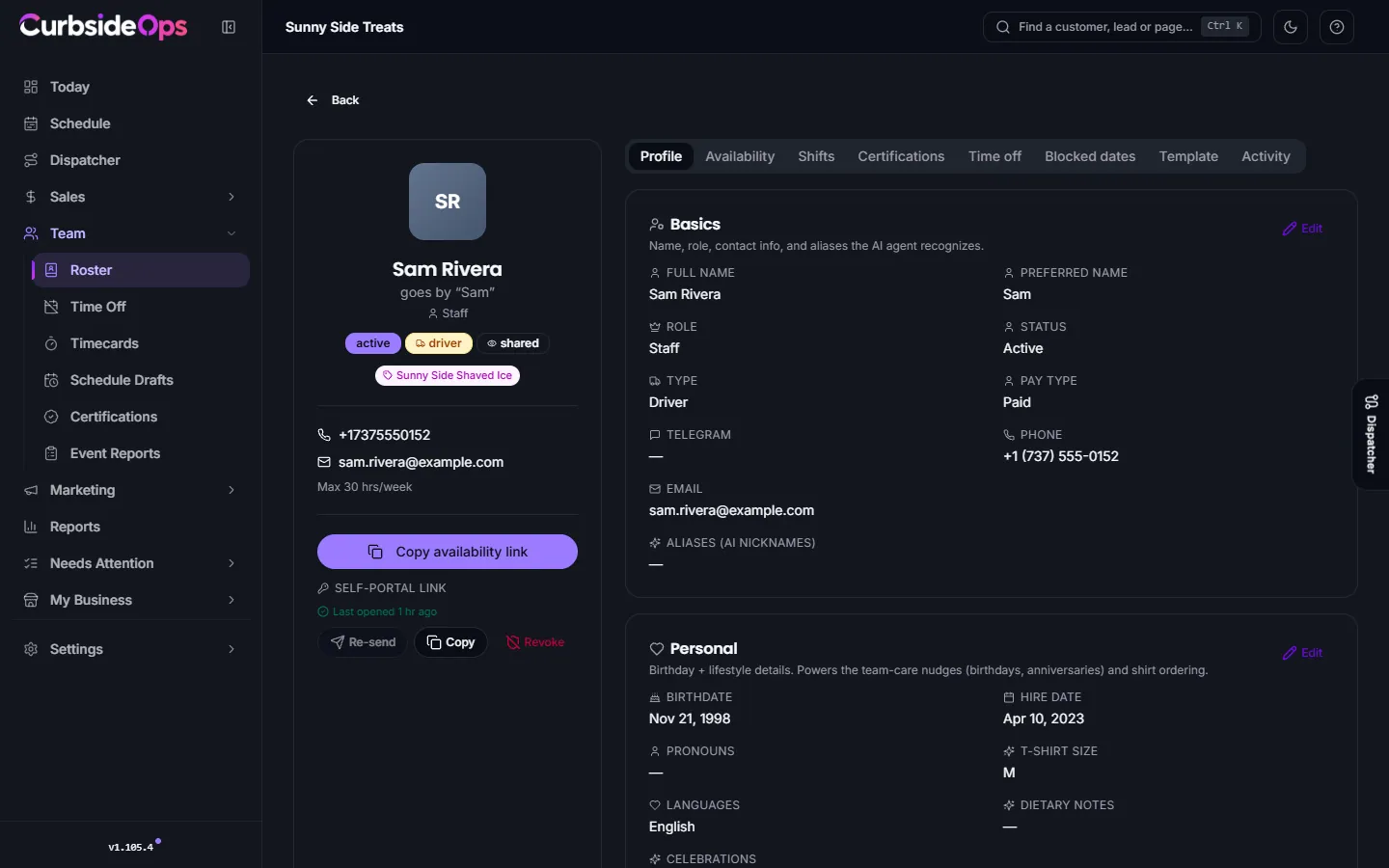
The tabs show their Availability, Shifts, Certifications, Time off, Blocked dates, weekly availability Template and Activity. Most of them need Professional.
The Self-portal link gives the person their own mobile page with their schedule (see the crew portal). Send delivers it on Telegram, Copy puts a fresh link on your clipboard, and Revoke turns the current link off. Sending again replaces the old link, so only the newest one works.
On Professional, Send availability links on the Roster page asks everyone with Telegram for next week's availability.
Putting people on events
Open an event on your Schedule and use its Assignments section. Pick people from the list, or click Suggest to rank your crew by availability, shift preference and how much they are already working. Assigning someone does not message them. You decide when to tell them.
Telling your crew about their shifts
When the assignments look right, press Notify on the event, or Notify staff on the calendar for a whole day or week. Schedule drafts have a Send notifications button too.
Before anything goes out you see who will get a message. Only people whose own assignment changed are messaged: new shifts, changed details and removals. Everyone already up to date is skipped. If everyone is current, you are offered Send again to re-send the notice to all of them.
Notices go to Telegram first, with a text message for anyone without Telegram. Each notice has two buttons:
- Got it: the assignment shows confirmed in the event.
- I have a conflict: the assignment shows conflict flagged and you get a message right away. The shift stays assigned until you change it.
No answer counts as accepted. An assignment edited after the last notice shows changes not sent until you notify again. When an event is cancelled, the assigned crew is told automatically.
Notification settings
The Staff Schedule Notifications automation controls the cancellation notices and whether you also get a message each time someone taps Got it. A conflict always reaches you. Staff notices never include prices or money. See Automations.
Still stuck? Email support@curbsideops.com or use Report an Issue in the portal. Checked against CurbsideOps 1.105.4.