

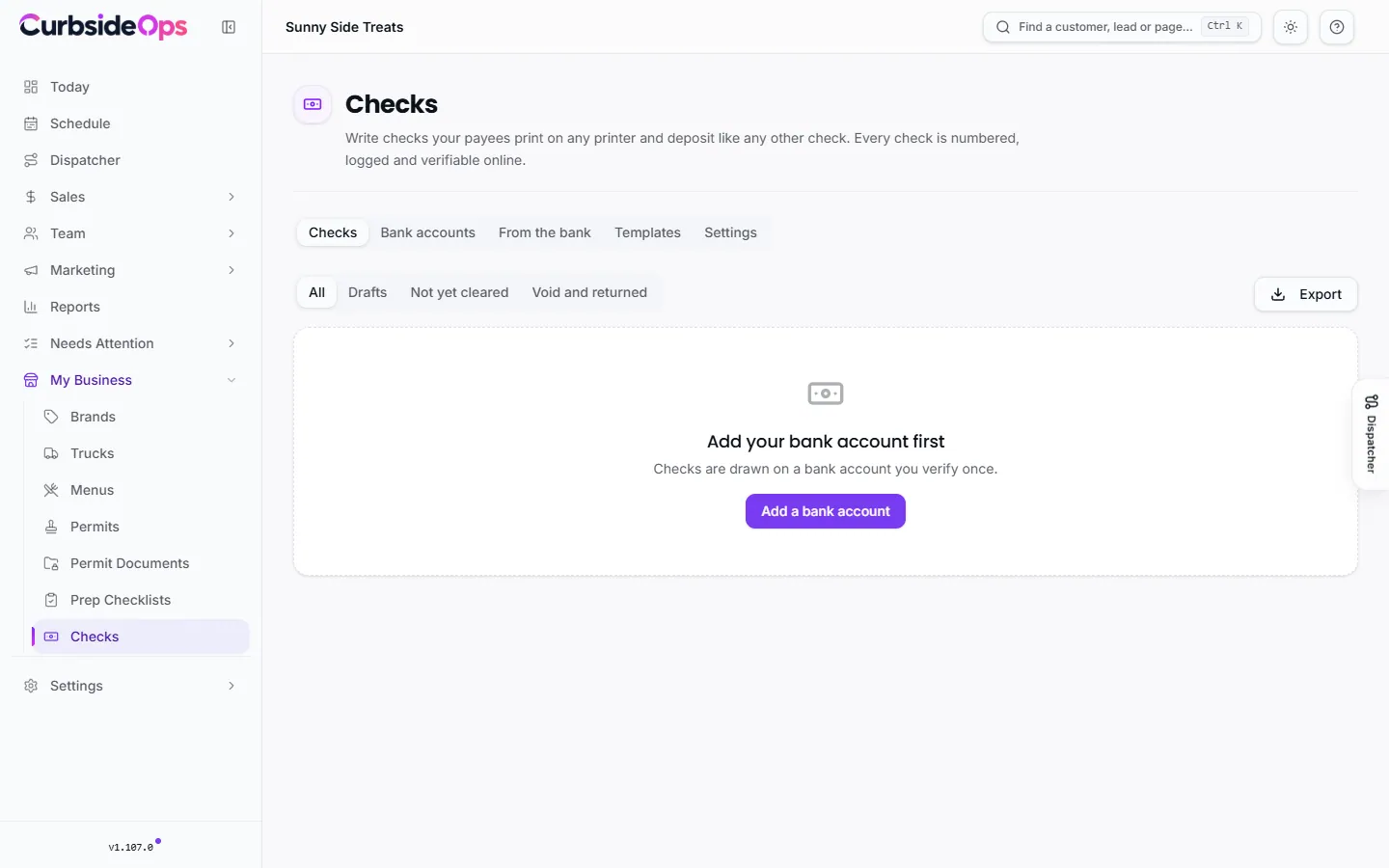
Checks
Write checks your payees print on any printer and deposit like any other check, numbered, logged and verifiable online.
Pay a school's giveback (see Givebacks), a vendor or anyone else by check without a checkbook. You write the check in CurbsideOps, sign it, and email it. The payee prints it on plain paper and deposits it at a teller, an ATM or with their banking app. Your own bank pays it from your account: CurbsideOps never holds or moves your money.
Rolling out gradually
Checks are being turned on account by account. If the page says checks are not turned on for your account yet, contact support to join early.
Before your first check
Add a bank account
On the Bank accounts tab, press Add a bank account. Copy the routing and account numbers from one of your paper checks, enter the legal name on the account, the address printed on the check, and the First check number.
Verify it
Press Verify on the account. Each account is verified once before its first check. Tick the box confirming you may sign checks for the business on that account, then press Link with my bank and log in to your bank. If your bank lists the account under your own name rather than the business, that counts, because you confirmed you may sign for the business.
Some banks, Chase among them, do not share the full account number. For those, agree to a test deposit and press Send the test deposit. In one or two business days a one-cent deposit shows on your statement with a code that starts with SM. Press Finish verifying on the account and enter the code. CurbsideOps never takes money from the account.
You can always upload a voided check or bank letter instead, for a person to review, usually within one business day.
Add your signature
On Settings, add your signature once: type your name and pick a style, or draw it. It is applied only when you issue a check yourself.
Write and issue a check
Write it
On the Checks tab, press Write a check. Choose the payee or Someone new, the amount, a memo, and the bank account it is drawn on. It saves as a draft: nothing is numbered, signed or sent yet.
Review and issue
Open the draft and press Issue check. Tick the box confirming you reviewed the amount and payee and authorize your signature. You confirm it is you, then the check gets its number, your signature, and a saved printable copy.
Send it
Press Email to payee. The payee gets a link to their check. Attaching the PDF to the email is optional; anyone who can read that email could print the check, so only attach it for an address you trust.
An issued check cannot be edited. A mistake is fixed by voiding it.
Who can do what
Only the account owner adds bank accounts, issues, signs, voids, opens check PDFs and changes settings. Managers with Preparing checks can write drafts and see a register with sensitive details hidden; the owner reviews and issues them. See Managers and permissions.
The register
The Checks tab is your check register. Filter it by All, Drafts, Not yet cleared or Void and returned, and use Export for your bookkeeping. Each check's History shows when it was emailed, opened and paid.
From the check itself, record what your bank statement shows: The payee deposited it, It cleared my account or The bank returned it. It is your own record only.
Void or replace a check
Void check keeps the check in the register with its number; its link stops working and online verification shows it as void. Void and start a new check also opens a new draft with the same payee, amount and memo. If the check was already deposited, place a stop payment with your bank too.
Print on check stock
To print checks yourself instead, press Print checks and choose Plain paper, Check stock, three per page, or Check stock with stubs. Each check prints exactly as it was issued. Print a check once: a second print is a second copy of the same payment.
On Templates, design how checks look: start from a design, move things around, add fields and your logo, and choose which design each account uses.
Verification and bank feed clearing
Every check carries a QR code and check ID, so the payee or their bank can confirm online that it is real and not void.
On the Bank accounts tab, press Auto-clear on an account to turn on Clear checks automatically. CurbsideOps reads your bank transactions: a payment that names the check number and exact amount marks the check cleared on its own. An amount-only match waits for you under From the bank. If your bank pays a voided check or a different amount than the check says, you get an alert right away; call your bank.
The Positive Pay button on each account exports a file of issued and voided checks to upload to your bank, if your bank offers it. Settings also holds your limits: largest single check, total per day and per month. A new bank account starts slow: three checks and $1,000 in its first week.
Still stuck? Email support@curbsideops.com or use Report an Issue in the portal. Checked against CurbsideOps 1.107.1.