

Prep checklists
Give every booking a task list and a packing list, with Telegram reminders for your crew and a nudge to you when something required runs late.
Write your prep routine once (load the truck, take an arrival photo, count the cash drawer) and every confirmed booking gets its own copy, timed to that event. Your crew sees their tasks on their phone, Telegram reminds them as each one comes due, and you hear about it when a required task slips.
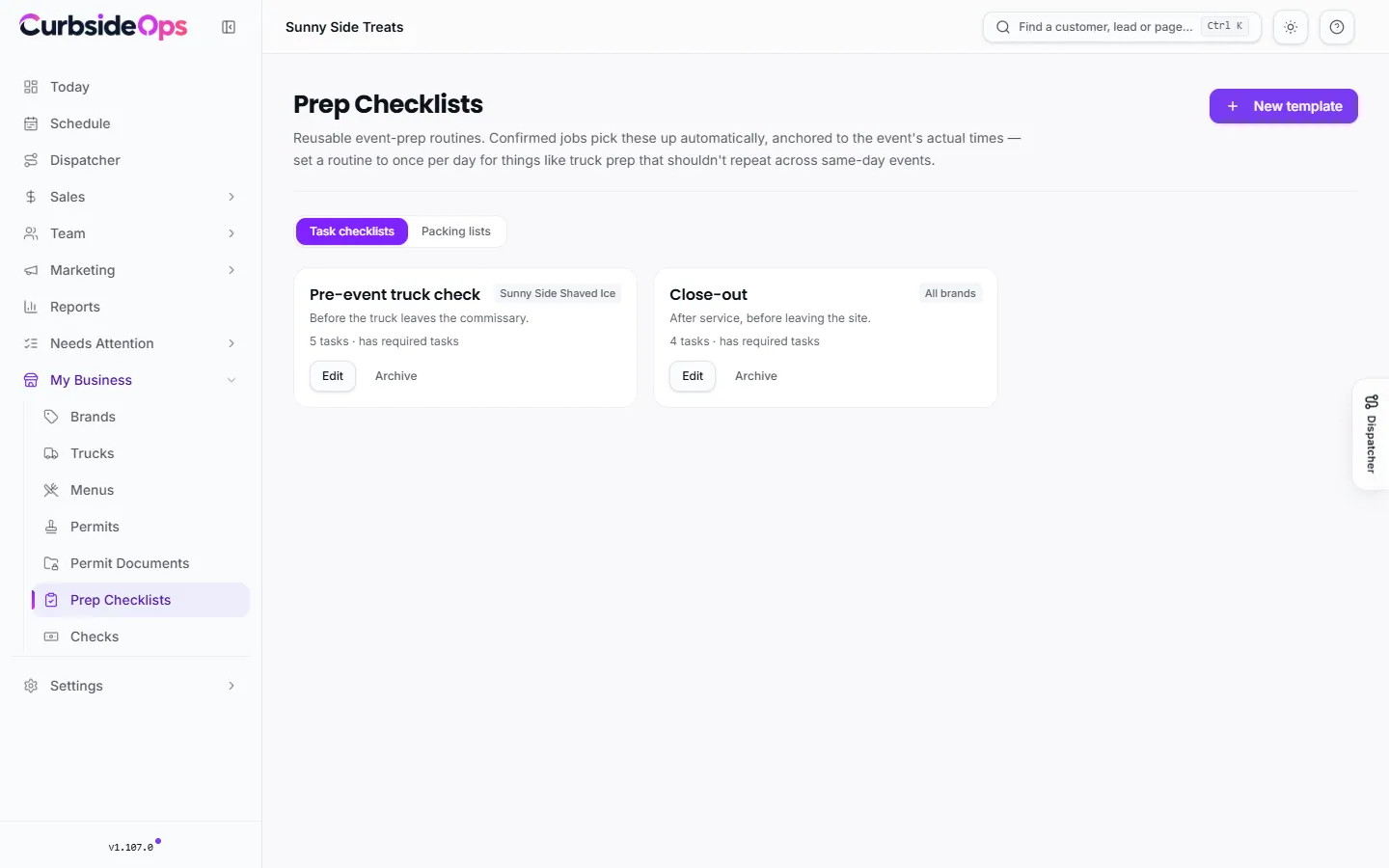
Create a checklist template
Start a template
Open Prep Checklists, stay on Task checklists, and press New template.
Name it and choose where it applies
Give it a Name such as "Event prep", pick a brand under Applies to (or All brands), and add an optional description.
Choose how often it runs
Under Runs, pick Every event or Once per day.
Add tasks
For each task, set when it is due (minutes before or after the event start or event end), what counts as done, and who does it: Any crew on the event, the Owner, or a named staff member. Tick Required for tasks that must not be skipped.
What counts as done is one of: Tap to confirm, Photo required, Enter a number or Enter a note.
Every event or once per day
Every event gives each booking its own task list. Once per day gives the crew a single list per brand per day, timed to the day's first event. Use it for daily routines like truck prep that should not repeat when you run several events in one day.
How it runs
- A booking picks up its checklists once its job is confirmed, not before.
- Each task is timed from the event's real start or end, so if the event moves, the tasks move with it.
- Editing a template changes future bookings. Task lists already created keep the tasks they started with.
- When tasks come due, the assigned crew member gets one Telegram message with a link to their task list. Several tasks due together arrive as one message, not many.
- If a Required task is more than 30 minutes overdue, you get a Telegram message.
Reminders and escalations come from the Task Reminders automation. Turn it on under Automations; it needs your Telegram bot connected.
Crew see only their own tasks
The link in each reminder opens the tasks for that crew member and that event only.
Packing lists
The Packing lists tab works the same way for what goes on the truck: flavors, cups, generator, water. Press New packing list, name it, choose the brand, and list the items with a quantity and unit. Every confirmed job gets its own copy. The crew checks items off from their phone, and anything marked short flags the job as not ready to roll.
When you save a packing list, it is applied to upcoming events too, except events where the crew has already started packing.
Related
- See which jobs are ready, and why one is not, in Jobs and closeout.
- Things that ran low during service land in Restock.
Still stuck? Email support@curbsideops.com or use Report an Issue in the portal. Checked against CurbsideOps 1.105.4.