

Trucks
Add your trucks, set their warehouse and standing spots, connect GPS, and see how trucks affect your bill.
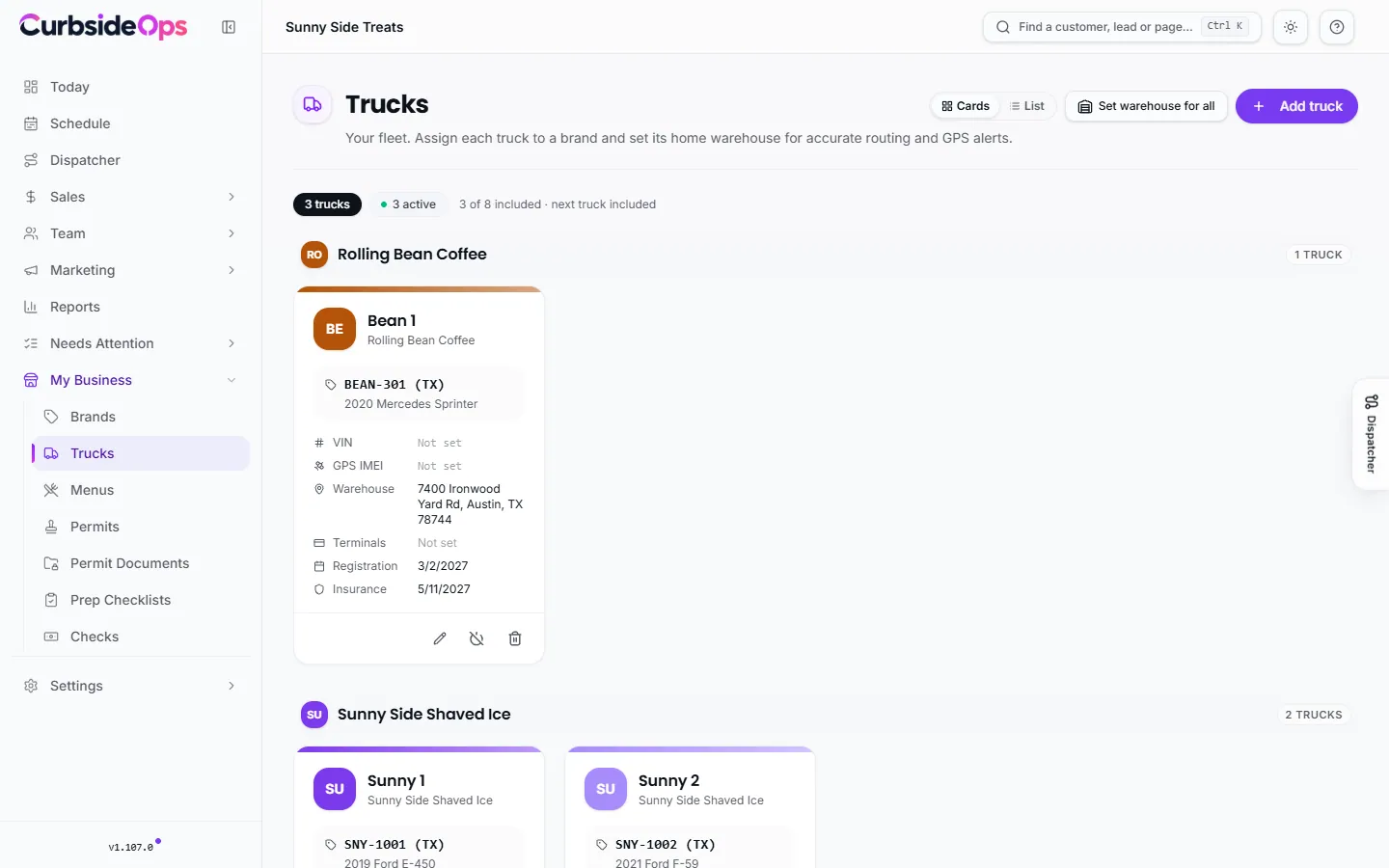
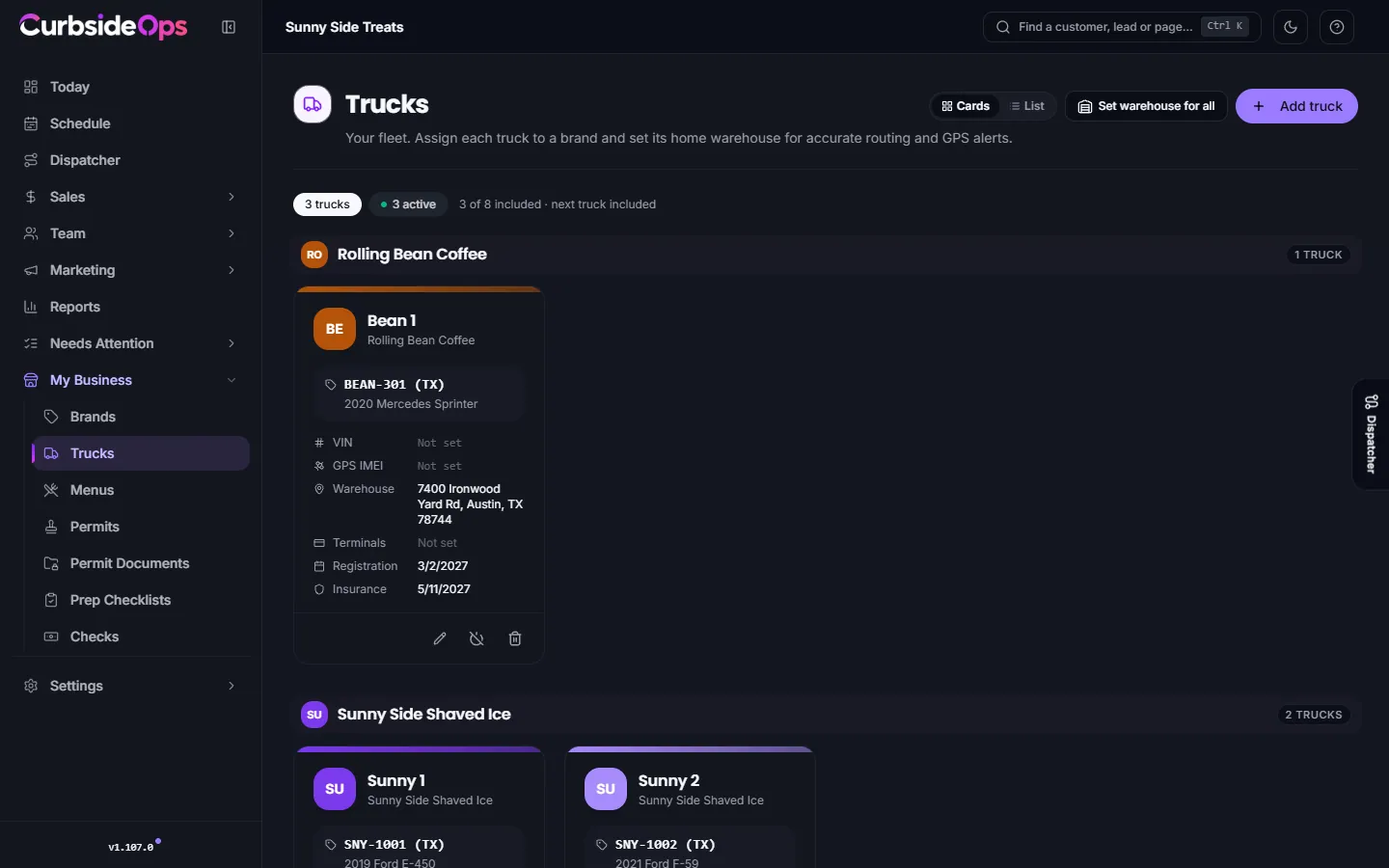
Each truck belongs to one brand and has a home warehouse. CurbsideOps uses that address for drive times, departure times in the morning briefing and GPS alerts, and uses the truck's Square terminal names to split sales by truck.
Add a truck
Open Trucks
Go to Trucks and press Add truck.
Fill in the basics
Give it a name (whatever your crew calls it), pick the brand, and enter the Warehouse / storage location: where the truck parks overnight.
Optional: GPS and Square
Add the Bouncie GPS IMEI from your tracker, and the Square terminal names exactly as they appear in Square, separated by commas. Pick a Square location or leave it on Use brand default.
If every truck shares one warehouse, Set warehouse for all fills in the address on every truck at once.
The truck page
Open a truck to see its tabs.
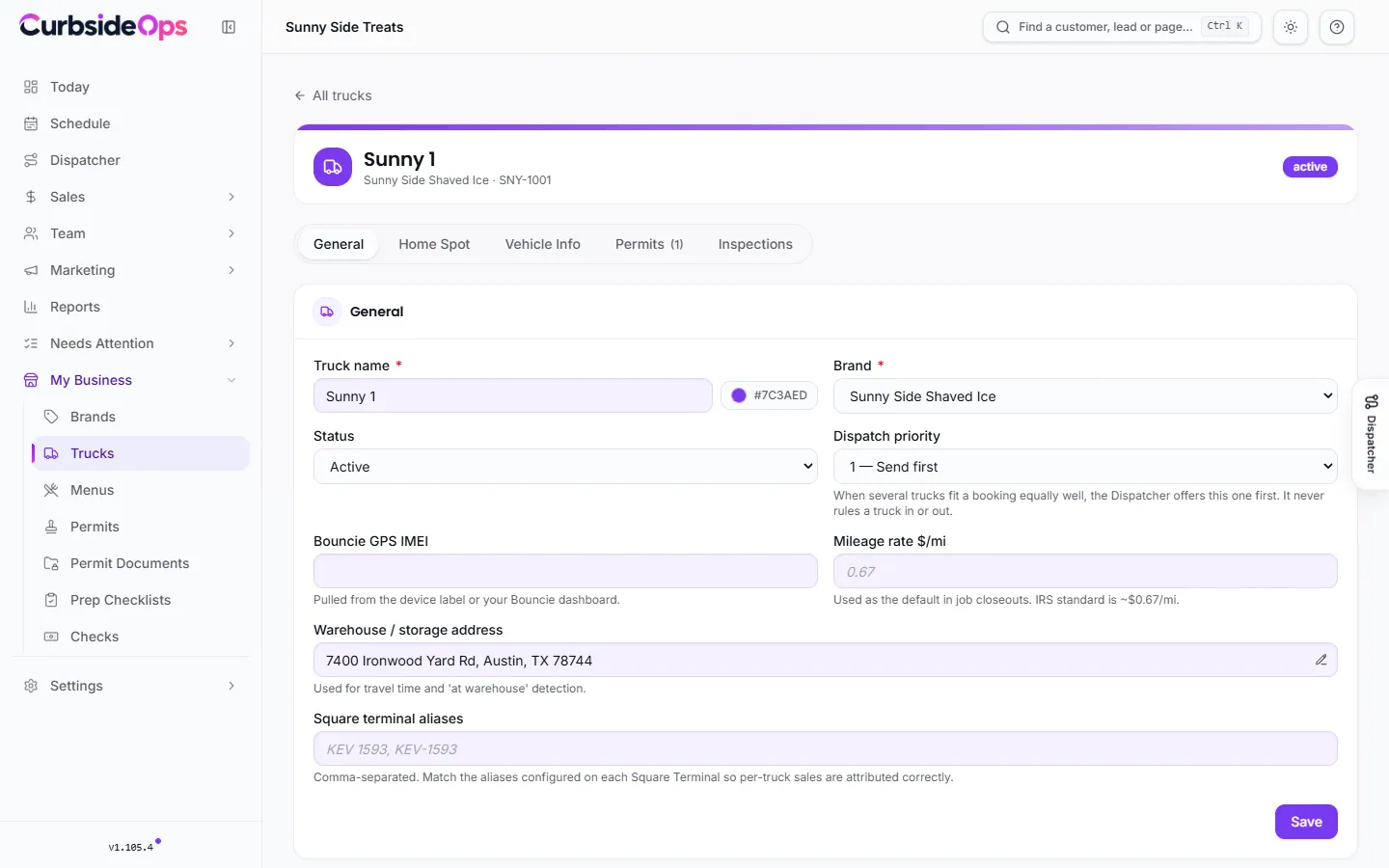
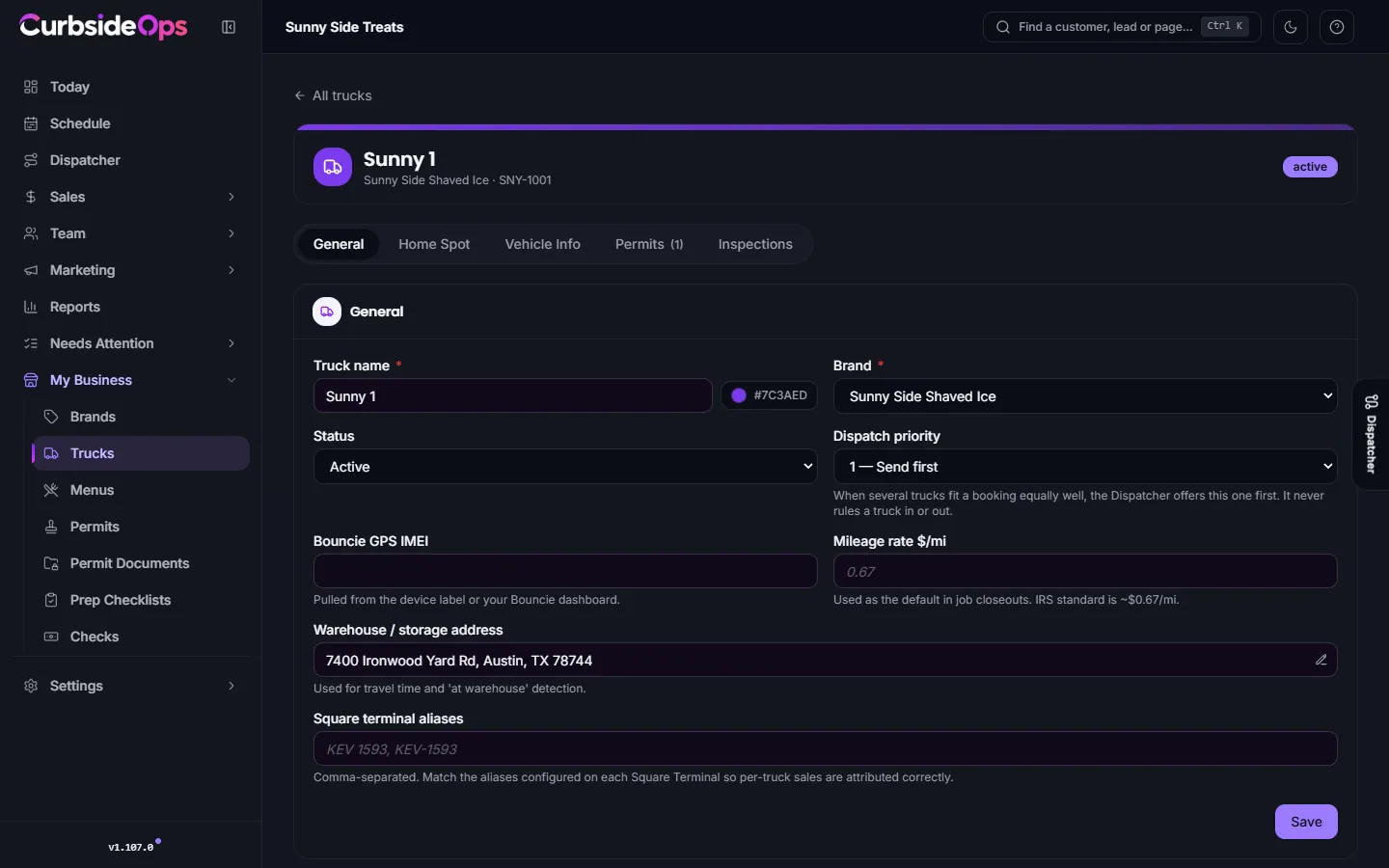
- General: name, brand, Status, Dispatch priority, Bouncie IMEI, Mileage rate $/mi (the default for job closeouts), warehouse address, Square terminal aliases and Square location.
- Home spot: standing parking spots, weekly hours and today's special.
- Vehicle Info: VIN, plate, make and model, dimensions and weight, propane, registration, insurance and commissary kitchen. Auto-fill from your GPS device fills what your tracker knows.
- Permits and Inspections: the permits and health inspections for this truck. See Permits.
Home spots, weekly hours and specials
If a truck parks at the same place most days (a brewery, a food truck park, an office lot), save it under Standing parking spots. You can save as many spots as you like, but only one is active at a time. The active spot feeds the morning briefing, weather prep and daily-special posts. Pausing a spot keeps it for later.
Weekly hours belong to a spot: each spot keeps its own week, and the truck follows the active spot's hours. Today's special is what you are running today. The morning briefing, the daily special post and your public menu page read it. Saving again replaces it.
Fully mobile? Leave the spots empty. Nothing else changes.
Set it from Telegram
You can also set today's special by telling the assistant on Telegram. Your crew can ask the assistant what today's special is.
GPS tracking with Bouncie
CurbsideOps works with your own Bouncie device; you buy and install it, and there is no hardware to order from us. Connect your Bouncie account under Integrations, then put each device's IMEI on its truck. With GPS on, automations such as Truck Proximity and Arrival & Departure Tracking can tell you when a truck arrives on site or is running late. GPS is optional: without it, those features stay quiet.
Dispatch priority and buffers
Dispatch priority (Send first, Prefer, Normal, Only if needed, Last resort) only breaks ties: when several trucks fit a booking equally well, the Dispatcher offers the higher-priority one first. It never rules a truck in or out.
Setup and wrap-up minutes are set per brand, on the brand's Sales & Ops tab. See Brands and Dispatcher.
Trucks and your bill
Each plan includes a number of trucks, and active trucks above that are billed per truck. The Trucks page shows where you stand, for example "2 of 3 included" and what the next truck adds. Starter supports one truck.
To take a truck out of service, use Deactivate. An inactive truck is hidden from scheduling and reports and leaves your billed truck count; its history, permits and GPS records stay. Reactivate brings it back. See Plan and billing.
Still stuck? Email support@curbsideops.com or use Report an Issue in the portal. Checked against CurbsideOps 1.105.4.