

Givebacks
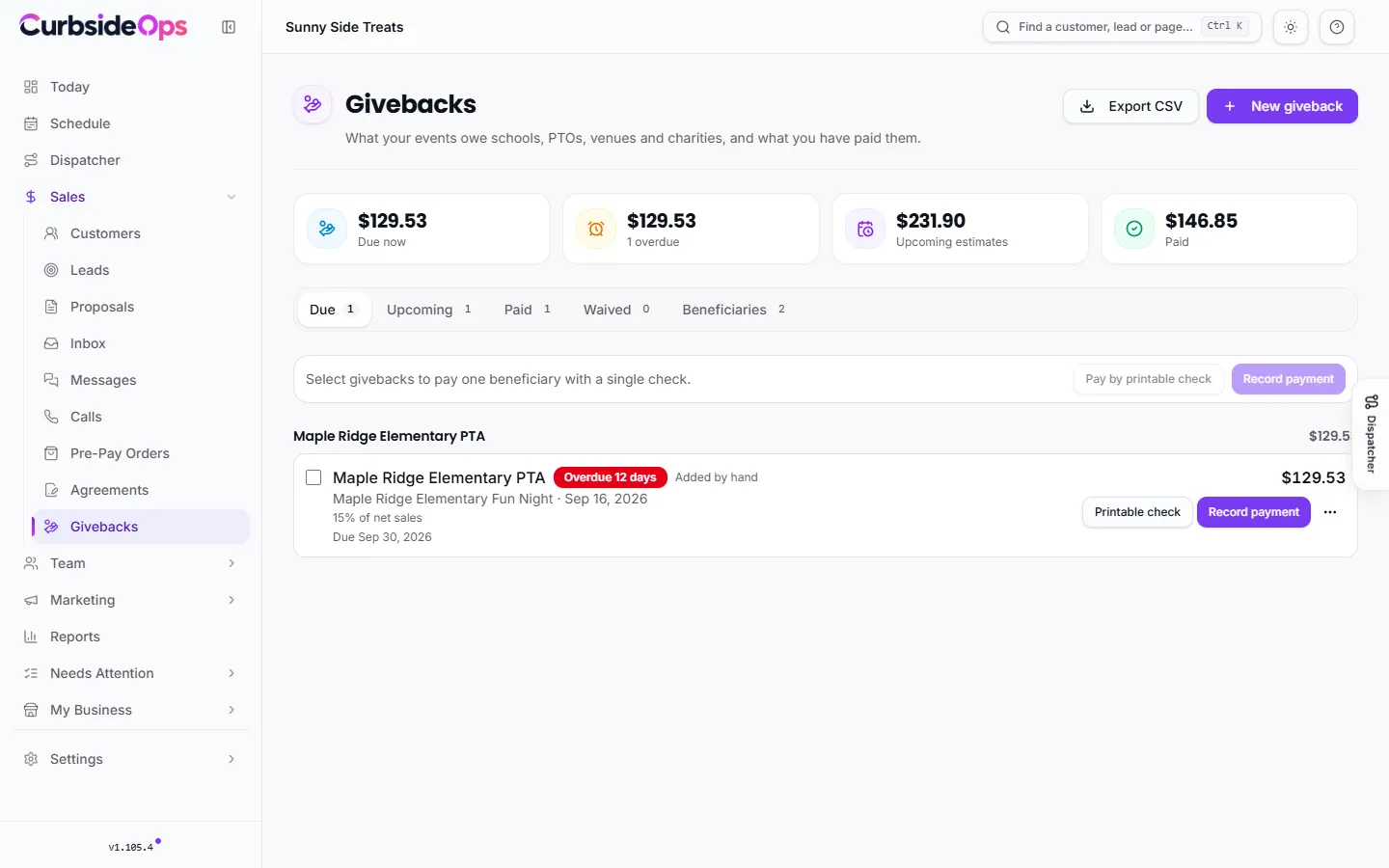
Track what your events owe schools, PTOs, venues and charities, when each giveback is due, and what you have paid.
Many events come with a promise: a share of sales to the school, the PTO, the league or the charity that hosted you. Givebacks keeps track of every one of those promises, works out the amount from the event's sales, tells you when each is due and records how you paid it. Nothing is ever deleted, so you always have the history.
Where givebacks come from
A giveback appears in three ways:
- From pricing terms. When an event's pricing arrangement includes Owed to organizer (see Pricing arrangements), the giveback is created and kept up to date from the event's sales.
- From an event's Sales. Add one by hand to any event, as a fixed amount or a percent of net or gross sales. No pricing template needed.
- With New giveback. For a sponsorship or donation that is not tied to an event.
The page
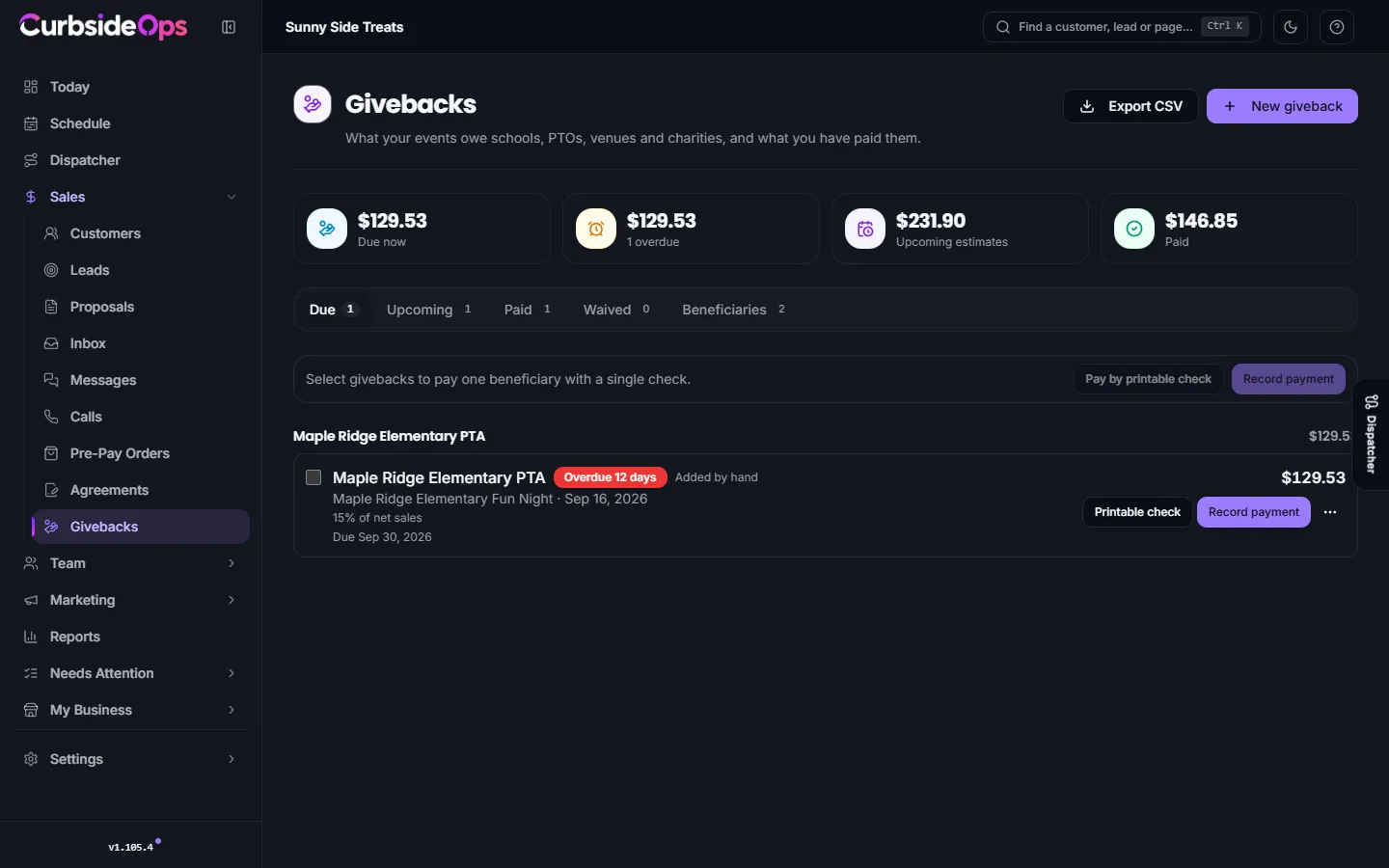
The cards at the top show what is Due now, how much is overdue, Upcoming estimates and Paid. The tabs are Due, Upcoming, Paid, Waived and Beneficiaries, and givebacks are grouped by beneficiary. Givebacks with No beneficiary set are listed first so you can assign them.
Each giveback shows its status:
| Status | What it means |
|---|---|
| Estimate | The event's sales are not final yet, so the amount may still change. |
| Due | The sales are final and the event has passed. The due date is now fixed. |
| Overdue | Past its due date and not fully paid. |
| Partly paid | Some of it has been paid. |
| Paid | Paid in full. |
| Waived | You decided it is not owed, with a reason. |
Due dates
A giveback becomes due once the event's sales are finalized and the event date has passed. The due date is the event date plus the beneficiary's Pay within (days after the event), or 14 days if you have not set one. A giveback you add by hand can have its own due date.
Beneficiaries
A beneficiary is who you pay: a school, PTO, venue or charity. Set each one up once on the Beneficiaries tab with New beneficiary: the name, who to Make checks out to, an email, phone, mailing address and how many days you have to pay.
- Link it to its Organization. When an organization has only one beneficiary, that organization's givebacks are assigned to it automatically.
- Tick A business paid on behalf of organizations for a company an organization asks you to pay instead of them. It can be paid for any organization.
- Statement shows everything owed to and paid to one beneficiary this year.
Recording a payment you made elsewhere
Select what you paid
On the Due tab, tick the givebacks for one beneficiary. You can pay several with one payment.
Record it
Click Record payment. Choose How (paper check, eCheck, bank transfer, Zelle, cash or other), the date, the check number and the amount for each giveback.
Let them know
Tick Email the beneficiary a payment notice to send a note from your brand's email listing what was paid and for which events. Then click Record payment.
A payment recorded by mistake, or a check that bounced, can be voided with a reason. It stays in the history and stops counting as paid.
Changing a giveback
From a giveback's menu you can:
- Edit amount: set a different amount, with an optional reason. Your amount stays put even if the event's sales change later. Use the calculated amount goes back.
- Waive: it stops counting as owed. A reason is required, and Reopen brings it back.
- Change beneficiary (before any payment) and History, which shows every change and who made it.
Sending checks
If your account can send checks from CurbsideOps, Send check or Pay by printable check appears next to Record payment. You review every line before anything goes out. Managers can track givebacks and record payments, but only send checks if the owner allows it on their access page. See Checks.
The weekly reminder
The Giveback Reminders automation sends you, the owner, a Telegram list every Monday at 9:00 of givebacks that are overdue or due in the coming week, and any that still need a beneficiary. Change the day and time in Automations. It sends nothing when nothing is due, and it never pays or messages a beneficiary.
Reporting
Export CSV downloads what is due. The givebacks report under Reports shows what you owed, paid and still owe by beneficiary, organization or month. See Money reports.
Still stuck? Email support@curbsideops.com or use Report an Issue in the portal. Checked against CurbsideOps 1.107.1.