

Menus
Build a menu per brand with sizes, add-ons and catering packages, sync it from Square, and mark items sold out.
Menus belong to a brand. One menu feeds your public menu page, the packages you quote on proposals, the assistant's answers about what you sell, and the documents you hand a health department. Most brands need one menu; add more (Lunch, Catering) if you sell differently at different times.
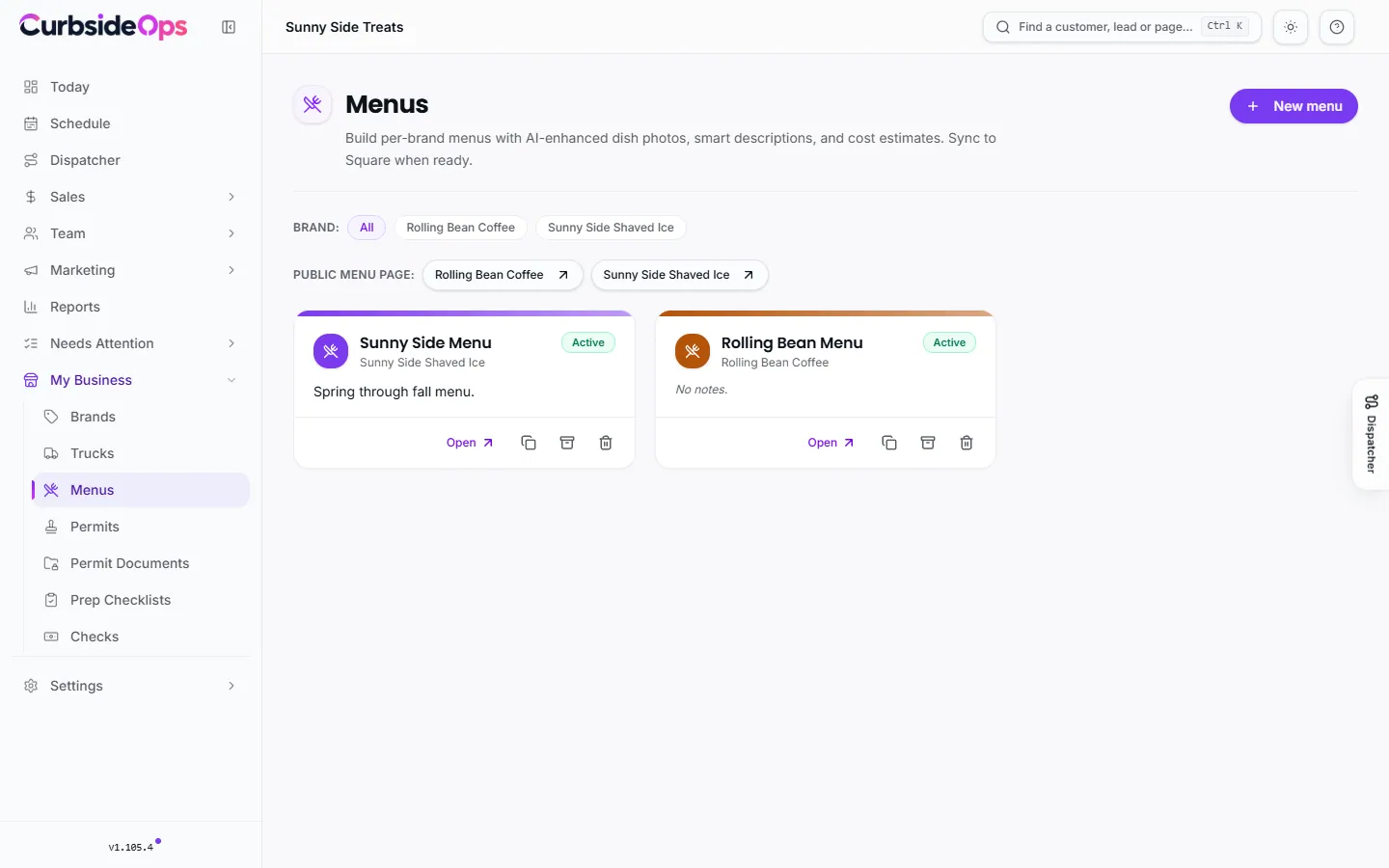
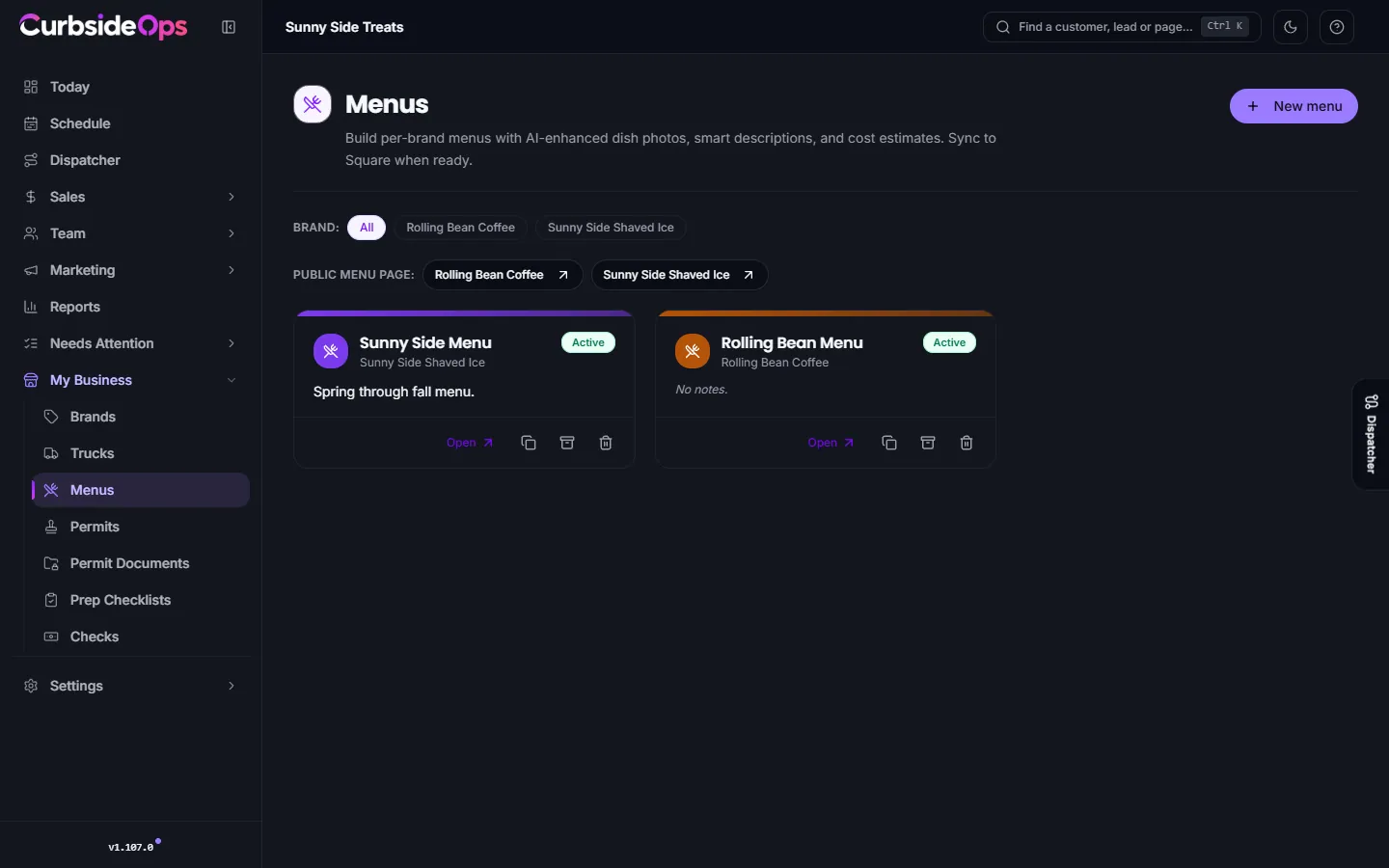
Create a menu
Start the menu
On Menus, press New menu, pick the Brand, name it, and press Create menu.
Add items
Open the menu and press New item, or press Import CSV to create many items at once. If you sell through Square, you can pull your catalog in instead (see below).
Set it live
On the menu's Settings tab, set Status to Active. A Draft menu stays private.
Duplicate menu copies the items, categories and add-ons, which is handy for a second brand that sells nearly the same thing.
Items, categories and add-ons
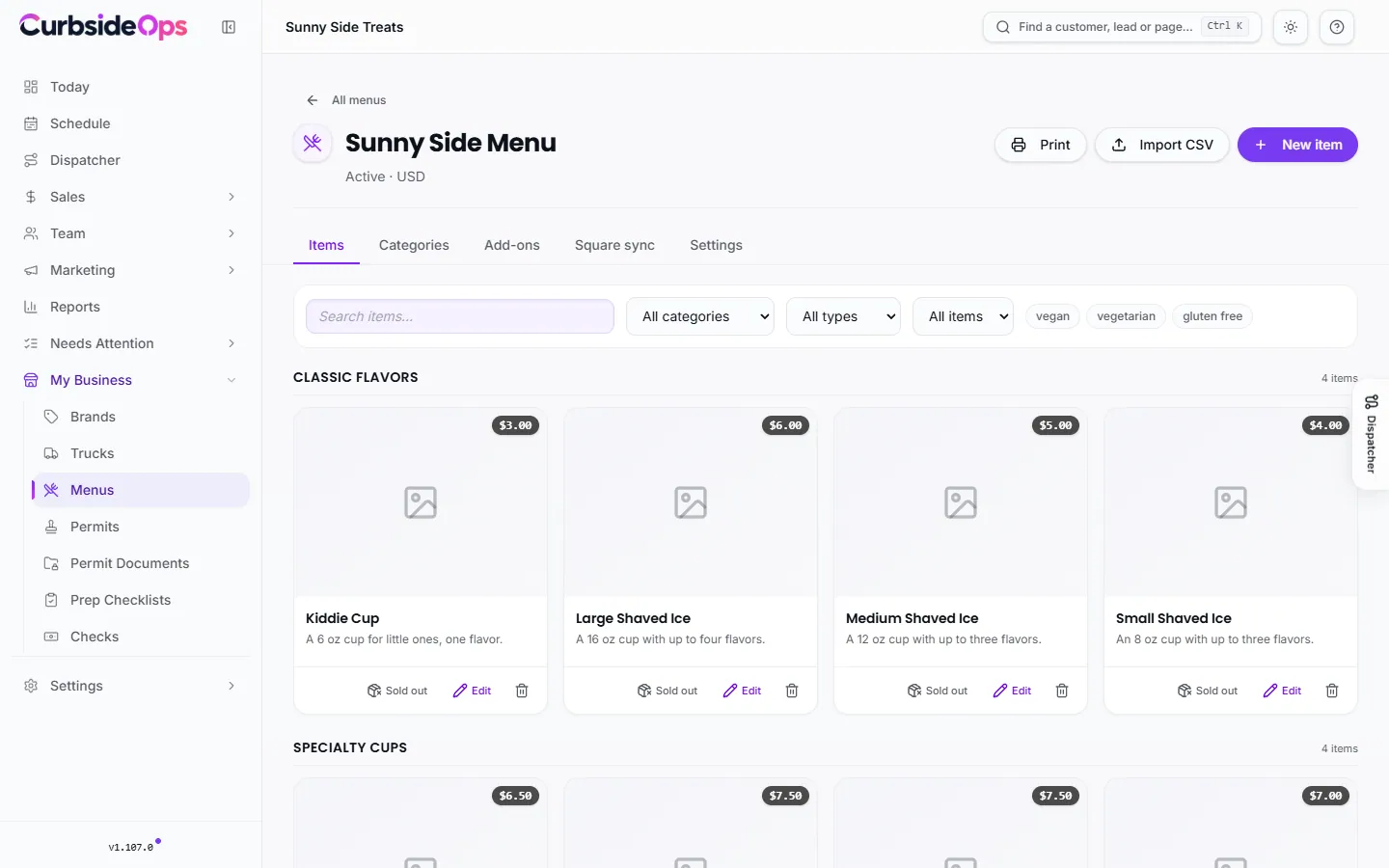
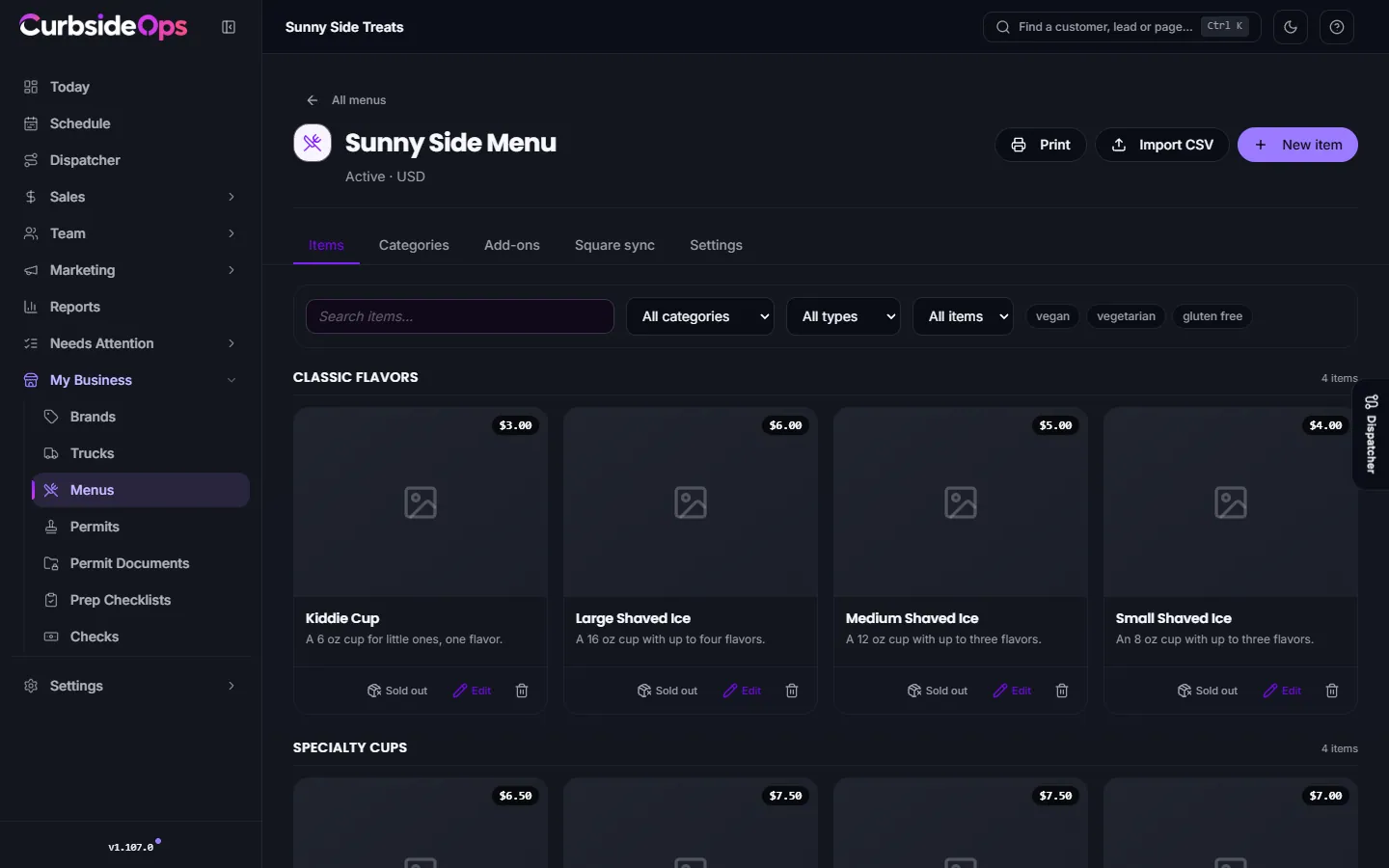
A menu has five tabs: Items, Categories, Add-ons, Square sync and Settings.
Each item has an Item type: Dish, Packaged, Drink or Frozen, Merch or Bundle. Give it a price, a category, photos, allergens and dietary tags. Items sold in several sizes list them under Variants, with one marked as the default size.
Add-ons are groups of options a guest can add, such as toppings or a sauce choice. For each group you choose whether the guest can pick Multiple or Just one, and whether it is Required.
Categories organize the menu. Each one can be hidden from the public menu page with the eye icon.
On Professional and Premium you can also use AI to enhance dish photos and draft descriptions. These use AI Credits.
Packages for catering
A Bundle item is a catering package: a birthday party, a school day, a corporate lunch. It carries:
- Service duration (minutes) and how many guests it serves.
- Servings: quantified items, split into Customer picks one and Always included.
- Also included: perks in plain words, like lights and music.
- Add-ons: priced extras such as an extra hour or a travel surcharge.
Under the price, The price is per guest decides how quotes use it: on, the price is multiplied by the guest count; off, it is the price for the whole event. Packages show up when you quote a lead and in your proposals. See Pricing arrangements.
Square sync
The Square sync tab pulls your catalog from Square into CurbsideOps: categories, items, sizes and add-ons. It is a one-way pull you run on demand with Pull from Square. Changes you make in CurbsideOps never change Square.
When the same item differs on the two sides, it appears under Conflicts. Press Resolve and keep either side. Tick "Always prefer this side" to remember the choice for that field; those rules are listed under Sync overrides, and removing one starts raising conflicts again.
Connect Square first under Integrations and pick a Square location on the tab.
Sold out
Ran out of something? Press the sold-out button on the item card, or filter the menu by Sold out to bring items back. Your crew can do the same from Telegram: they tell the assistant which item ran out, it repeats the change back, and marks it after they confirm. A sold-out item shows as sold out on the public menu page and in printouts.
Print and the public menu page
Print opens a printable view; use your browser's print dialog to save it as a PDF.
Every brand has a public menu page at the address set on the brand's General tab (Public URL). It shows active menus, today's special and your hours. On the menu's Settings tab you can turn on hiding items outside their hours.
Still stuck? Email support@curbsideops.com or use Report an Issue in the portal. Checked against CurbsideOps 1.105.4.