

Brands
Set up each brand's details, colors, email, pricing, AI voice and territories.
A brand is the name your customers know you by. Trucks, menus, email, calendar events and marketing all belong to a brand, so a customer who books one brand never hears from another. If you run more than one concept, give each its own brand; if you run one, you need just one.
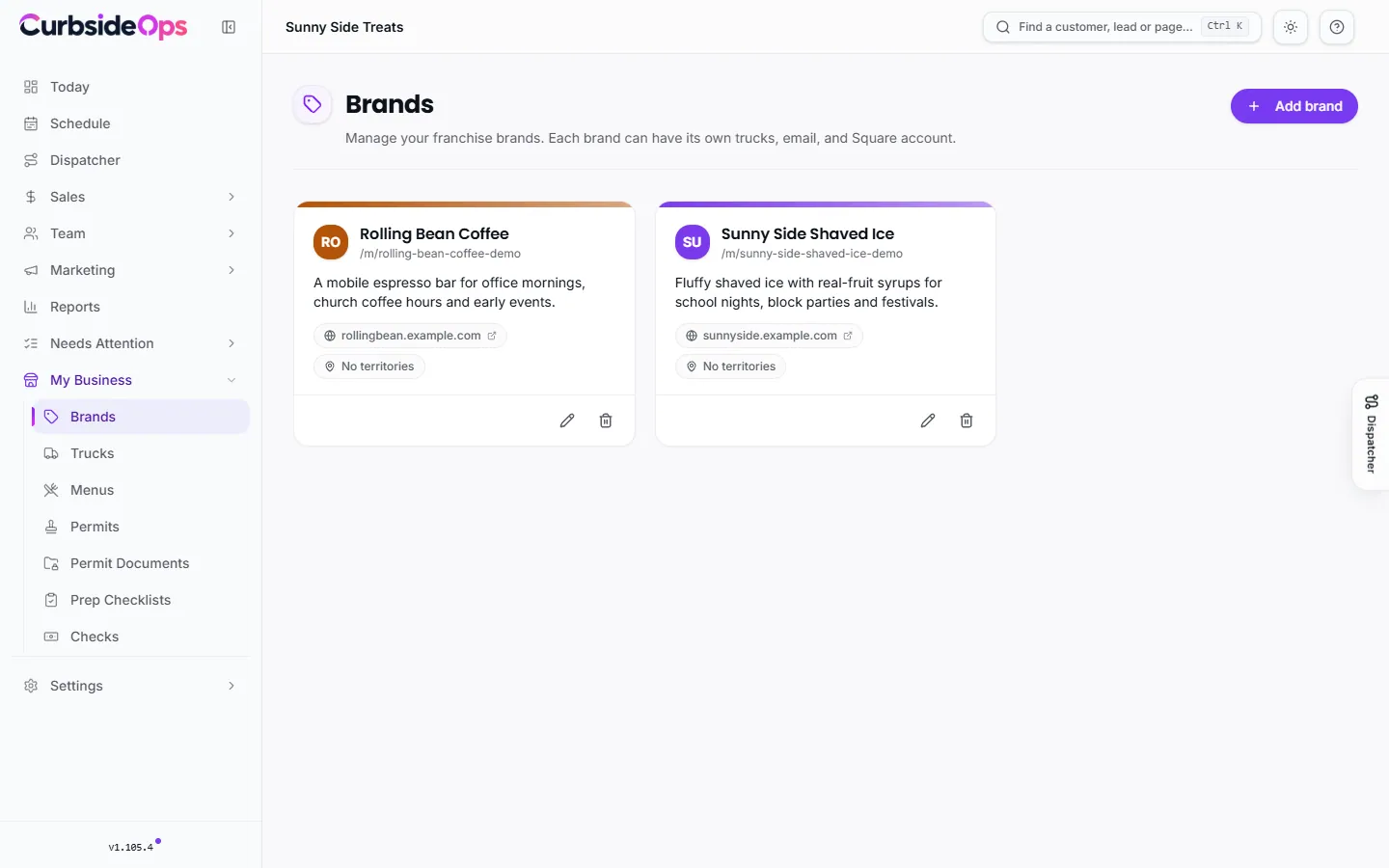
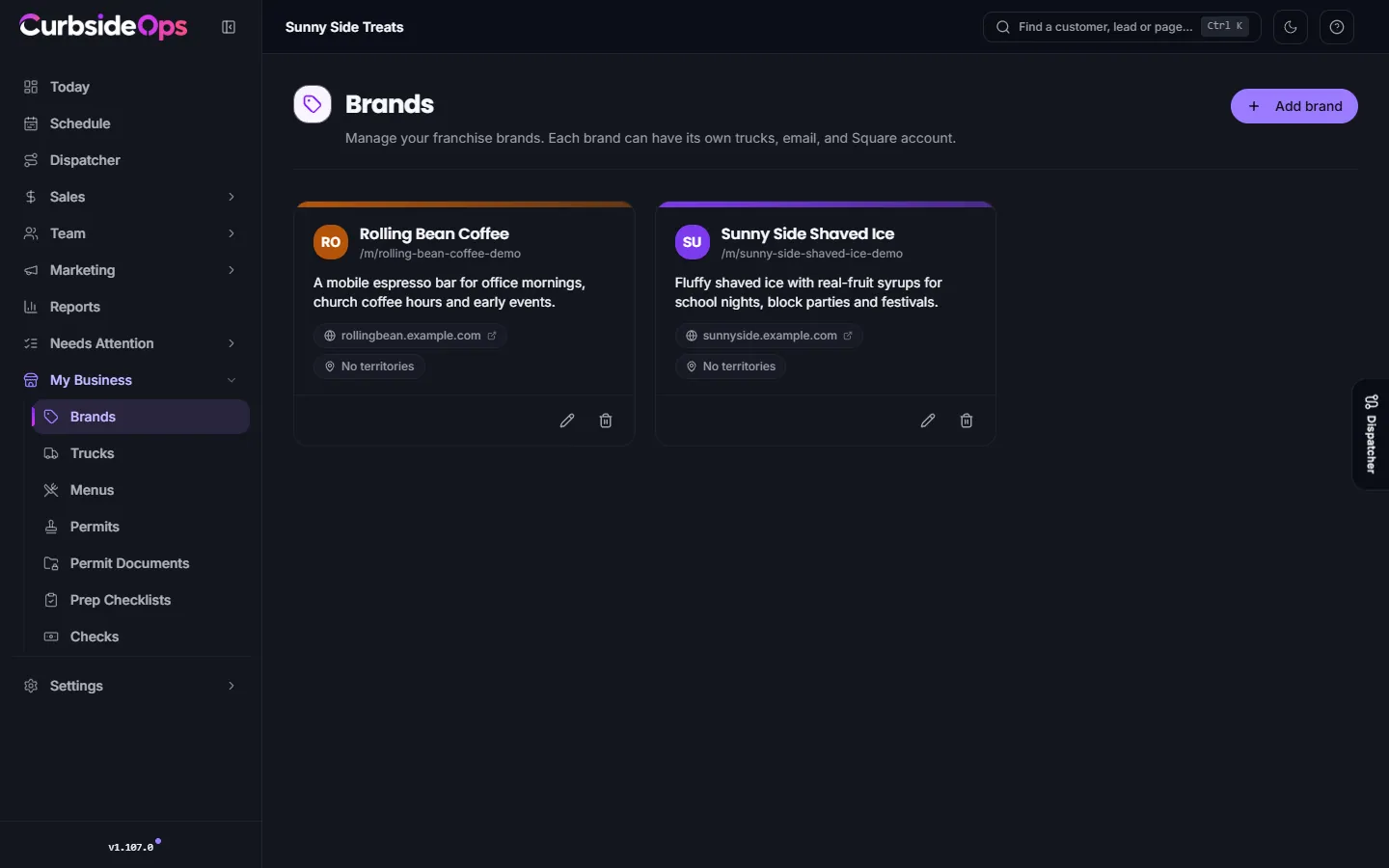
Add a brand
Open Brands
Go to Brands and press Add brand.
Name it
Type the Brand name. Add a Website if you have one and press the wand to draft a Description from it.
Finish the settings
Open the brand's settings to fill in contact details, email and pricing. The tabs below explain each one.
Starter includes one brand. Professional and Premium have no brand limit. See Plan and billing.
The settings tabs
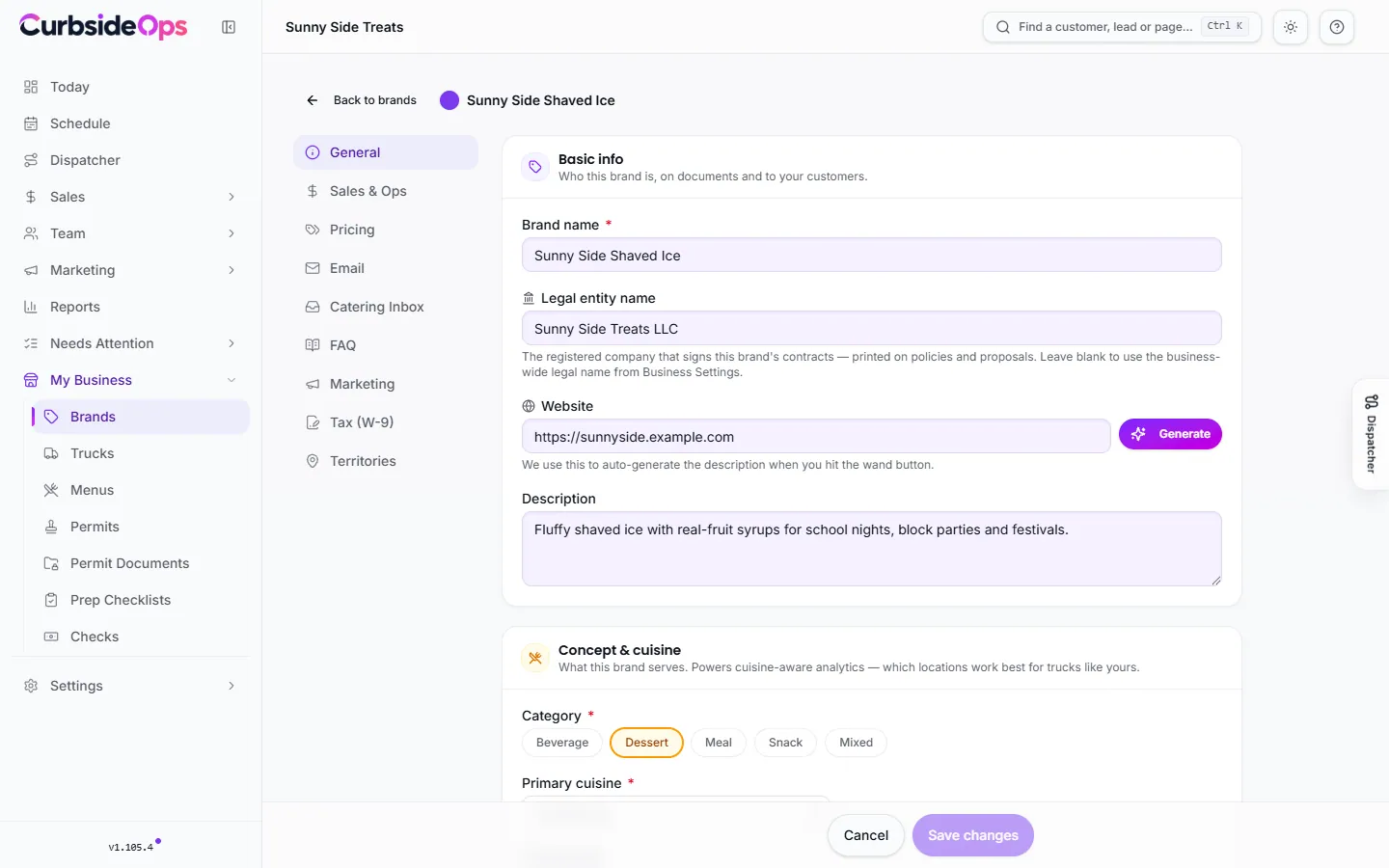
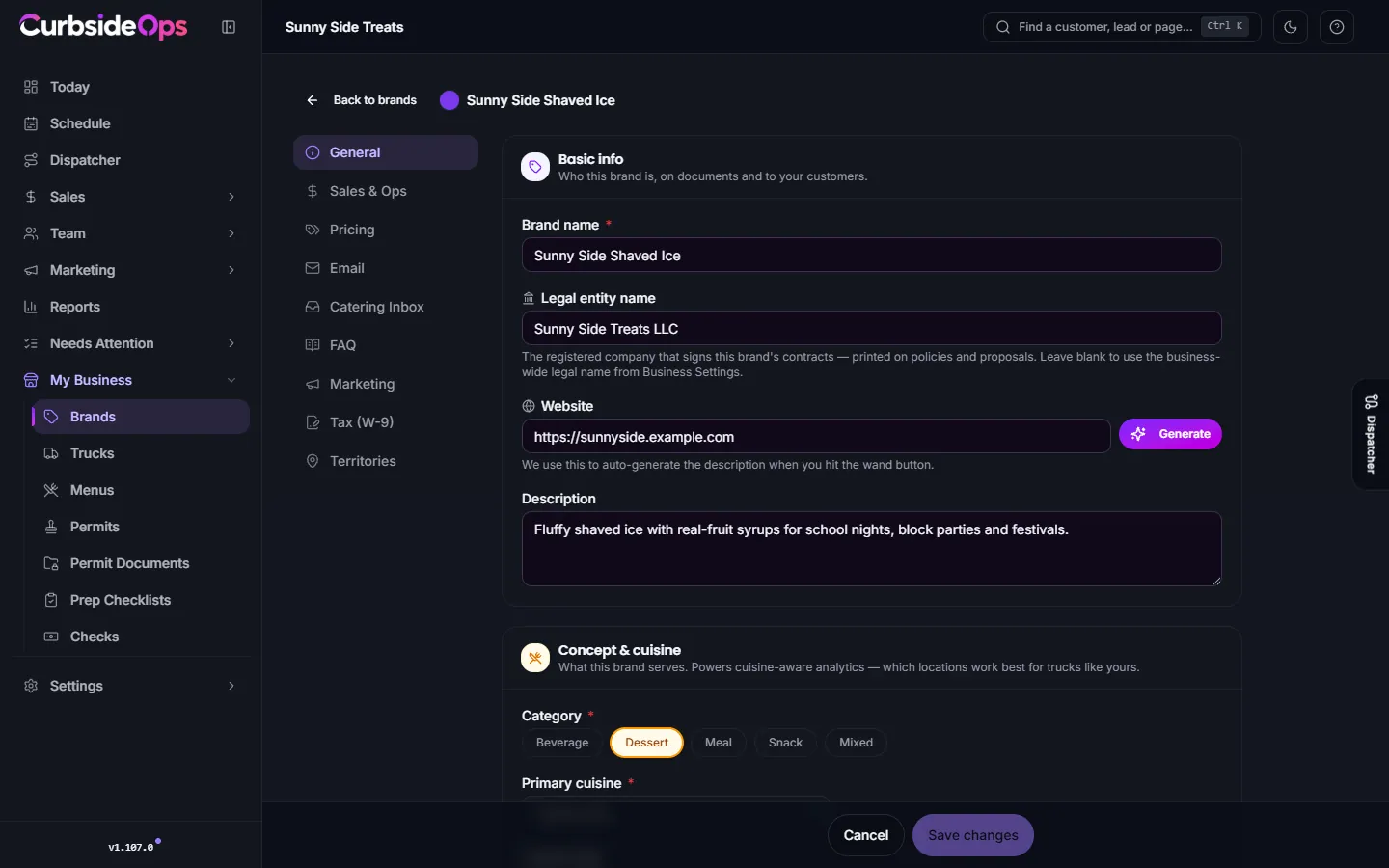
- General: the brand name, legal entity name, website and description; Concept & cuisine; Contact details for your email footer and public page; the Public URL of your menu page; AI creatives; the Customer status page options; Caption voice; Brand color and Google Calendar color; and Brand status.
- Sales & Ops: Sales defaults that prefill the Sales dialog (service unit, booking fee, sales tax rate, default deposit, cancellation fee), Operations times, Booking confirmation rules, and the embeddable Inquiry form for your website.
- Pricing: the brand's pricing templates for event quotes. See Pricing arrangements.
- Email: Send As (the address every customer email comes from), timing and branding for event emails, and the Email templates.
- Catering Inbox: Reply settings and signature, Reply templates and the Attachment library for lead replies. See Inbox.
- FAQ: your own answers that AI-drafted replies may use.
- Marketing: who you sell to, what you post about, reel style and weekly ideas. This tab appears when marketing features are on for your account. See Marketing ideas.
- Tax (W-9): your W-9 details and signature. See Form W-9.
- Territories: where the brand usually works. See Permits.
General and Sales & Ops save with Save changes at the bottom. Pricing, Catering Inbox, FAQ, Marketing and Tax save as you go.
Setup and wrap-up times
On Sales & Ops, Setup time (minutes) is the time between arriving and serving, and Wrap-up time (minutes) is the time from service end until the truck can drive. The Dispatcher and truck suggestions use them to decide whether a booking fits, so set them to what really happens on your truck.
Brand color and calendar color
Brand color tints truck cards and reports. Google Calendar color picks one of Google's eleven event colors for events CurbsideOps puts on your calendar. Leave it on Automatic to use the color closest to your brand color.
Events CurbsideOps writes always carry the brand's color and a Brand line in the description. To update events created earlier, press Apply to existing events. It counts them first, then asks before changing anything. Events on calendars you can only view are left alone.
Caption voice and AI creatives
Caption voice sets the Tone, how many Emojis to use, and your own Style notes for social captions. Your notes win over the tone preset.
AI creatives decides what the AI may produce for this brand's posts: AI scenes, Library photo + AI text, or Library photo only (no AI). Franchise operators with strict brand rules usually pick one of the library options. See Creative policy.
Pause or delete a brand
Under Brand status, switch a brand to Paused when you are not running it. Nothing is deleted. Delete a brand only if you created it by mistake; the delete button is on its card on the Brands page.
Still stuck? Email support@curbsideops.com or use Report an Issue in the portal. Checked against CurbsideOps 1.105.4.