

Pricing arrangements
Write down how you charge once per brand (Menu, Package, Minimum or your own terms) and every quote, proposal and invoice uses the same math.
A pricing arrangement (a "template" in the portal) describes how an event is paid for: who pays, what you charge, and how payment works. You set them up once on each brand. When you quote a lead, build a proposal or record an event's sales, you pick an arrangement and only the numbers change. The quote and the final invoice use the same math, so nothing gets added up twice by hand.
The three starting arrangements
Every brand comes with three arrangements that are always there:
Menu
Guests pay at the truck
You show up and sell from your menu. Nothing is invoiced to the host unless you add a fee.
Typical: A neighborhood night or a school carnival.
Package
The host pays a set price
The host buys a package (for example 150 cups, two hours). Guests eat free and you invoice the host.
Typical: A company picnic or a birthday party.
Minimum
The host guarantees a floor
Guests pay as usual. If sales come in under the minimum, the host pays the difference.
Typical: A festival slot or an office lunch with a guarantee.
- Menu: guests pay at the truck. Nothing is invoiced to the host unless you add a fee.
- Package: the host pays a flat fee. You pick the package from your menu when you quote.
- Minimum: guests pay as usual, and the host guarantees a floor. If sales come in under the minimum, the host pays the difference. The minimum is a floor, never an extra charge on top.
All three start from your brand's Sales defaults (booking fee and deposit). Edit them to match how you charge. You cannot archive or delete them.
Your own arrangements: the More card
Add arrangements of your own, such as "School day" or "Festival with organizer share". Wherever you pick an arrangement (the lead's Quote card, a proposal, an event's Sales form) the three starters show as cards, and a fourth More card lists your own.
Setting them up
Open the brand's settings and go to the Pricing tab.
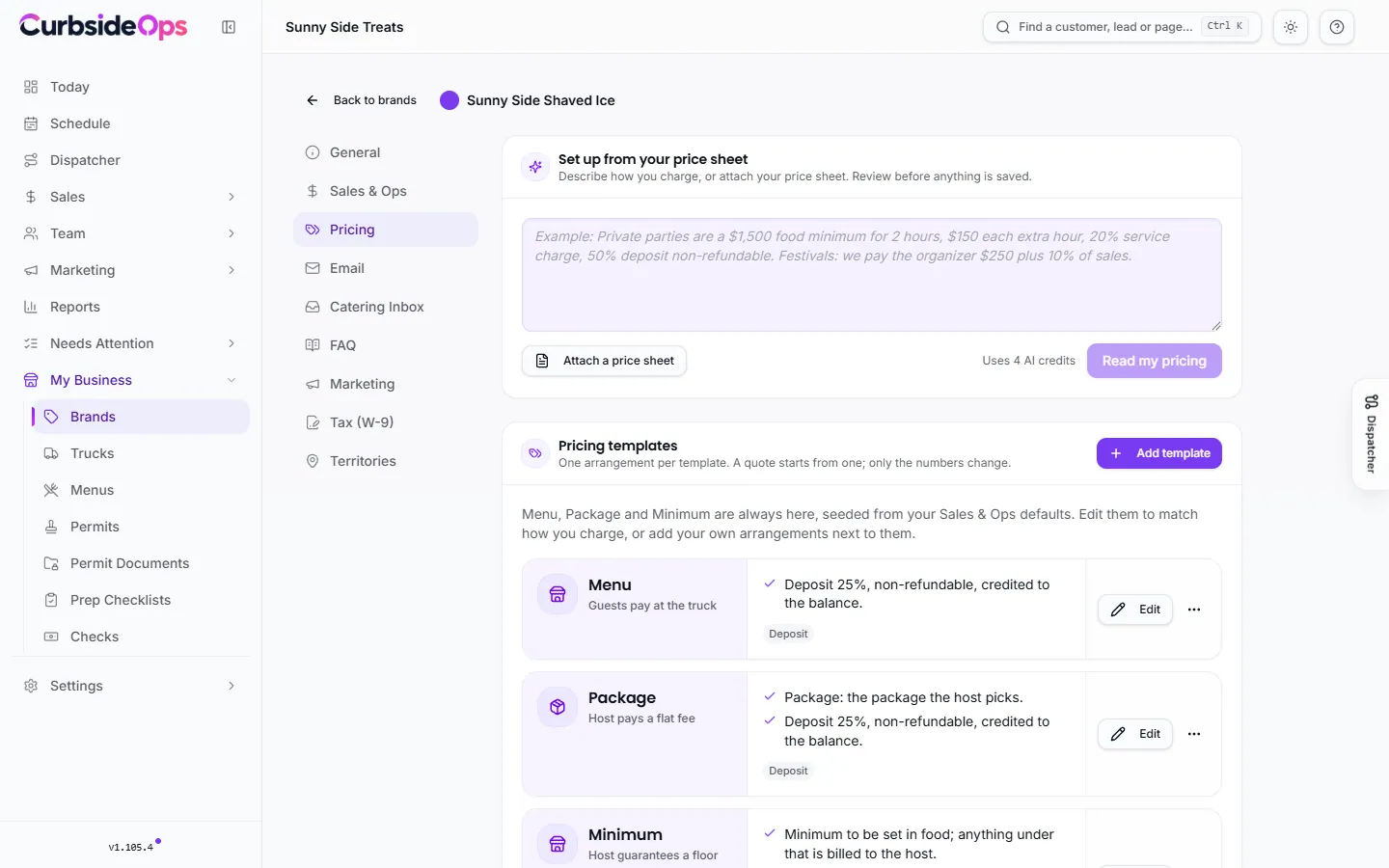
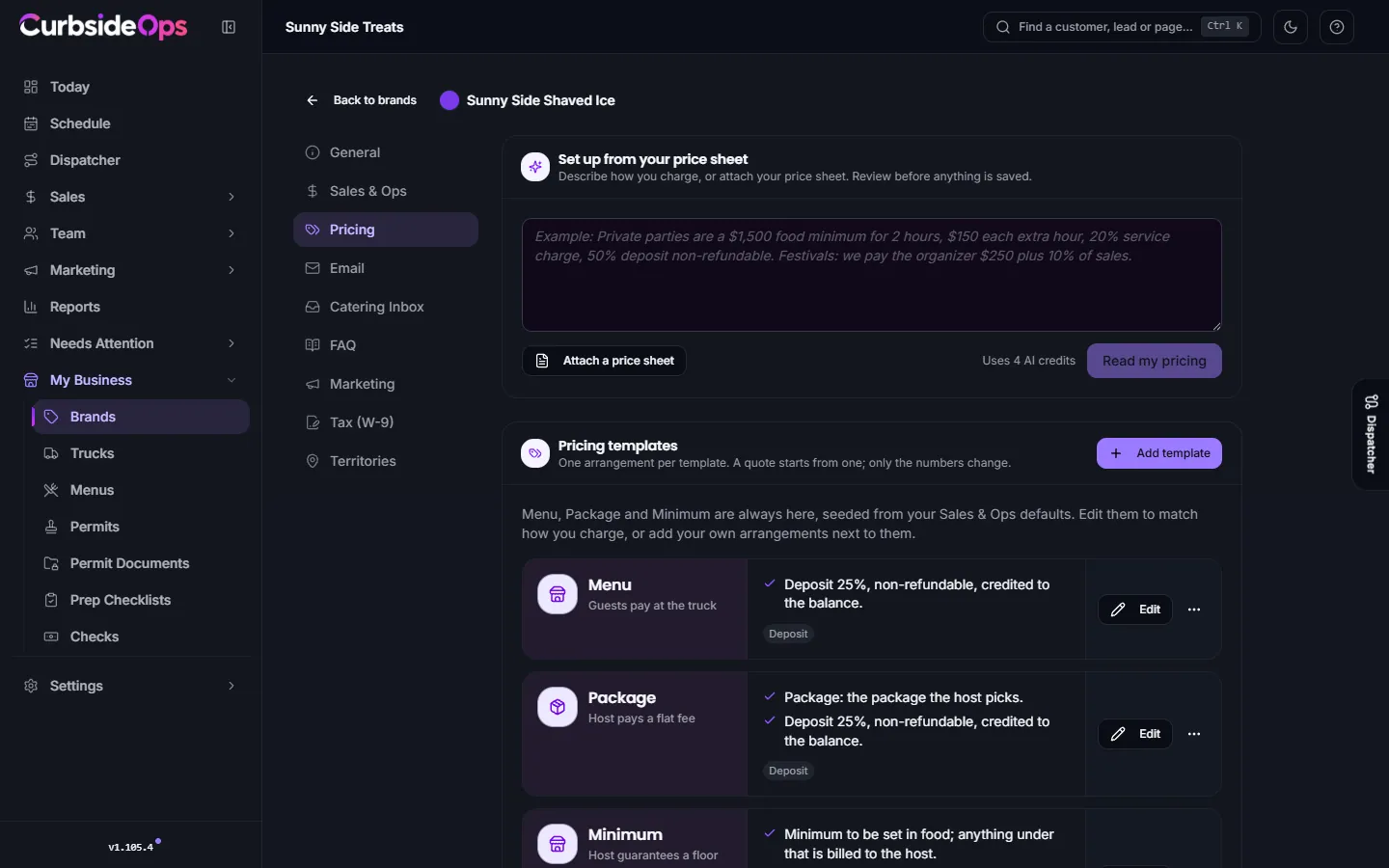
Add a template
Click Add template, or Edit on an existing one. Use the card's menu to Duplicate it or Make default (new quotes start from the default).
Name it and say who pays
Give it a name. Under who pays, choose The host pays us, Guests pay at the truck or Both.
Add the charges
Each charge has a label, a type and how it is priced: Flat price, Per person, Per hour, Per serving, Per order, Per mile or What guests order (open tab). A charge can be taxable, cover a quantity (for example 150 cups, then a price for each one beyond), or use Rate by guest count. Turn on Pick the package at quote time to choose the package per quote.
Set payment
Choose the Deposit (No deposit, Percent of total or Fixed amount), whether it is refundable, and how many days after acceptance it is due. Leave Sales tax blank to use the customer's, brand's or business's rate for each event.
Turn on more rules
Under More rules, tick only what this arrangement uses. Each rule opens its own settings. Try it prices sample numbers as you type. Click Create template or Save template.
The rules you can add
- Day rates: a different price on Weekends, Fridays to Sundays, Holidays, a Late start or a Season. Add one under a charge with Add another day rate.
- Minimum and Guaranteed headcount: a floor on food only or on the whole event.
- Time and extra hours: hours included, a minimum booking, and how extra time is charged.
- Volume discount: a percent off food charges from a number of guests up. Fees, travel and surcharges are never discounted.
- Surcharges and Travel (miles included, then a price per mile, one way or round trip).
- Service charge: a mandatory percentage, not a tip, on food or on the whole bill.
- Owed to organizer: what you owe a school, league or festival: a flat fee, a percent of sales, both, the greater of the two, or tiers. This shows as money you owe and never changes what the host pays. It also becomes a giveback you can track (see Givebacks).
- Host tab cap: the most the host covers before guests pay or service pauses.
- Cancellation: what a late cancellation costs.
Mixed payers, subsidies and vouchers need Professional
Three options need the Professional plan or higher. They show a Professional lock on lower plans:
- Both under who pays (guests pay and the host covers part).
- Host subsidy: the host covers an amount or a share of each order.
- Vouchers: the host buys vouchers that guests redeem at the truck.
Everything else on this page is part of every plan.
Set up from your price sheet
If you already have a price sheet, let CurbsideOps read it. In Set up from your price sheet, describe how you charge or click Attach a price sheet (a PDF, image or text file up to 4 MB), then click Read my pricing.
- It costs AI Credits. The card shows how many before you click. See AI Credits.
- It asks what the sheet left open: for example whether an extra hour is added on top or raises the minimum, whether the deposit is refundable, or whether travel is one way or both. Answer each one, or choose Decide later.
- Nothing is saved until you confirm. Review what was read, then click Save. Discard throws the result away, and your price sheet is not stored anywhere.
Archiving
A template that has been used on a lead, proposal or event is archived rather than deleted. Those keep the terms they were priced with, and you can restore it with Show archived. A template that was never used is deleted for good. Changing a template never rewrites quotes or events that already used it.
Related
See Event sales and invoices for how an arrangement settles after the event, and Proposals and deposits for quoting with one.
Still stuck? Email support@curbsideops.com or use Report an Issue in the portal. Checked against CurbsideOps 1.105.4.