

Finding and merging duplicates
Spot the same person or organization entered twice, merge them without losing anything, and tell CurbsideOps when two records are different.
The same customer often ends up in your list twice: once from an email, once from a phone call, once from an old spreadsheet. Possible duplicates finds those pairs for you. You merge the ones that really are the same and mark the rest as different so they stop coming back.
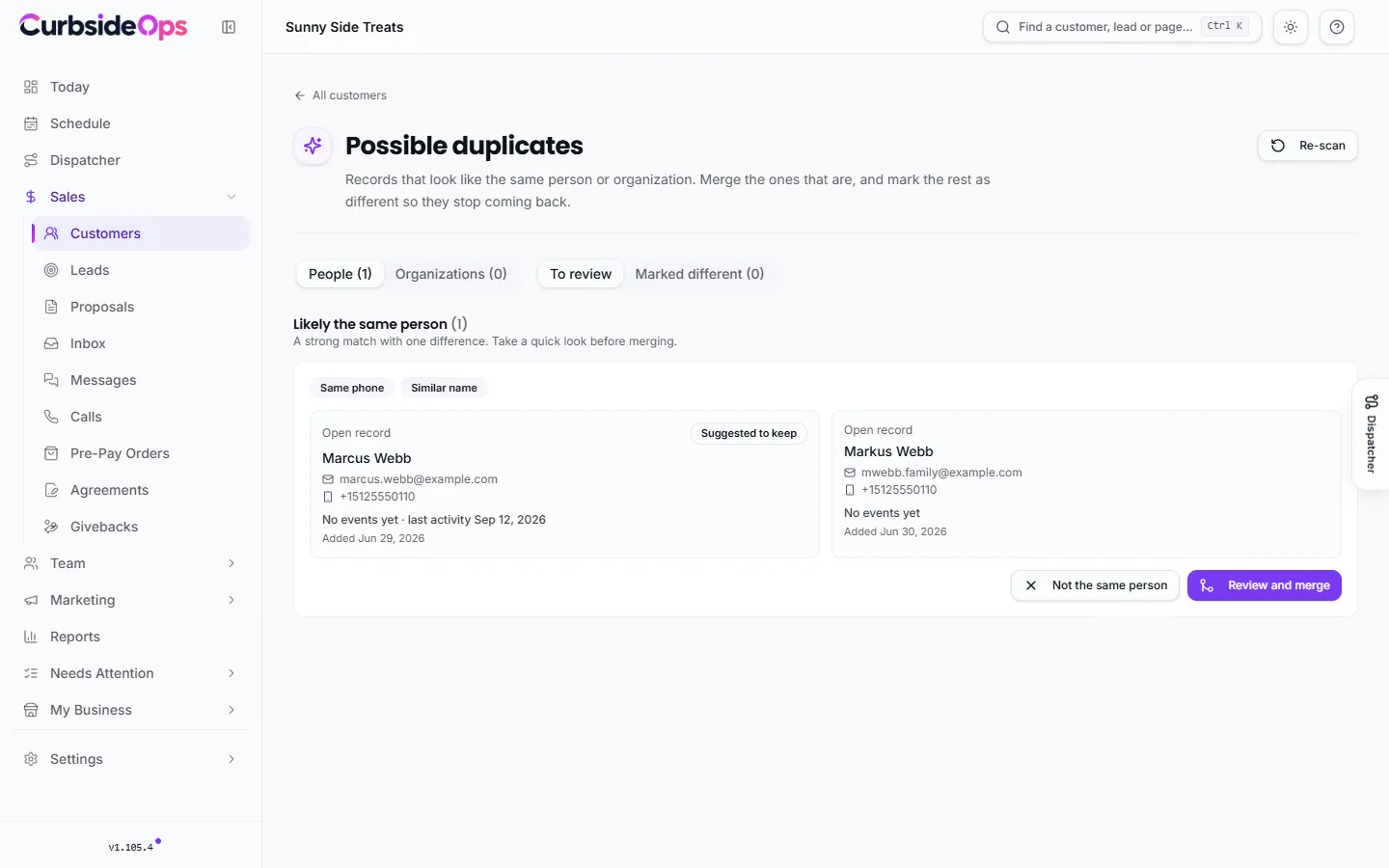
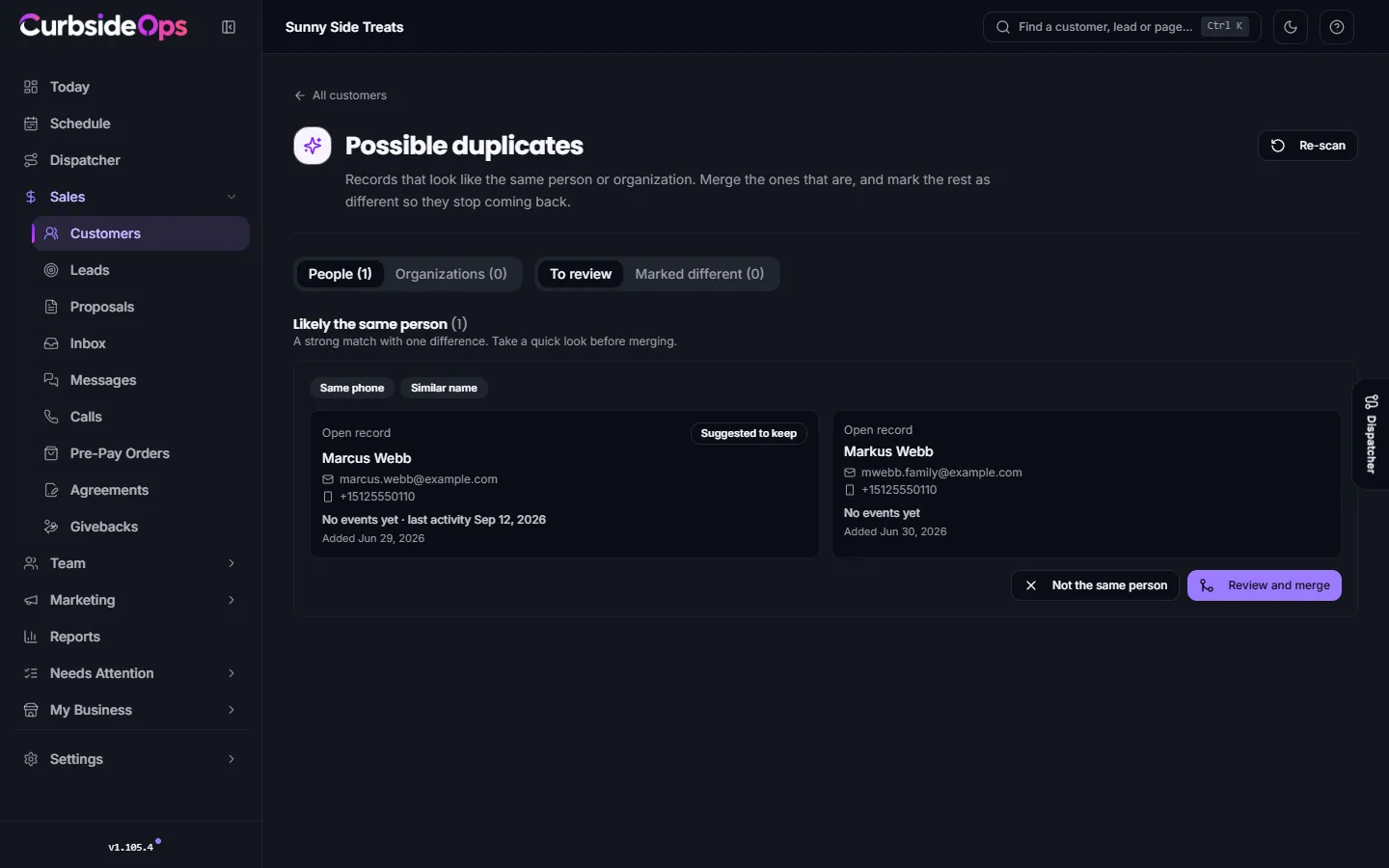
Opening the review
On Customers, click Find duplicates (it reads "possible duplicates" with a count when pairs are waiting). You can also use Review duplicate people or Review duplicate organizations in the ... menu.
The page has People and Organizations tabs, and a To review list next to a Marked different list. Re-scan looks again after you have made changes.
How pairs are grouped
Pairs are sorted into three groups, most certain first:
| Group | What it means |
|---|---|
| Very likely the same person | Same email or phone, and the same or a similar name. Usually safe to merge. |
| Likely the same person | A strong match with one difference. Take a quick look before merging. |
| Possibly the same person | Mostly the name matches. Often a second record someone created without the contact details. |
Organizations use the same three groups, matched on name, website and phone. Possibly the same organization is often two campuses or branches, so check before merging.
Each pair shows why it matched (Same email, Same phone, Same name, Similar name, Same organization) plus each record's events, sales and last activity. One record carries a Suggested to keep badge.
CurbsideOps leaves some pairs out on purpose: a phone or email shared by many records (an office line, for example), a family sharing one email under different names, and two people with the same name whose emails and phones all differ.
Merging two customers
Start the review
Click Review and merge on a pair. You can also tick two people on the People tab and click Merge the two, or use Merge with... on a customer's page.
Pick the keeper
Click either card to choose which record stays. CurbsideOps suggests one: a record linked to HubSpot first, then the one with more events, more sales or more recent activity, then the older one.
Pick the fields
Under Where they disagree, keep, choose the first name, last name, email, phone, mobile, job title and organization you want. The keeper's values are picked to start with.
Read what happens, then merge
The What happens list spells out exactly what moves and what is removed. Click Merge into to finish.
What a merge keeps
Nothing is thrown away:
- Everything moves to the keeper: events, jobs, proposals, leads, open follow-ups, conversations, calls, documents, group memberships and timeline entries.
- Empty details are filled in from the other record.
- Other emails and phones are kept as extra ones. An email you did not pick becomes an extra email, so future messages from it still match. A number you did not pick is kept as an extra phone. An organization you did not pick stays linked as a membership.
- Both sets of notes are kept.
- Opt-outs carry over. If either record opted out of email or texts, the merged customer stays opted out. A merge never makes anyone contactable again.
- Tax-exempt status is kept if either record had it, and the further-along stage wins.
- HubSpot follows. If both records are linked to HubSpot, the two contacts are merged there too and both histories are kept. If only the removed one was linked, the keeper takes over its HubSpot contact.
The other record is then removed, and that cannot be undone.
Only the account owner can merge
Merging removes a record, so only the owner sees Review and merge and Merge with.... Managers see "Only the account owner can merge. You can still mark pairs as different."
"Not the same person"
When two records really are different people, click Not the same person (or Not the same organization). The pair leaves the list and is not suggested again. Anyone on your team can do this, and Undo in the confirmation brings it back.
A dismissed pair only comes back if it later matches on something new, for example a newly shared phone number. It then says when you marked it as different. Dismissed pairs stay on the Marked different list, where Undo puts them back up for review.
Merging organizations
Organization merges work the same way, with a few extras: contacts, events, sales, givebacks and documents all move, and the merged organization uses the tax-exempt form that stays valid the longest. See Organizations.
Still stuck? Email support@curbsideops.com or use Report an Issue in the portal. Checked against CurbsideOps 1.105.4.