

Proposals and deposits
Send a quote your customer accepts online, with an optional deposit that Square invoices for you.
A proposal is the quote you send a customer: the event details, what you will charge, the deposit to reserve the date, and any agreements they need to sign. The customer opens it from an email, types their name to accept, and the deposit invoice goes out on its own.
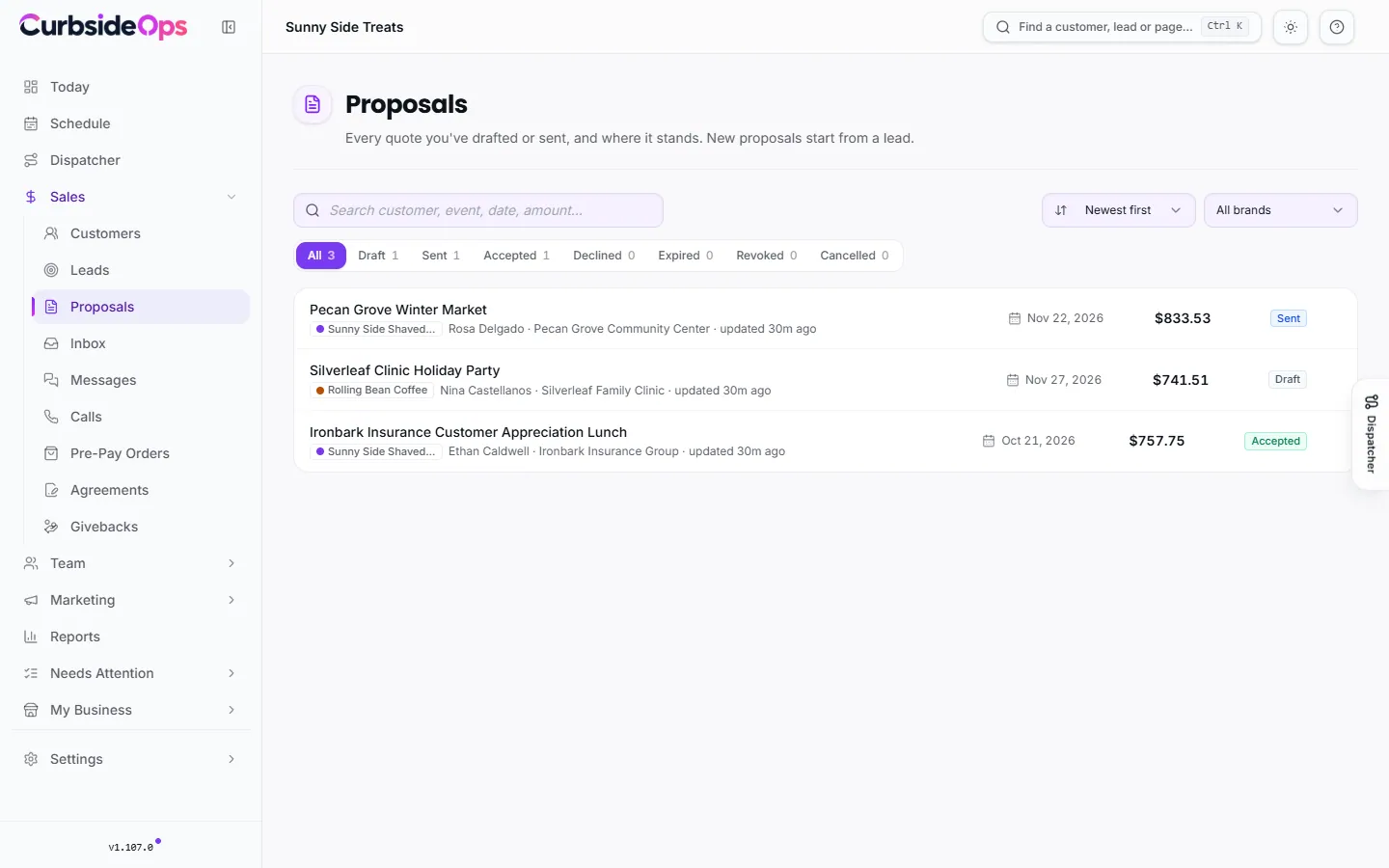
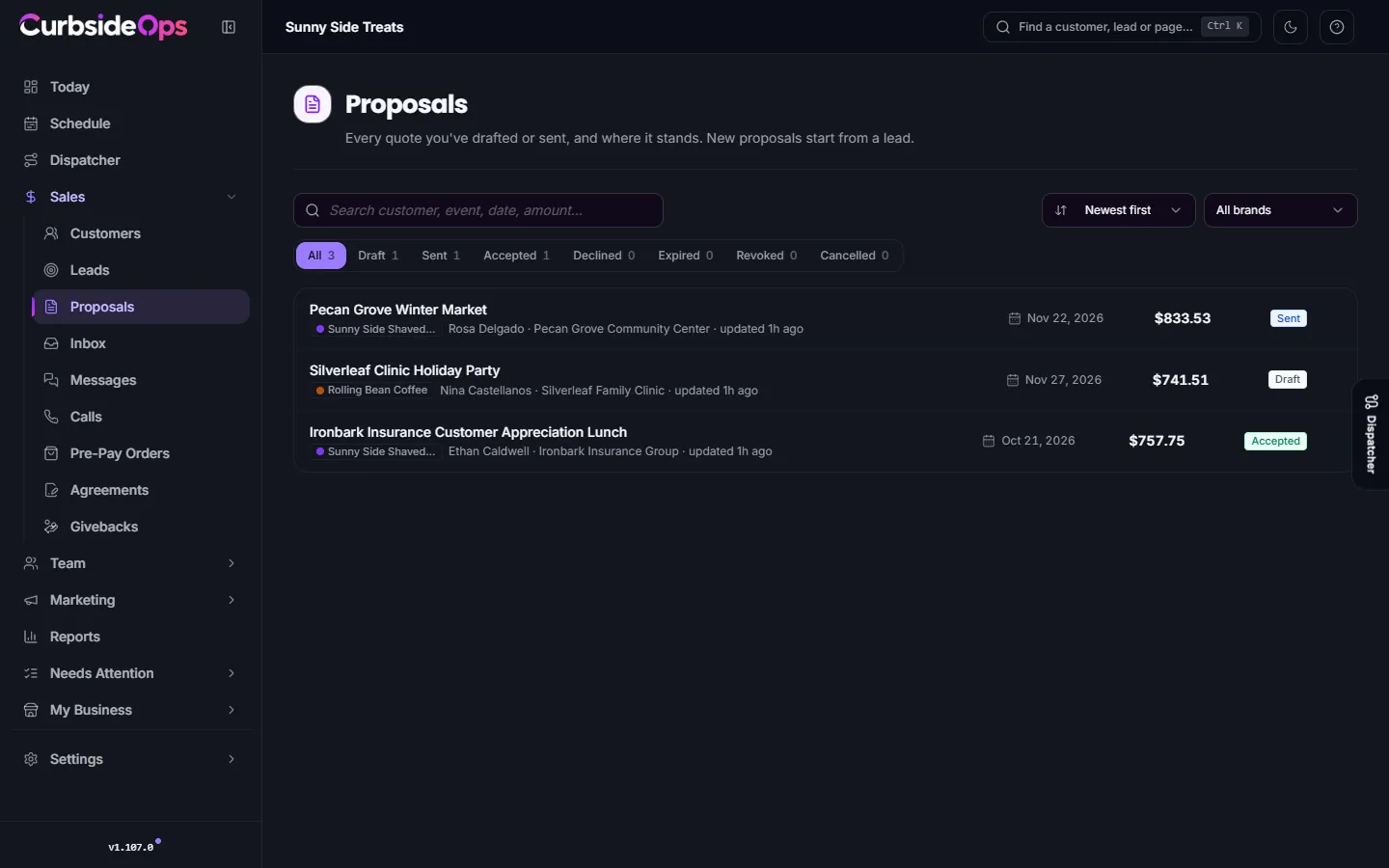
Starting a proposal
Proposals start from a lead. Open the lead and click Proposal at the top of the Lead Workspace. Each lead has one proposal, so clicking again opens the one you already made.
The new proposal is filled in for you:
- The customer and event details come from the lead.
- The pricing comes from the lead's Quote card, or from your brand's default pricing arrangement.
- The deposit comes from the lead's quote, or from the arrangement.
- It is valid for 14 days.
- Agreements you marked as required are attached.
Building it
Open the proposal to edit it. It has these sections:
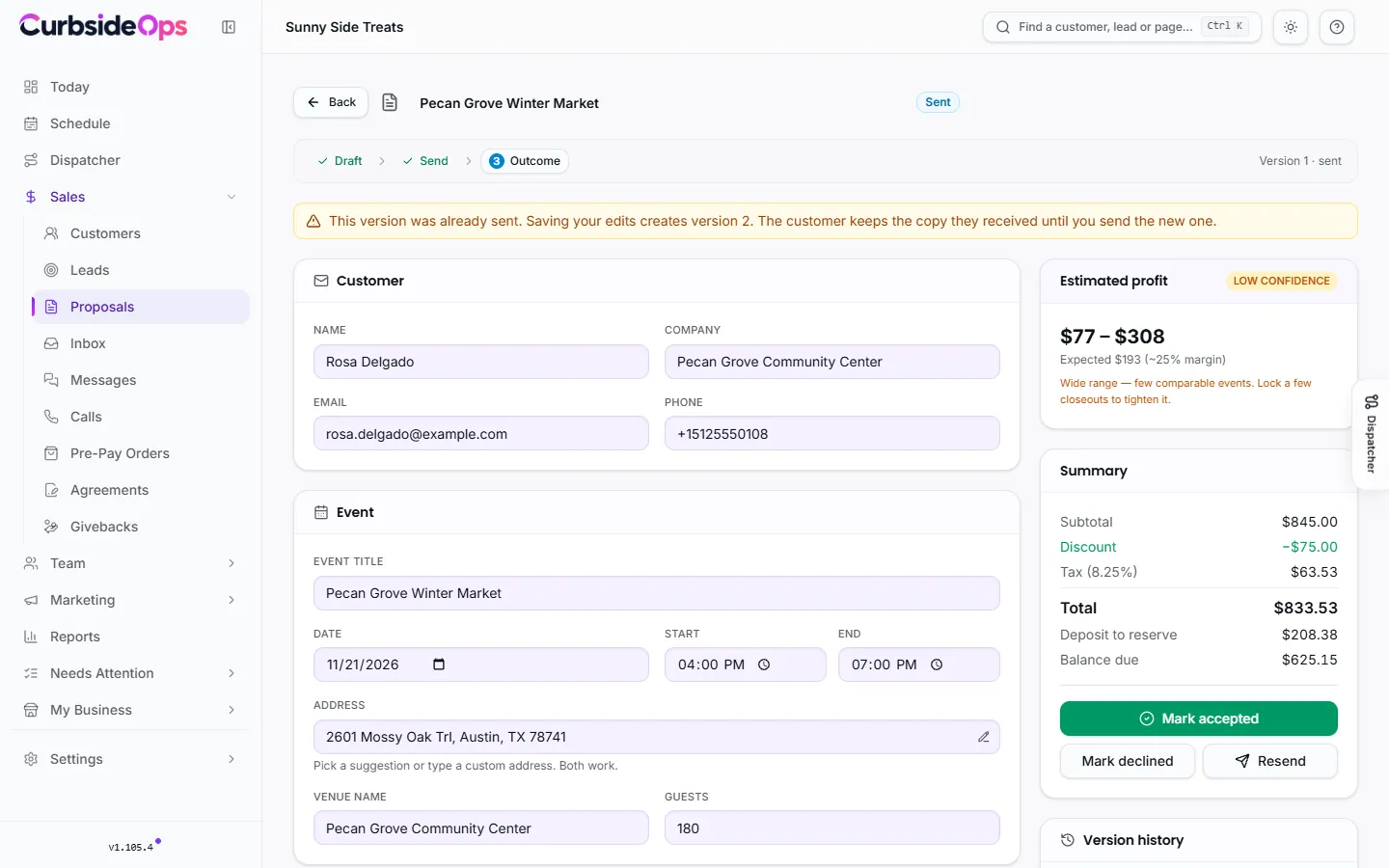
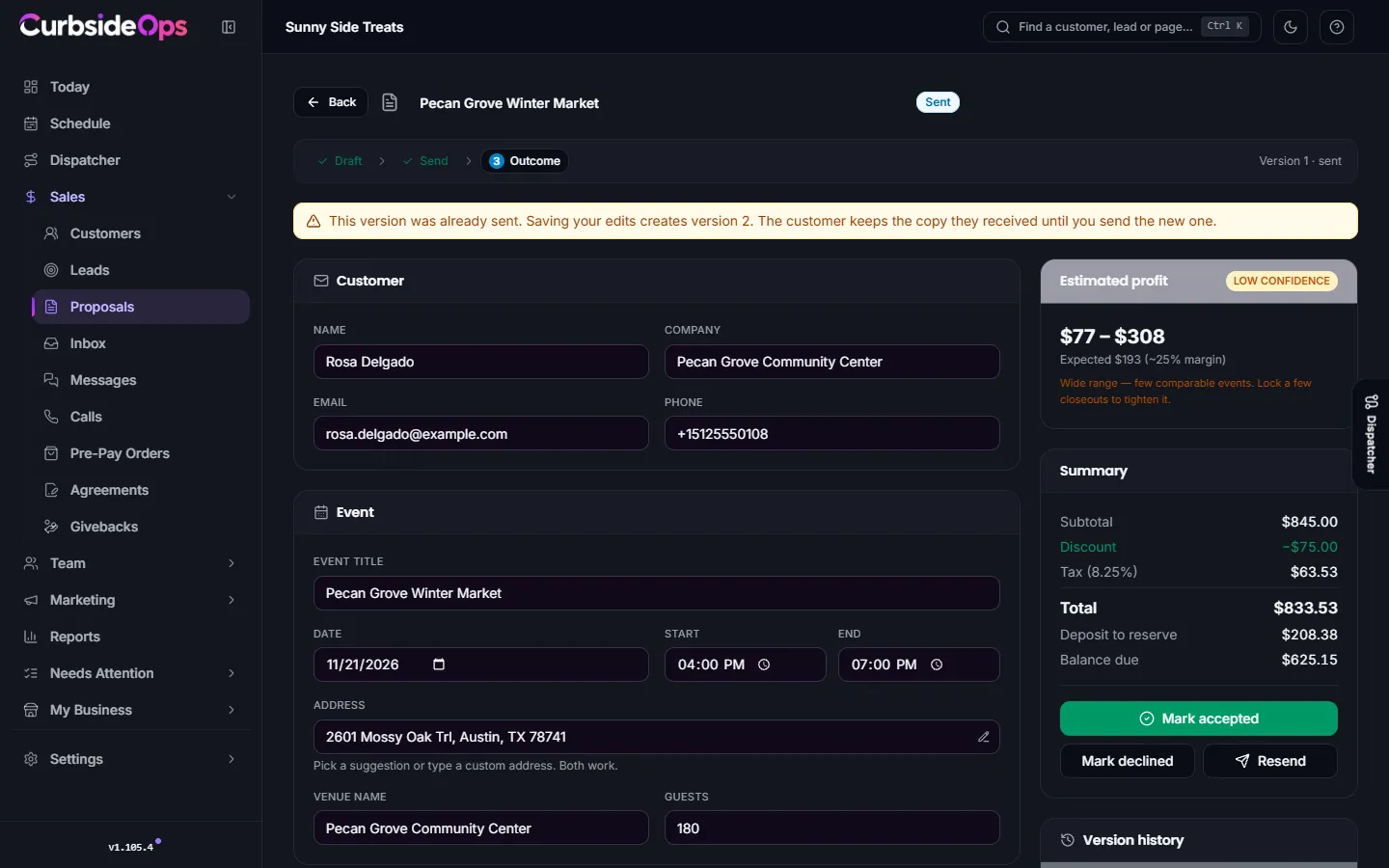
- Customer and Event: check the name, email, date, time, address and guest count. If they no longer match the lead, a button offers to update the lead too.
- Line items: click Add from menu to pull in packages and menu items, or Custom item for anything else. Lines can be a package, menu item, fee, travel or discount, and each can be taxable or not. Lines that come from your pricing arrangement are tagged From terms.
- Pricing & terms: Use a pricing template to price from one of your arrangements, or Change template to switch. Edit terms for this proposal changes the terms for this quote only. Set the Tax rate (%), Valid until, a Payment note and any Additional terms here.
- Policies: tick the agreements to include. Each is marked Signature or Info only.
The summary shows the subtotal, discount, tax, total, Deposit to reserve and Balance due.
Deposits
When the proposal is priced from an arrangement, the deposit comes from that arrangement's payment settings (a percent of the total or a fixed amount). Without an arrangement, choose No deposit, Fixed amount or Percent of total right on the proposal. See Pricing arrangements.
Sending it
Save
Click Save draft. If the AI drafted the proposal, click Review & approve first.
Send
Click Send to customer, then Send proposal. The customer gets a branded email with a PDF copy attached, sent from your brand's connected Gmail account.
Wait for the answer
Sending moves the lead to Quoted. The proposal shows Sent, with how many days are left before it expires.
Sending locks that version. If you edit it afterwards, saving creates a new version, and the customer keeps the copy they received until you send the new one. Resend sends it again.
What the customer does
The email links to a page that needs no login. The customer sees the event, the line items, the totals, how long the offer is valid and the included policies. To accept, they type their full name and click Accept proposal.
When they accept:
- If there is a deposit and Square is connected, a Square invoice for the deposit is created and Square emails it to the customer. They pay it by card from that email.
- Agreements that need a signature go out for e-signature, and info-only ones go out as PDF copies (agreements need Professional and a customer with an email).
- You get a notification.
If the customer accepts by phone or in person, click Mark accepted (or Mark declined) yourself. The same agreements can go out from there.
Accepted proposals are locked
Once accepted, the terms are fixed. To change something, click Revise proposal and the customer can accept the new version online. The accepted terms stay in force until they do.
Automatic reminders
Two automations chase proposals and deposits for you. Both are off until you turn them on in Automations, and both need Gmail connected:
- Proposal Follow-up reminds the customer when a proposal sits unopened or unaccepted, warns them 48 hours before it expires, and marks expired proposals for you.
- Deposit Reminder reminds the customer about an unpaid deposit invoice at 3 and 7 days, tells you when the second reminder goes out, and flags a deposit as overdue after 10 days. It also needs Square.
Expiry, cancelling and deleting
- Expiry: with Proposal Follow-up on, a proposal past its Valid until date is marked expired. An expired proposal can no longer be accepted, and the customer sees a note asking them to reply for a fresh copy.
- Cancel deal: if the customer backs out after accepting, click Cancel deal and give a reason. The proposal is marked cancelled (the accepted terms stay in its history), the job is cancelled, and an unpaid deposit invoice is voided in Square. A deposit that was already paid has to be refunded from Square. You can also mark the lead as lost in the same step.
- Delete: a draft that was never sent can be deleted with Delete draft, and the lead stays. Sent, accepted, declined and expired proposals cannot be deleted, so your history stays complete.
Once a proposal is accepted, book the event from the lead or from the proposal with Book it. See Leads.
Still stuck? Email support@curbsideops.com or use Report an Issue in the portal. Checked against CurbsideOps 1.105.4.
Calls
Every incoming call matched against your customers, with a live banner while the phone rings and one click to turn a call into a lead.
Pricing arrangements
Write down how you charge once per brand (Menu, Package, Minimum or your own terms) and every quote, proposal and invoice uses the same math.