

Organizations
Group customers under the school, company or church they book for, keep tax-exempt forms on file and sort organizations into your own categories.
An organization is the school, company, church or league a customer books for. Linking people to an organization keeps its contacts together, lets its tax-exempt status apply to everyone in it, and lets reports group your sales by the kind of organization you serve.
Organizations live on the Organizations tab of Customers.
The Organizations list
Search by name, filter by Category (including Uncategorized) or by whether an organization has contacts, and sort by Recently updated or name. Click New organization to add one. You can also create one while adding a customer or an event.
To set a category for many organizations at once, tick them, choose a category in Pick a category in the bar at the bottom of the screen and click Set category. Clear the category removes it.
The organization page
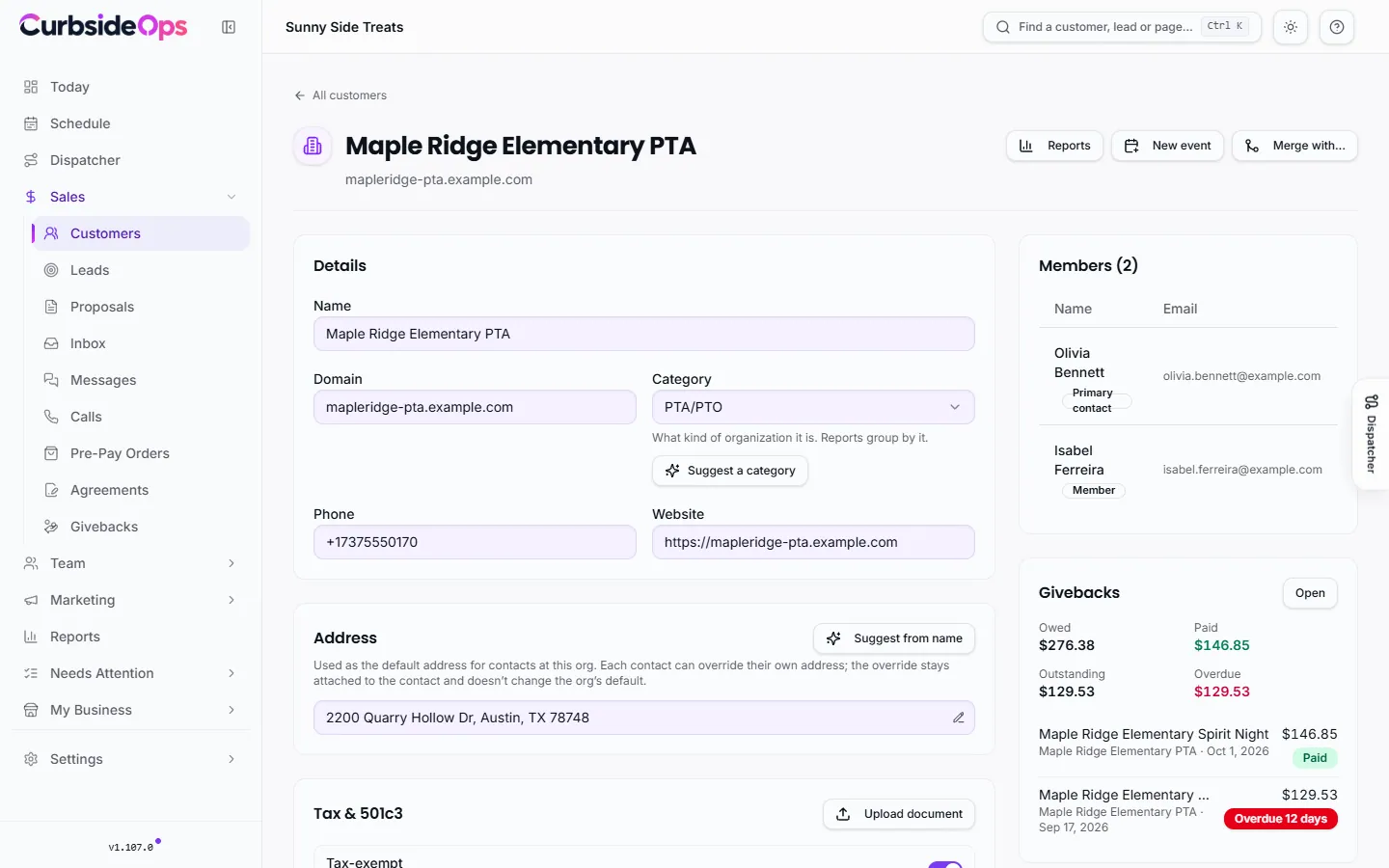
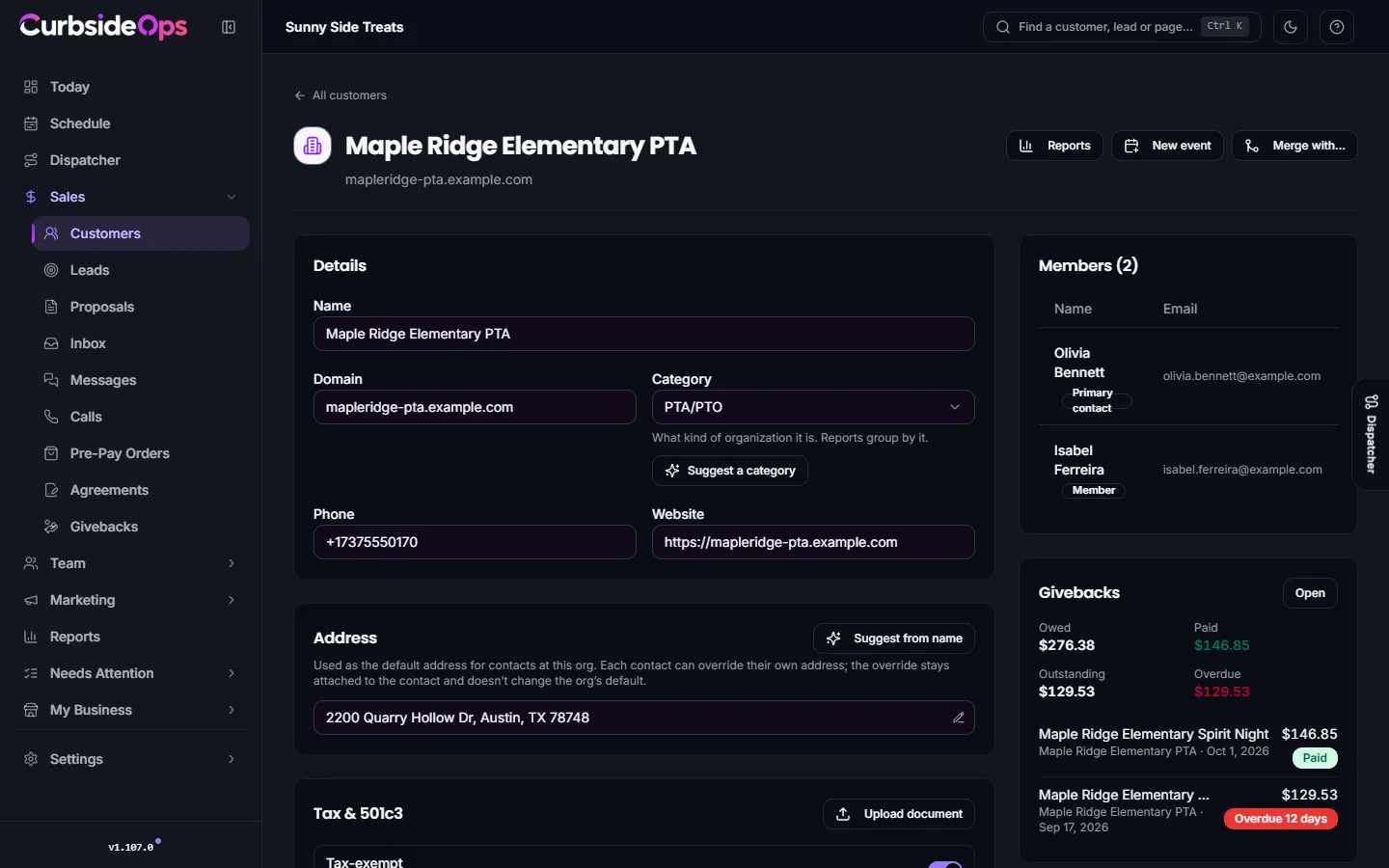
Open an organization to see and edit:
- Details: name, domain, Category, phone and website. If the organization came from HubSpot, its HubSpot industry shows here, read only.
- Address: the default address for its contacts. Each contact can still have their own. Suggest from name looks up likely addresses for you.
- Tax & 501c3: the Tax-exempt switch applies to every member contact who has not set their own. Click Upload document to keep a 501(c)(3) letter, W-9, tax-exempt certificate, contract or invoice on file. Files are stored privately, so only your team can open them.
- Notes, and the list of Members.
Click Save changes when you are done. If you give a tax form an expiry date, a banner warns you 60 days before it expires so you can ask the customer for a new copy.
Tax-exempt starts here
Uploading a 501(c)(3) letter or tax-exempt certificate with Set as the org's tax-exempt form turned on marks the organization tax-exempt in one step. Its events then go out without sales tax unless a contact or an event says otherwise. See Event sales and invoices for how the tax rate is chosen.
Categories: your own list
Each organization can have one category, such as School, Church or Corporate. Reports group your sales by it, and organizations without one show up as "Uncategorized".
The list belongs to you. Edit it in Business Settings under Organization categories:
- Add category to add a label (up to 40 characters, and up to 50 categories).
- The pencil renames a category. Every organization tagged with the old name takes the new one.
- The trash icon removes a category from the picker and the reports. Organizations already tagged keep the label until you change them.
- Reset brings back the default list.
If you connect HubSpot, the category can also sync to HubSpot as a company property called "CurbsideOps category".
AI category suggestions
Sorting a long list by hand is slow, so CurbsideOps can suggest a category for each organization. It looks at the name, website, contacts and the events the organization booked. Nothing changes until you apply a suggestion.
On one organization: under Category, click Suggest a category for me. A suggestion shows how sure it is (Strong match, Likely or Unsure) and why. Click Apply, choose a different category with Pick another, or click Keep as it is. Your choice saves right away.
For many organizations at once:
Open the review
From the ... menu on Customers, choose Categorize organizations with AI.
Find suggestions
Click Find suggestions for your uncategorized organizations. This runs in the background, so you can leave the page and come back. Click Stop to end it early.
Review
Each row shows the suggested category and how sure it is. Some suggestions come from the name alone ("From the name"), others from the AI. The fairly sure ones are already ticked. Change any category you disagree with, and untick rows you want to leave alone.
Apply
Click Apply to set the ticked categories, or Keep as they are to dismiss them.
Suggestions use a small amount of AI Credits. Organizations with no clear match are listed under No clear match so you can pick those by hand.
Merging two organizations
When the same school or company was entered twice, merge them. The account owner can do this with Merge with... on the organization page, or from the duplicates review (Review duplicate organizations in the ... menu).
In the review you pick which organization to keep and, where the two disagree, which name, domain, phone, website, category and address to keep. Then:
- Every contact, event, sale, giveback and document moves to the one you keep. A contact who was in both is listed once.
- Empty details are filled in from the other record, and both sets of notes are kept. A name or domain you did not keep is saved in the notes.
- If either one was tax-exempt, the merged organization is too. It uses the tax form that stays valid the longest, and the other form stays in its documents.
- If both are linked to HubSpot, the two companies are merged in HubSpot too.
The other organization is then removed, and that cannot be undone. If two records are really different (two campuses of one school, for example), click Not the same organization in the duplicates review and the pair stops coming back. See Finding and merging duplicates.
Still stuck? Email support@curbsideops.com or use Report an Issue in the portal. Checked against CurbsideOps 1.105.4.