

Customers
Your list of people, each customer's page and history, groups, CSV import and the optional HubSpot sync.
Customers holds the people and organizations you serve. Every lead, proposal, event, invoice, email and text gets linked to a customer record, so opening a customer shows their whole history with you. You can run it all inside CurbsideOps or keep it in sync with HubSpot.
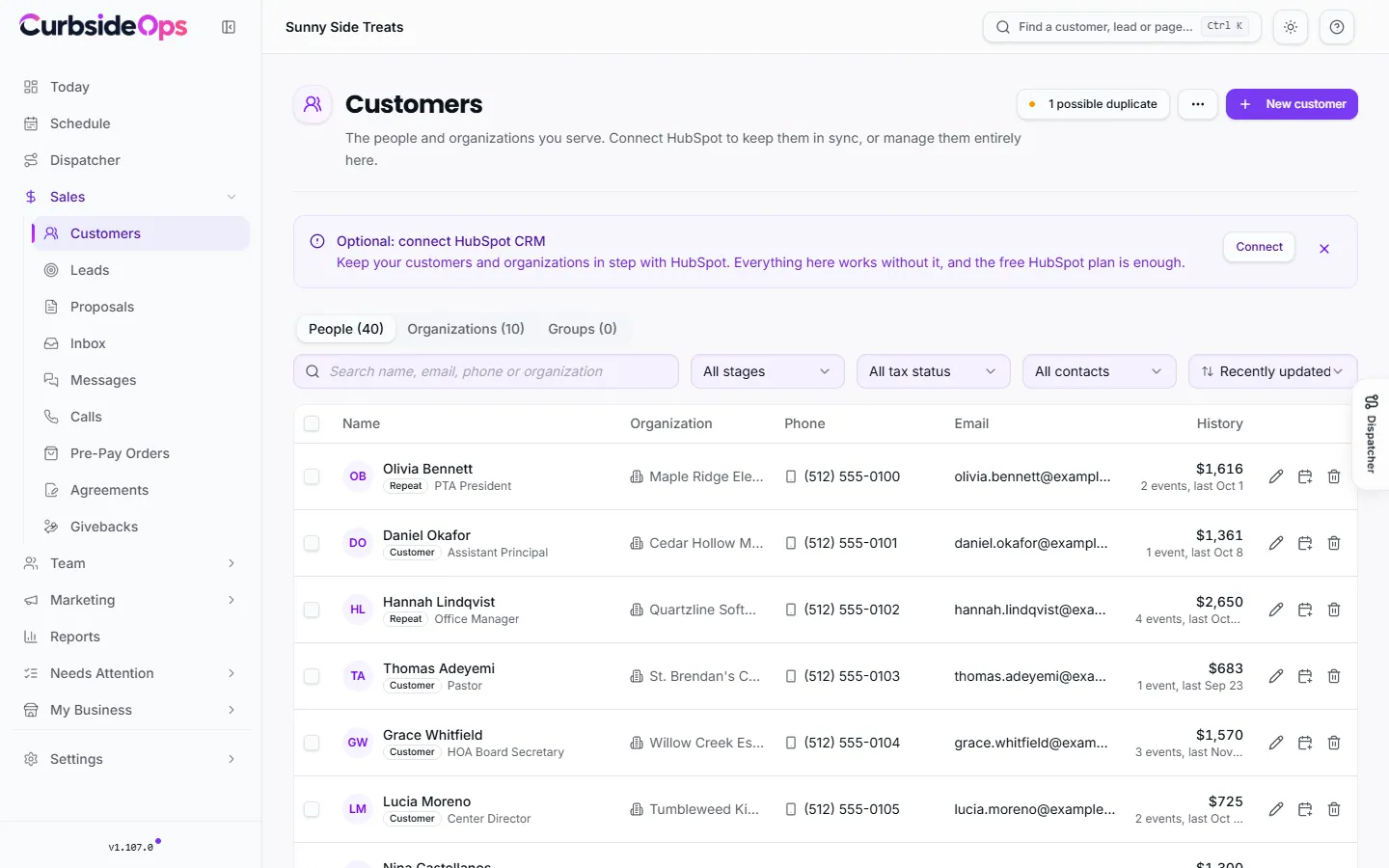
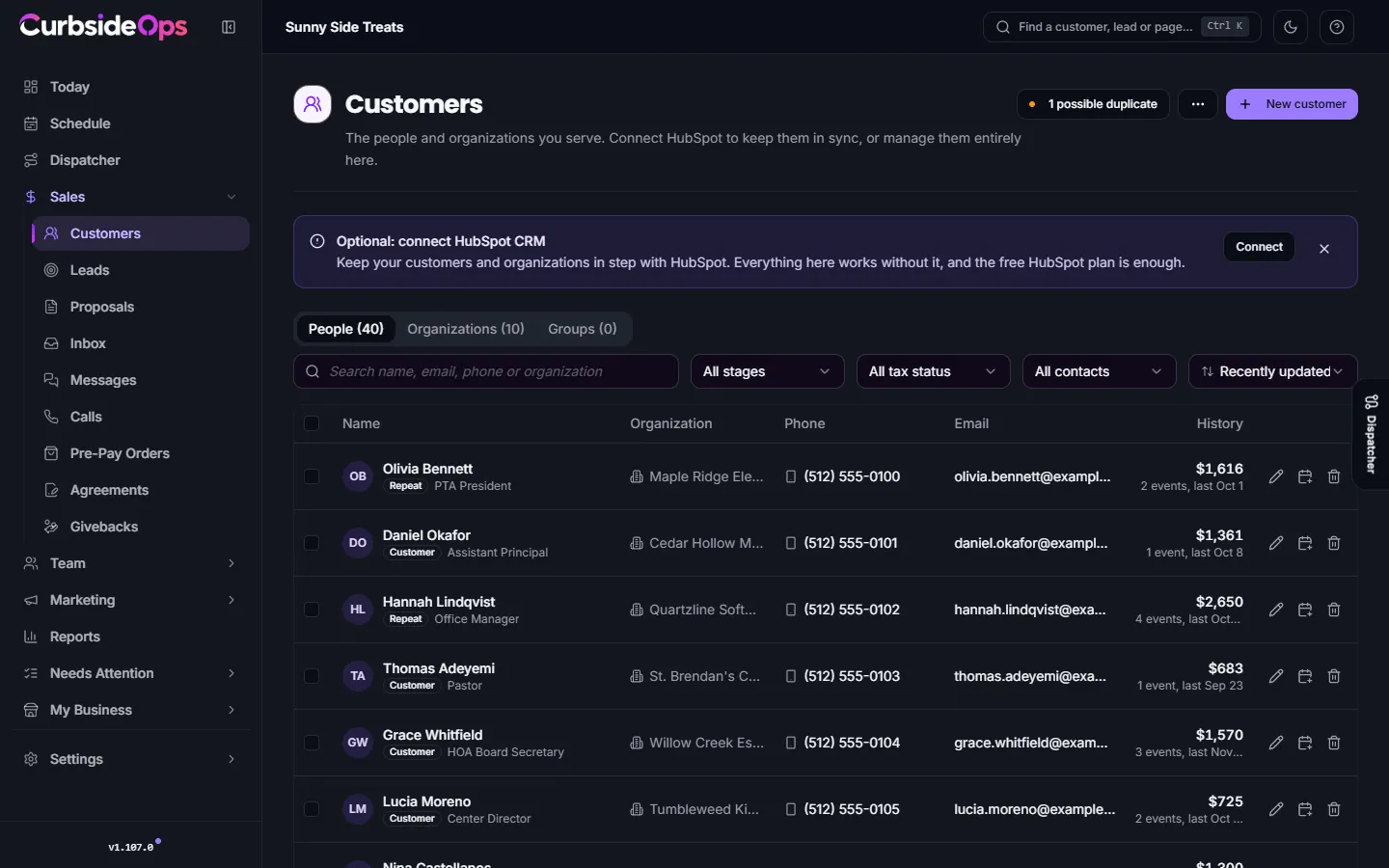
The People list
The page has three tabs: People, Organizations and Groups. On People you can:
- Search by name, email, phone or organization.
- Filter by stage (Leads, Opportunities, Customers, Repeat), by tax status (Tax-exempt or Taxable), or to people who have a mobile number (Has mobile).
- Sort by Recently updated, name or Highest value.
The History column shows what each person has spent with you over time, how many events they have booked and when the last one was. A No texts badge means that mobile number has opted out of texts.
Adding customers
Open the form
On the People tab, click New customer.
Fill in what you know
A name, email or phone is enough. You can also add an organization, a work phone, a Mobile (SMS) number, an address, Payment terms, a Sales tax % and notes.
Create
Click Create. If the email already belongs to a customer, CurbsideOps opens that customer instead of making a second record.
Most customers are created for you by leads, bookings, calls and the inbox.
The customer page
Click a row to open the customer. The top of the page shows their contact details, stage, and badges for HubSpot, Tax-exempt, No texts and No email. Below that:
- Total events, Lifetime sales, Last event and Next event.
- Upcoming events, Leads, Past events and Communications (the emails and texts you sent and received).
- Internal notes for your team. They save as soon as you click outside the box.
- Billing & compliance: tax-exempt status, sales tax, payment terms, and whether texting and email are allowed.
- Activity timeline: everything that happened with this customer, newest first.
The buttons at the top let you Call, Email, SMS and start a New event with the customer's details filled in. Reports shows their sales by month.
A Quiet customer notice appears when someone who has booked before has gone 90 days without an event. Click Reach out to follow up.
Editing details, emails and opt-outs
Click Edit. Besides name and contact details, you can:
- Add Other emails. Messages from those addresses are matched to this customer instead of creating a new one.
- Set the Lifecycle stage.
- Turn on Tax-exempt (this overrides the organization's setting) or set a Sales tax %.
- Turn on Do not SMS or Do not email. These block every text or email to the customer, even ones the assistant or an automation would send.
Tax-exempt forms (such as a 501(c)(3) letter) are uploaded on the customer's organization page. See Organizations.
Delete is owner only, and merging is usually better
Only the account owner can delete a customer (in the Edit dialog, under Danger zone). Their events, proposals and invoices stay but lose the link to them. If the record is a duplicate, merge it instead so nothing is lost. See Finding and merging duplicates.
Groups
Groups are colored tags such as "VIP", "Caterer" or "School". Create one with New group on the Groups tab. To add people, tick them on the People tab, pick the group in the bar at the bottom of the screen and click Add to group. Open a group to rename it or remove members. Deleting a group never deletes the customers in it.
Importing a CSV
Pick the file
Open the ... menu and choose Import customers from CSV. Pick a .csv file whose first row holds the column names.
Match the columns
CurbsideOps guesses each column from its header. Check the Maps to choices. An email column is required.
Import
Check the preview and click the Import button, which shows how many rows will be imported. The results show how many customers were created, updated and skipped, and why.
Imports match on email, so you can import the same file twice without creating duplicates. A row matching an existing customer only adds an organization when the customer has none. Names and phone numbers already on file are never changed. Rows without a valid email are skipped. One import takes up to 5,000 rows.
HubSpot sync
HubSpot is optional. Connect it on the Integrations page and CurbsideOps keeps your contacts and companies in step with it. Use Sync now at the top of the page to pull the latest changes right away.
- The newer edit wins. When a contact was changed in both places, the most recent change is kept. An empty field is always filled from the other side.
- Nothing gets lost. If an email is replaced in HubSpot, the old one stays on the customer as an extra email. Stages only ever move forward.
- Deleting in HubSpot unlinks, it never deletes. The customer stays in CurbsideOps and gets a note on their timeline.
- Stages come from bookings. One completed event makes someone a customer, and a second one makes them a repeat customer.
- Some things stay private. Tax details, opt-outs, notes, addresses and groups are never sent to HubSpot.
If a sync fails, a banner shows the problem. Your changes in CurbsideOps are saved either way.
Still stuck? Email support@curbsideops.com or use Report an Issue in the portal. Checked against CurbsideOps 1.105.4.
Event sales and invoices
Record what happened at an event, let its pricing arrangement work out the total and tax, and send a Square invoice for the balance.
Organizations
Group customers under the school, company or church they book for, keep tax-exempt forms on file and sort organizations into your own categories.