

Agreements
Write rental agreements and policies once per brand, send them for e-signature by email or text, and see who has signed.
Agreements holds the documents your customers sign or keep: a catering service agreement, a cancellation policy, a liability waiver, a photo release. You write each one once per brand. CurbsideOps fills in the customer's and event's details when you send it, and the customer signs online with no login.
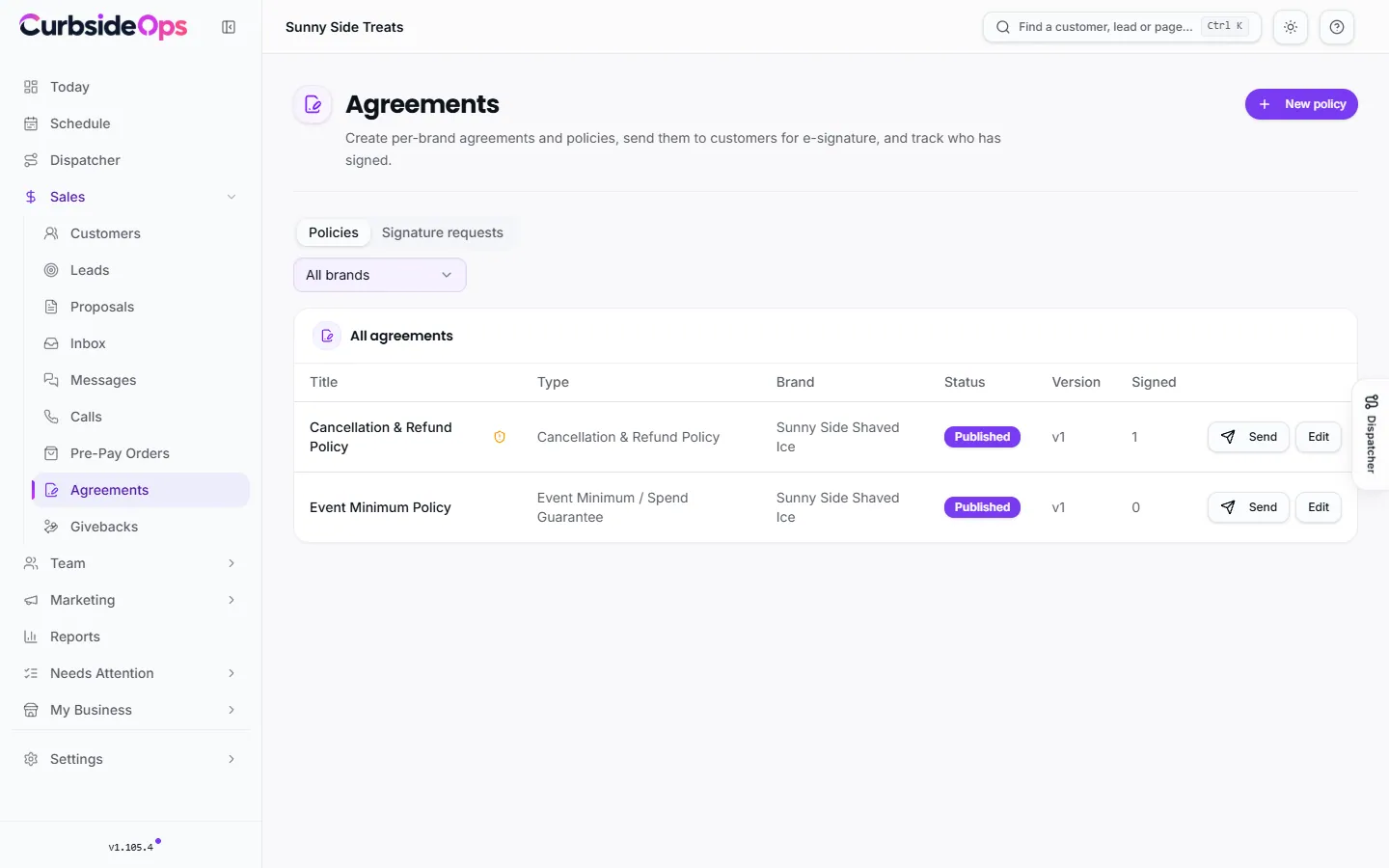
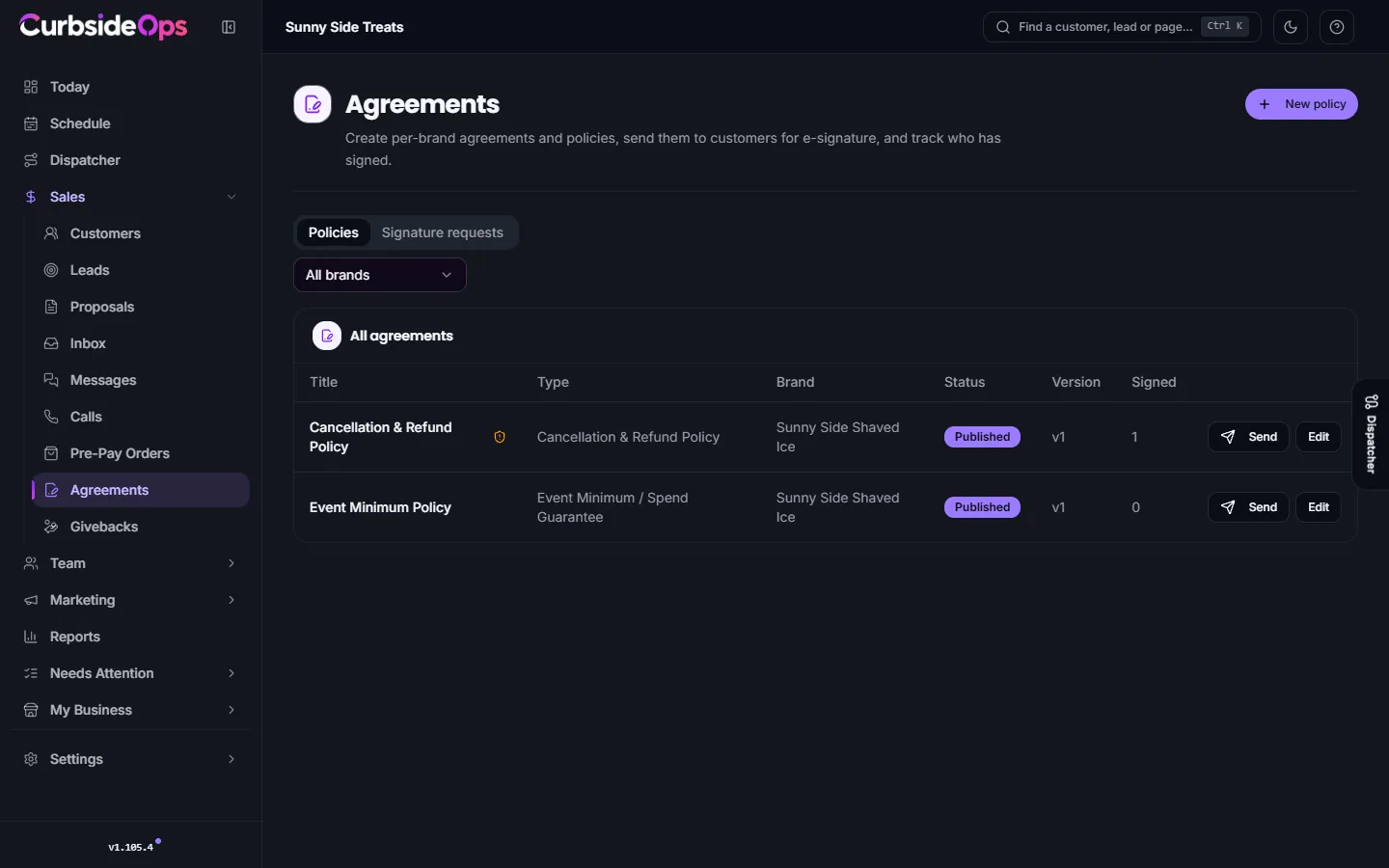
The page has two tabs: Policies (your documents) and Signature requests (what you have sent and who has signed).
Creating an agreement
Start
Click New policy, pick the brand and the Policy type: for example Catering Service Agreement, Cancellation & Refund Policy, Deposit & Payment Policy, Liability Waiver & Release, Photo / Media Release or Custom Policy.
Draft it
Click Generate with AI to have a first draft written from your business and products, or Start blank. The AI never makes up names, prices or dates. It leaves a placeholder wherever a real value belongs.
Edit
Change anything in the editor. Use the Insert row to add placeholders such as Customer full name, Event date or Deposit amount.
Publish
Click Publish. Only published documents can be sent.
Have a lawyer review any agreement before you rely on it.
Versions
Each publish is a version (v1, v2 and so on). Editing a published agreement starts a new draft, and Publish update makes it the current version. A customer who signed always keeps the version they signed. If they signed an older version, the event shows that, and you can send the new one.
Two settings save as soon as you flip them:
- Required: warns you when an event's customer has not signed this agreement.
- Needs signature: whether sending asks for a signature by default. Turn it off for documents that are for the customer's records only.
With more than one brand, Copy to brand rewrites an agreement for another brand as a new draft.
Placeholders, and why Send can be disabled
Placeholders are filled in at the moment you send:
- Brand details (business name, address, phone, governing-law state) come from the brand.
- Customer details come from the customer record.
- Event details (event name, date, address, guest count) come from the event, so they only fill when you send from an event.
- Booking details (total, deposit, balance, minimum, service charge) come from the event's Sales.
A document never goes out with a blank where a value should be. Before you can click Send, CurbsideOps checks every placeholder. If any would be blank, Send stays disabled and each one is listed with the reason and the fix: for example "The customer record has no Customer phone" or "Only fills when the policy is sent from an event."
Some placeholders have no source
Event type and Security deposit are not stored anywhere in CurbsideOps. An agreement that uses them cannot be sent until you replace them with the real value in the editor.
Sending for signature
From the Agreements page: click Send, choose the Customer (or click Not a customer yet? to type an email address), optionally Link to an event, and leave Request signature on. Click Send for signature. With Request signature off, the button reads Send copy and the customer gets a PDF for their records.
From an event: use the event's Send policy button. Event and booking details fill in from that event.
From a proposal: tick agreements on the proposal. When the customer accepts, the ones that need a signature go out for signature and the rest go out as copies. See Proposals and deposits.
From a conversation: in the Inbox or Messages, click the paperclip and choose An agreement. Choose Send a copy or Ask to sign. By email, a copy goes as a PDF attachment and a signing link goes under your reply. By text or direct message, both go as links.
Emails come from your brand's connected Gmail account.
The signing page
The customer opens the link and reads the document. To sign, they type their Full legal name, can add a typed or drawn signature, tick the consent box and click Agree & sign. Liability waivers also ask them to acknowledge each key point. Signing links expire after 30 days.
When they sign, the customer is emailed their signed copy and you get a Telegram notice.
Reminders and tracking
The Policy Signature Reminders automation (on by default) emails customers who have not signed after 2 days, then every 2 days until they sign or the link expires. Turn it off in Automations. Requests sent by text are not reminded.
The Signature requests tab lists every request as Pending, Viewed, Signed, Expired, Cancelled or Copy sent, plus Not sent when delivery failed. Use Remind to nudge someone now, or Revoke to stop a link working. To send again on the current version, open the agreement's Signatures tab and click Resend.
Signed requests are always kept and cannot be deleted. Archive hides an agreement from the active list without losing any signed copies.
Still stuck? Email support@curbsideops.com or use Report an Issue in the portal. Checked against CurbsideOps 1.105.4.
Finding and merging duplicates
Spot the same person or organization entered twice, merge them without losing anything, and tell CurbsideOps when two records are different.
Pre-Pay Orders
Let guests order and pay ahead for an event from a link or QR code, then hand out orders at the truck from one list.