

Leads
Every catering inquiry in one place, from first message to booked event, with the facts collected for you.
A lead is one possible booking. Whether it started as an email, a text, a phone call, your website's inquiry form or a lead you added by hand, it lands on the Leads page. It stays there while you collect the details, quote it and book it.
The Leads board
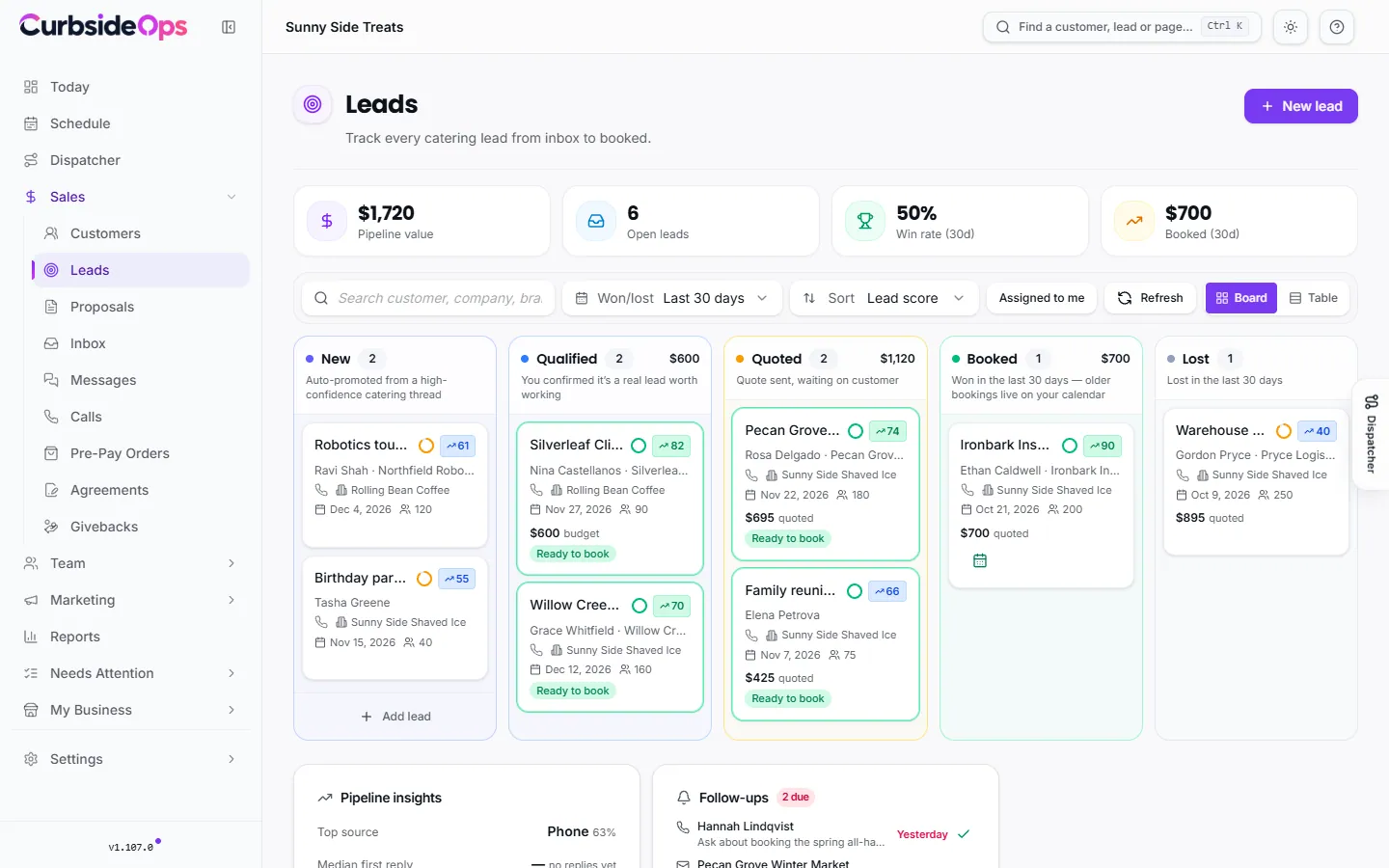
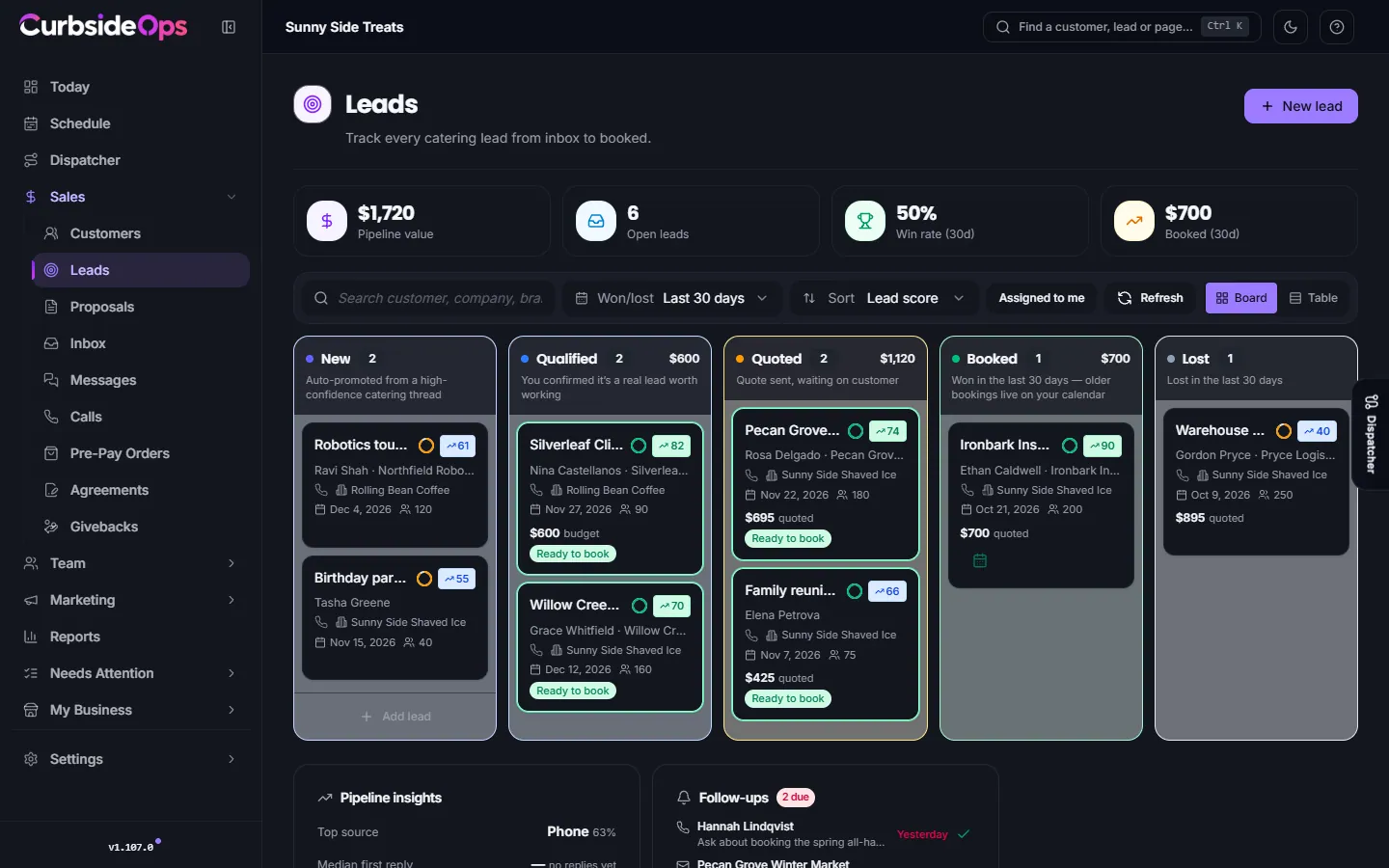
Leads move through five columns: New, Qualified, Quoted, Booked and Lost. Catering emails and calls land in New on their own. Open a lead and use the stage steps at the top to move it along.
- The tiles at the top show Pipeline value, Open leads, Win rate (30d) and Booked (30d).
- Search by customer, company, brand or address. Sort by Lead score, Event date, Newest first, Value and more.
- Won/lost controls how far back booked and lost leads stay on the board. Active leads always show.
- Switch between Board and Table.
A card shows a ring that fills as the booking details come in, a Ready to book badge when everything is there, and Going cold when a well-scoring lead has sat in Quoted for over a week. The Going cold card on the right lists those leads. Show them filters the board, and nothing is sent to anyone.
To add a lead yourself, click New lead. Pick the brand, add a name, email or phone, and click Create lead. Date, headcount and address come next, on the lead itself.
The Lead Workspace
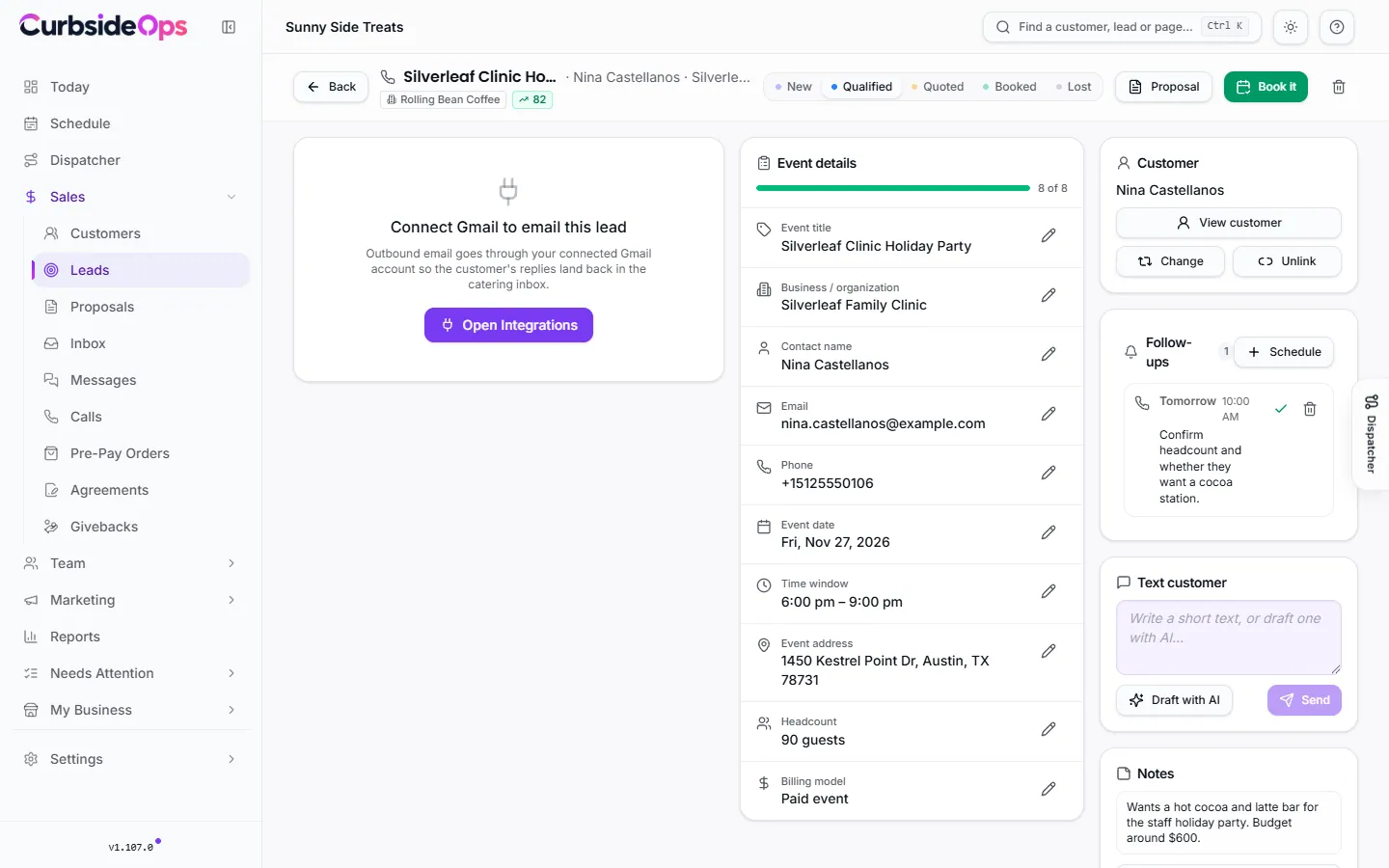
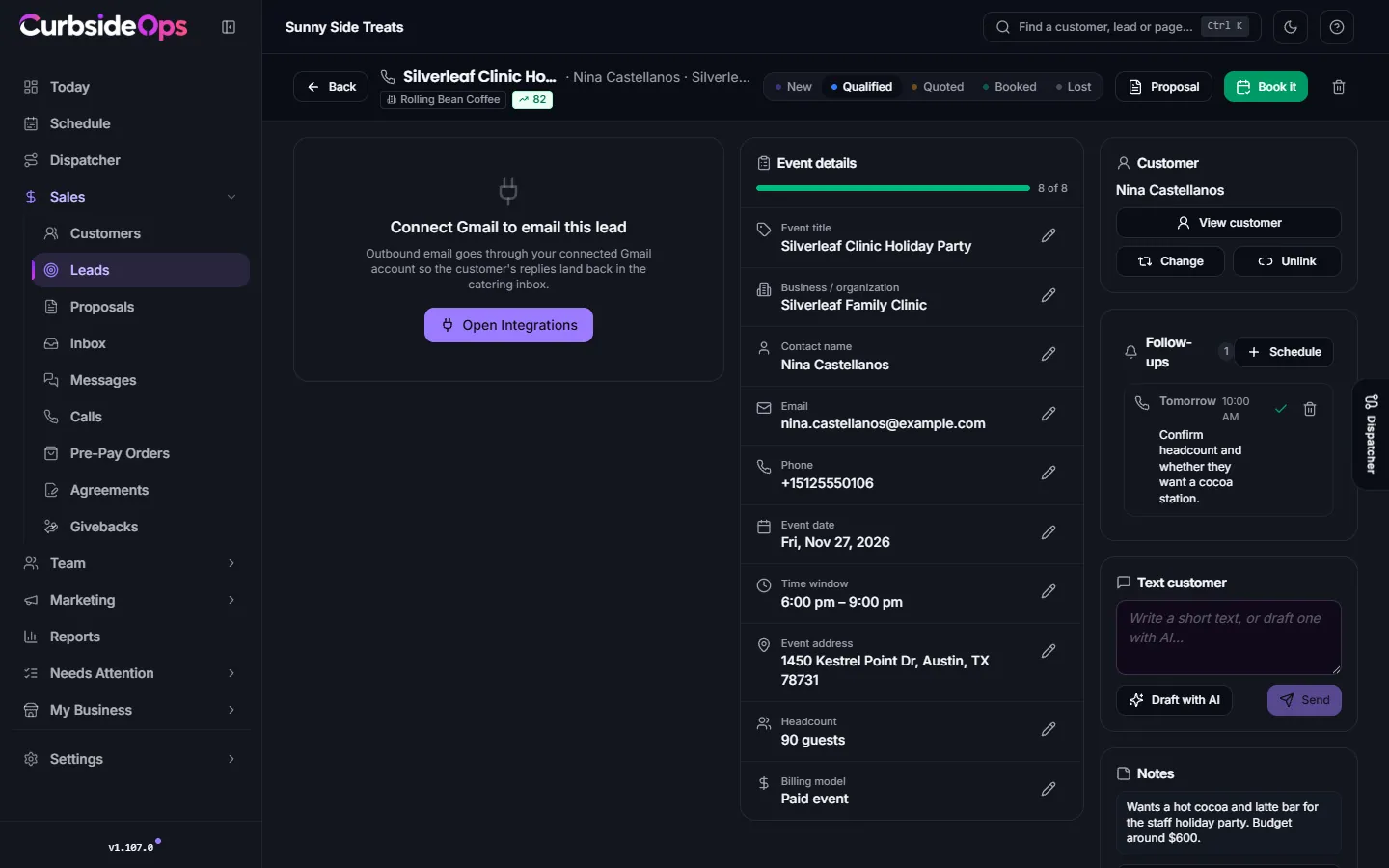
Click a lead to open its workspace. The conversation is on the left, the booking details in the middle, and the customer, follow-ups, notes and quote on the right.
Event details: the facts to book
The Event details checklist holds what a booking needs: Contact name, Email, Phone, Event date, Start time, Event address, Headcount and Billing model (Paid event or Free invite (we keep walk-up sales)). A missing one is marked as needed to book, with an Add button.
When the lead came from a conversation, the assistant fills these in as the customer writes, and keeps filling blanks on every new message. A small chip shows where each value came from: AI, You or Call. If the lead has an email thread, Ask for missing info drafts a reply asking for whatever is still open.
Your edits always win
Once you type or change a value, the assistant never overwrites it. If a later message says something different, it shows as AI suggests under that field, and you choose Accept or Dismiss.
The Quote card
For a paid event, the Quote card prices the lead from your brand's pricing:
- Pick an arrangement (if your brand has more than one) and a package from your menu. The package that fits the headcount is picked for you.
- The card shows the line items, tax, total and deposit. Use as the quote sets the quoted amount and the deposit in one click.
- Budget (customer said) is only what the customer told you, never a guess. It is used for the pipeline totals until you set a quote.
Free invites need no quote, so the card is hidden for them. See Pricing arrangements to set up packages and terms.
Follow-ups
When you promise to call someone back, write it down. On the Follow-ups card, click Schedule, choose Call, Email, Text or Other, pick a date and time, and note what you promised. Due follow-ups show in red (overdue) or amber (today), and the ones due today or overdue are listed on the right side of the Leads page. Click the check to mark one done. Follow-ups never add anything to your calendar.
Linking the customer
The Customer card links the lead to a customer record. CurbsideOps suggests matches by email, phone or name, each with a Link button, or you can use Create customer from lead.
If the link is wrong (a phone number that changed hands, for example), click Change or Unlink. Before you confirm, CurbsideOps shows what the change will affect:
- These follow the change: draft and sent proposals, the booked job, the event's sales record, and the contact lines on the calendar event.
- These stay as they are: accepted proposals and any invoice already issued. Cancel and regenerate an invoice to bill the right customer.
When the link came from a matching number, you can also remove that number from the old customer so the next text does not link them again.
Book it
When every detail is in and a customer is linked, click Book it. Check the event title and click Create booking. The event goes on your calendar under the lead's brand, the job and the event's sales record are created, and the lead moves to Booked. While something is missing, the button lists what is still needed. Clicking it twice never makes two events.
Closing a lead as lost
Move a lead to Lost to record what happened: the customer went elsewhere, price, no availability, outside your area and so on. If the lead has an email thread, you can choose to send a polite decline or a thank-you note. It opens as a draft in the inbox for you to send. Click Mark as lost to finish.
Related
Proposals and deposits turn a quoted lead into a document your customer accepts online. The Inbox, Messages and Calls are where most leads start.
Still stuck? Email support@curbsideops.com or use Report an Issue in the portal. Checked against CurbsideOps 1.105.4.